Using the app
Open Deucalion from your app menu (press the Super key and type "Deucalion"), or type
deucalion in a terminal. The app follows your desktop's light or dark style.
The window
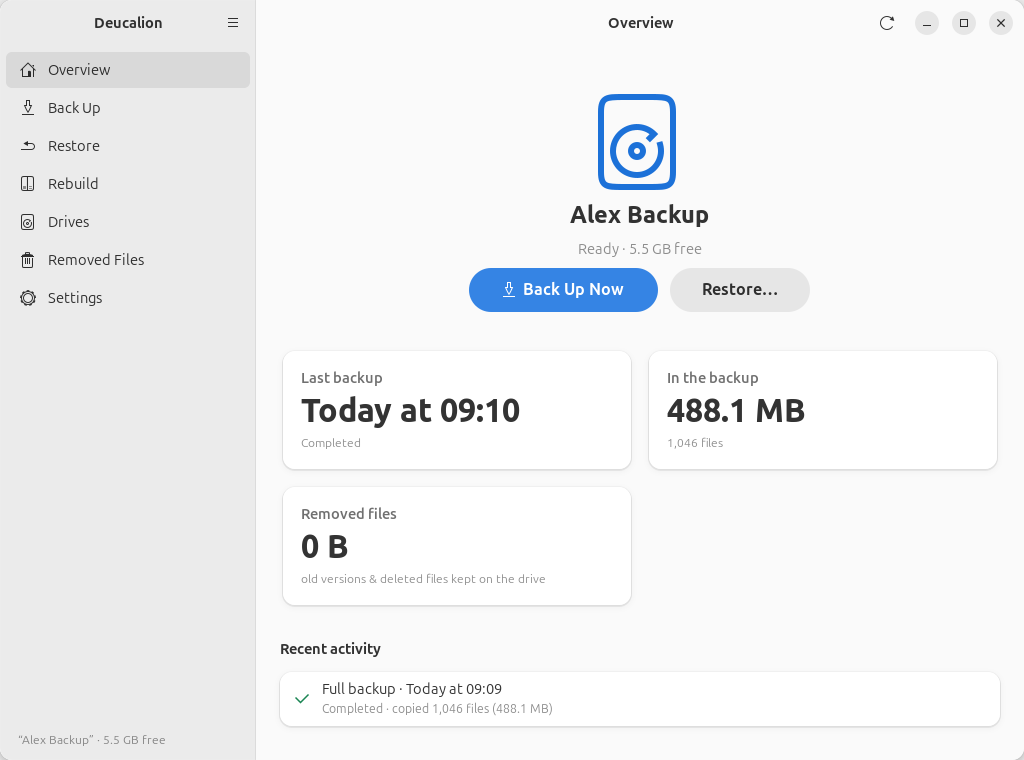
- The sidebar (left) lists the pages. Click one to open it.
- The main menu (☰, at the top of the sidebar) has About Deucalion.
- The line at the bottom of the sidebar always tells you about your backup drive: its name and free space, or that it is not connected, locked, or that there is No backup drive yet.
| Page | What it is for |
|---|---|
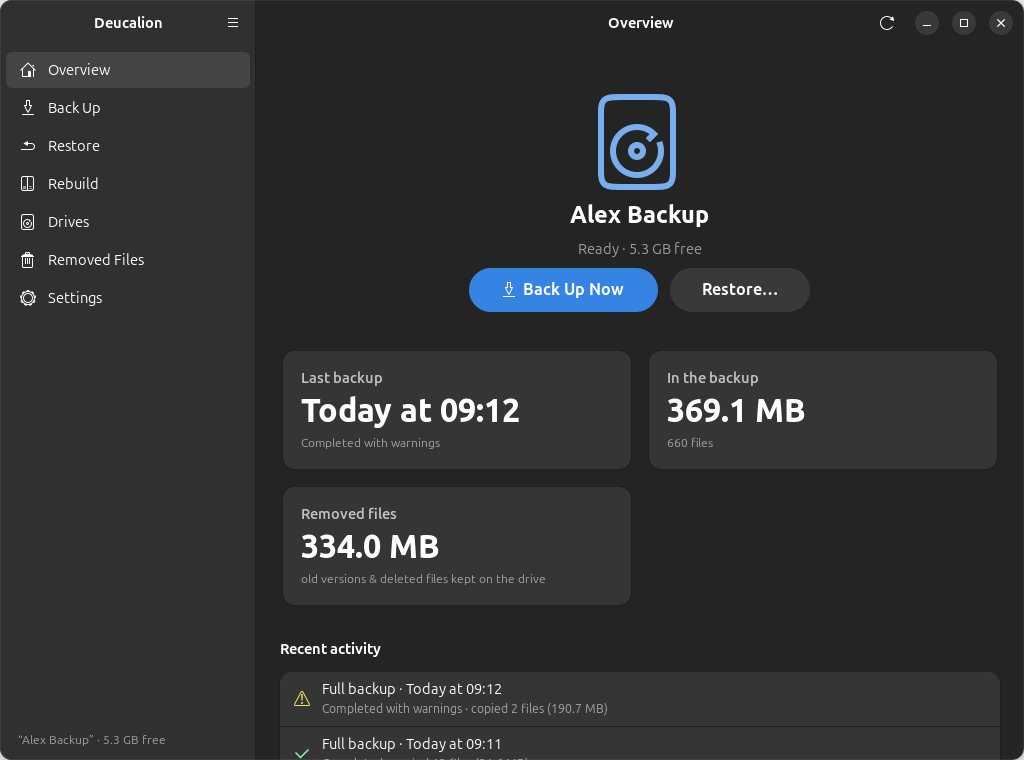
| Overview | Your backup drive at a glance, the last backups, and Back Up Now. |
| Back Up | Back up everything or chosen folders, see what will be copied, watch the progress. |
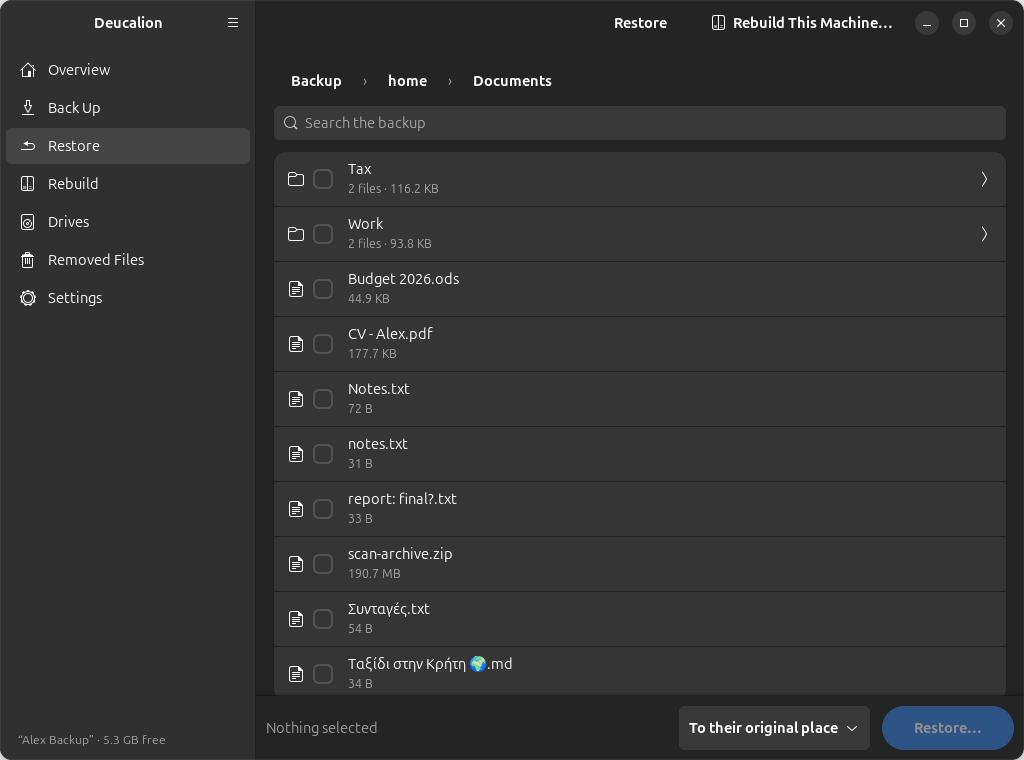
| Restore | Browse and search the backup, and restore files or folders. |
| Rebuild | Set up this computer from a backup, step by step. |
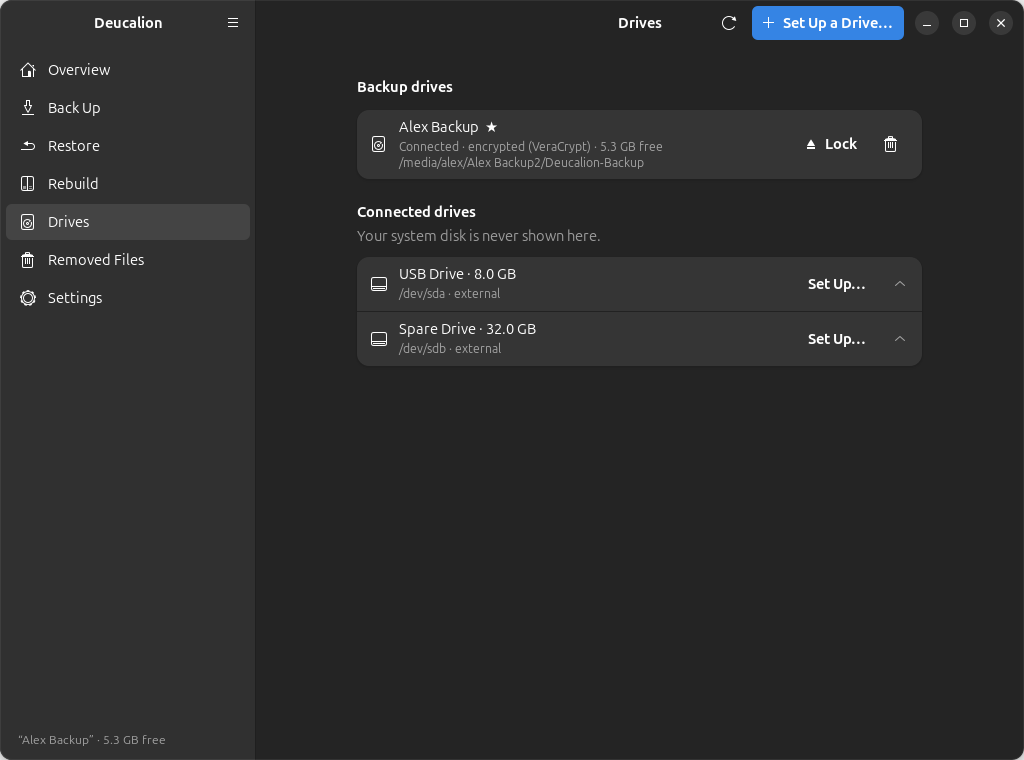
| Drives | Your backup drives and connected drives; set up a new drive; lock and unlock. |
| Removed Files | Old versions and deleted files kept on the drive; free space. |
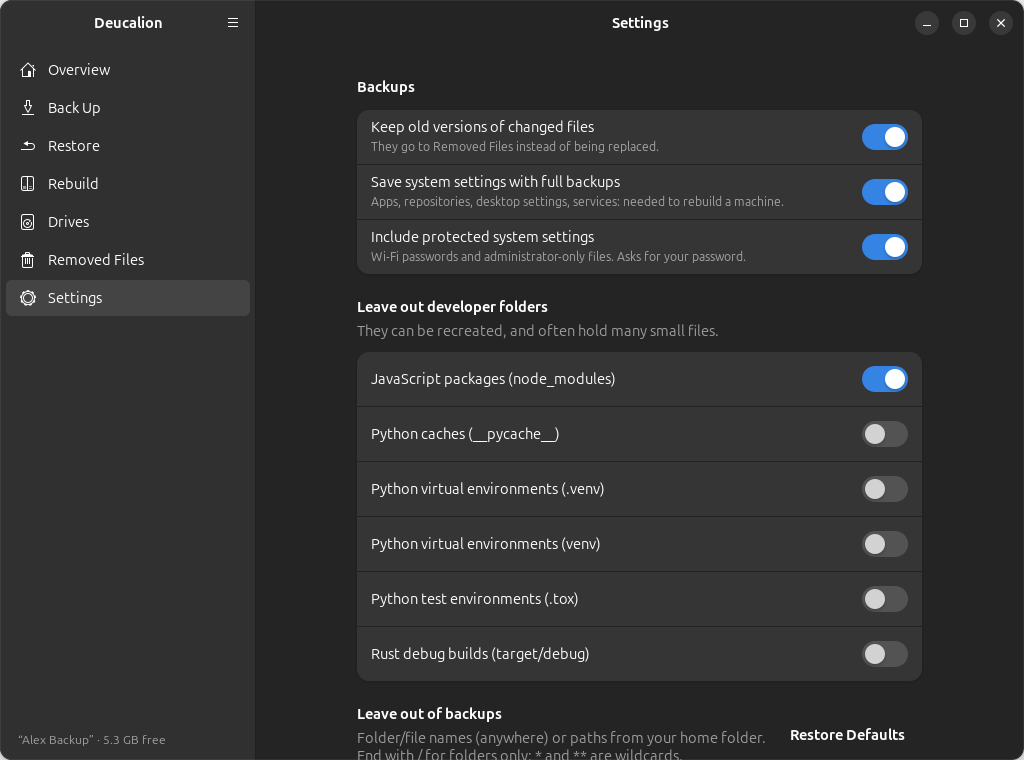
| Settings | What to leave out, extra folders, and backup options. |
| About | Version and website. |
In a narrow window
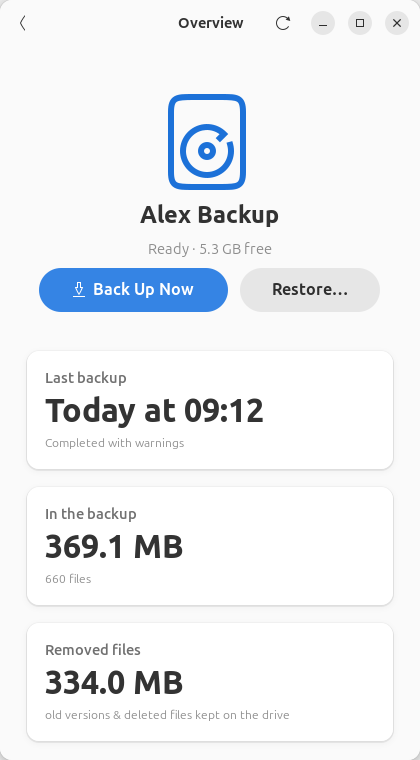
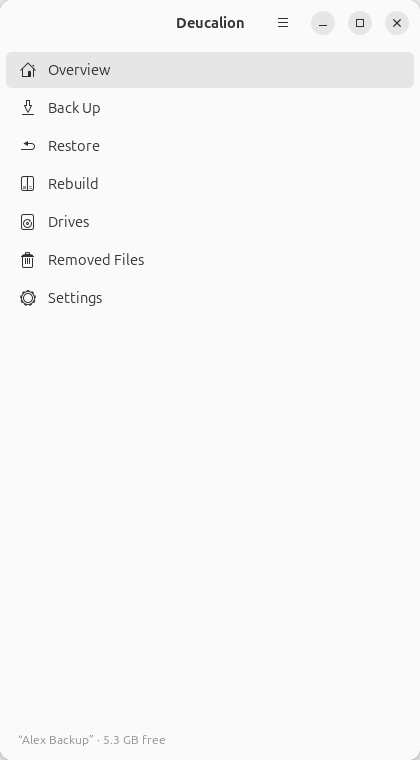
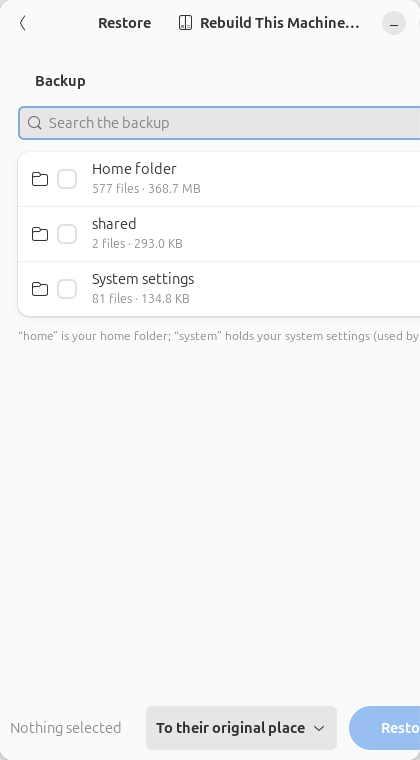
When the window is narrow (less than about 680 pixels wide, for example on half of a small screen), the app shows one pane at a time: the sidebar, or a page. Use the back arrow at the top left of a page to go back to the sidebar.
Light and dark
The app uses your desktop's style. In Ubuntu's Settings → Appearance, choose Dark and the app follows:
Long tasks run in the background
Backups, restores, rebuild steps and drive setup run without freezing the window. While one runs, you can look at other pages, but you can't start a second task on the same drive.