Removed Files
When a file changes or is deleted on your computer, the next backup keeps the old copy on the drive in Removed Files, instead of deleting it (see One copy, and Removed Files). This page shows what is kept, and lets you delete it to free space.
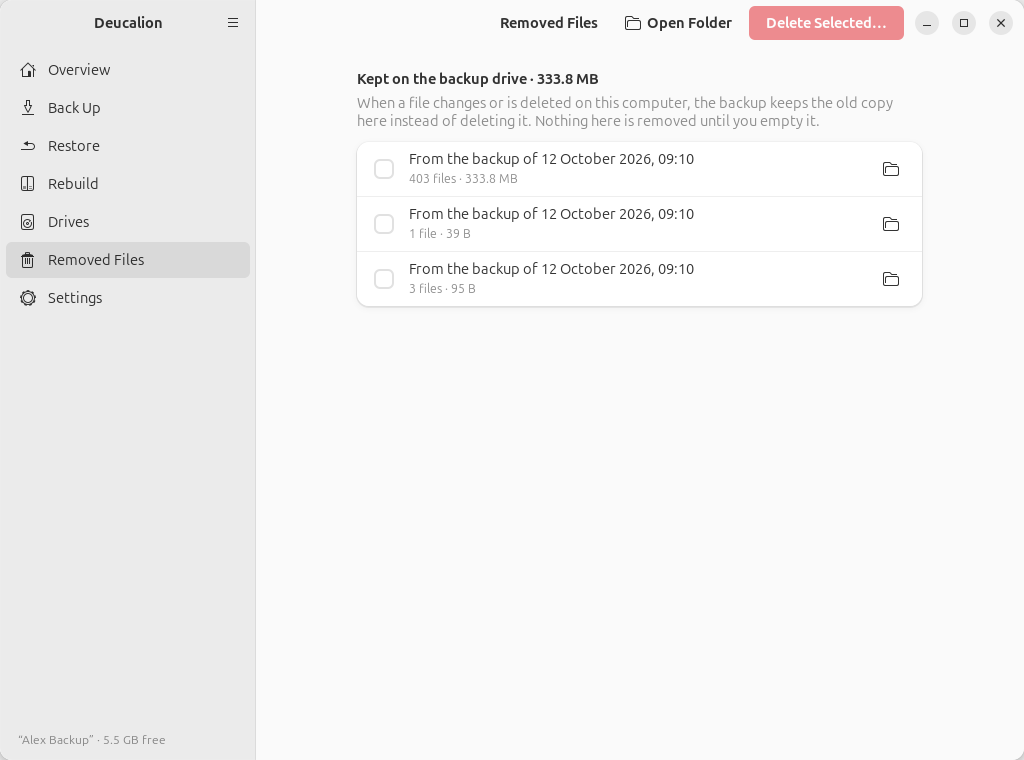
What it shows
- The total size, in the title.
- One row per backup that moved files to Removed Files, newest first: From the backup of 11 October 2026, 23:25, with the number of files and their size.
- The folder button on each row opens that group in the Files app, so you can look at or copy back an old file.
- Open Folder (top right) opens Removed Files itself (
Deucalion-Backup/_removedon the drive).
Deleting
- Tick the groups you want to delete. Older groups usually hold versions you no longer need.
- Click Delete Selected….
- Confirm with Delete. This can't be undone.
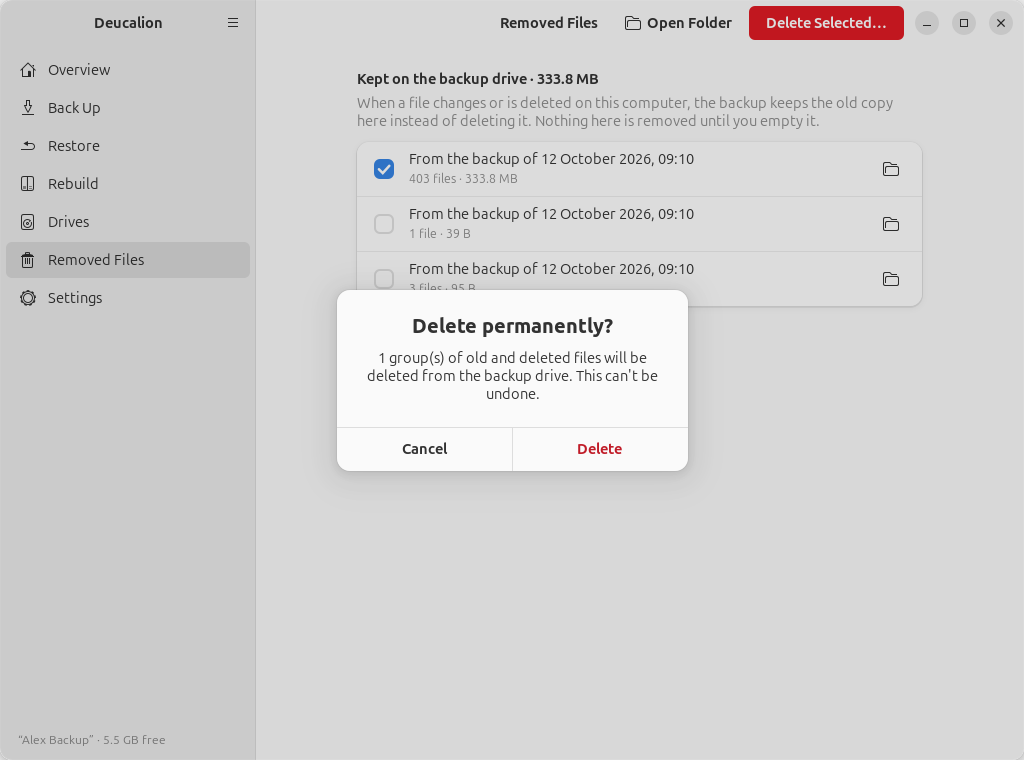
A message at the bottom of the window says how much space was freed.
Deleted for good
Files deleted from Removed Files are gone from the drive. If they are also gone from your computer, they are lost.
When there is nothing
The page says Nothing here when no backup has moved anything yet, and Backup drive not available when the drive isn't connected or is locked.