Set up a drive: use a drive as it is
What you'll do: back up to a drive without formatting it: Deucalion adds a folder to it.
What you need: Deucalion installed; a drive that is mounted (open
it once in the Files app) with enough free space.
How long it takes: 2 minutes.
Good for: a drive you already use, for example one that came from the shop formatted as NTFS, when you don't need encryption. Keep in mind: the backup is not encrypted. Where it can be opened depends on the drive's format: exFAT everywhere, NTFS on Windows and Linux (read-only on macOS), ext4 only on Linux. On a Linux format (ext4, Btrfs…), file names and permissions are kept natively; on others, Deucalion stores names exFAT-safe.
- Plug in the drive and make sure it is mounted.
- In Deucalion, go to Drives and click Set Up… next to the drive.
-
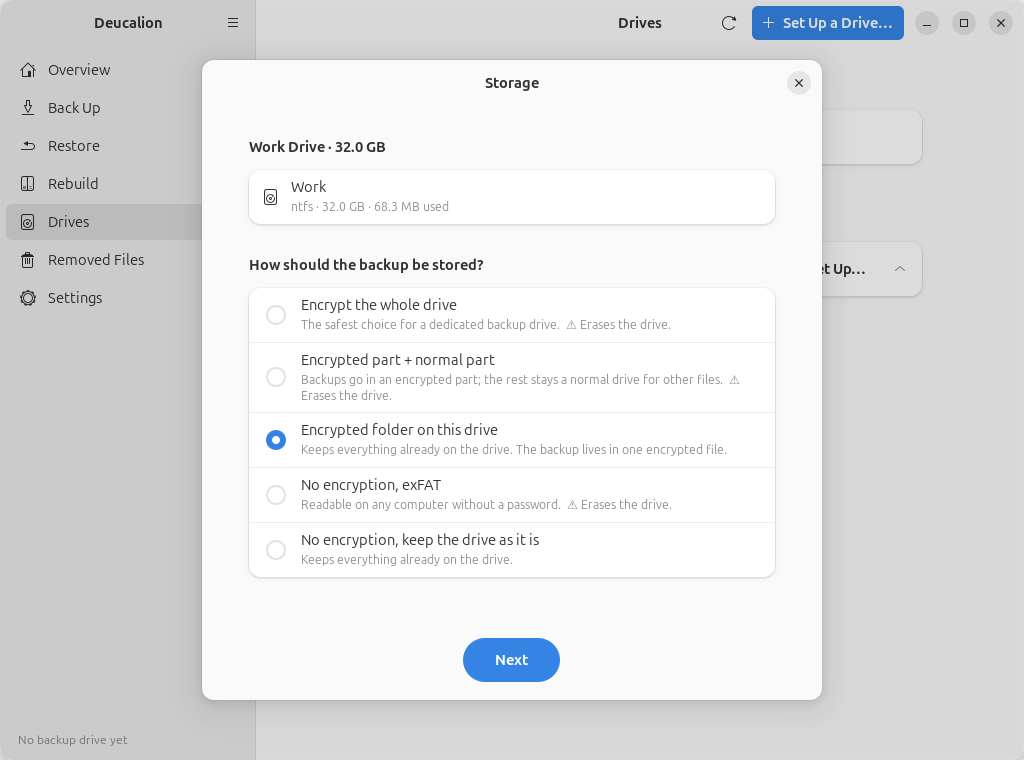
Choose No encryption, keep the drive as it is and click Next.
-
Type a Name of the backup drive (here
Work) and click Next. -
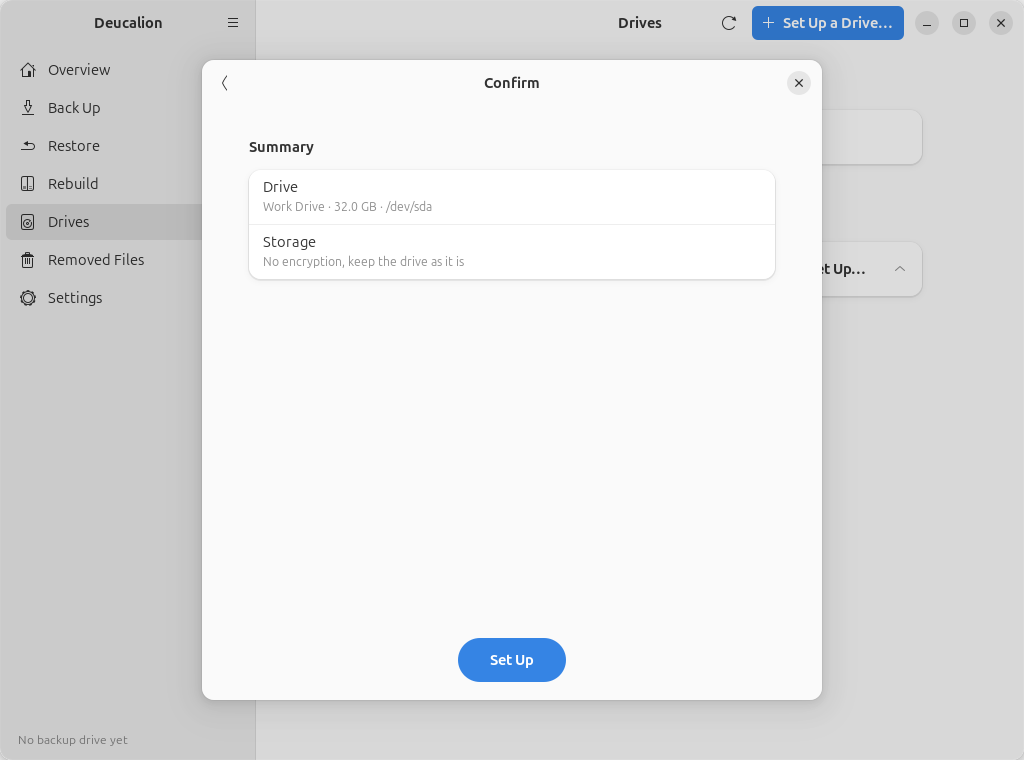
On the Confirm page, nothing will be erased: click Set Up.
-
When it is ready, click Done.
Run deucalion setup-drive and answer: the drive; 5 (No encryption: use the drive as it
is); a name; y to continue.
$ deucalion setup-drive
Which drive?
  1) /dev/sda  Spare Drive  32.0 GB
  2) /dev/sdb  Work Drive  32.0 GB
  Choose [1-2] (default 1): 2

/dev/sdb  Work Drive  32.0 GB
  /dev/sdb1  ntfs  32.0 GB, 68.3 MB used  “Work”  at /media/alex/Work

How should the backup be stored?
  1) Encrypt the whole drive
  2) Encrypted part for the backup + a normal part for other files
  3) Encrypted folder on this drive (keeps what is already on it)
  4) No encryption: erase and format the whole drive as exFAT
  5) No encryption: use the drive as it is (keeps what is already on it)
  Choose [1-5] (default 1): 5
  A name for this backup drive [Deucalion]: Work

Summary
  Drive:  /dev/sdb  Work Drive  32.0 GB
  Layout: No encryption: use the drive as it is (keeps what is already on it)
  Continue? [y/N] y
  Backup drive 'Work' is ready: /media/alex/Work/Deucalion-Backup

Done. Back up with: deucalion backup  (drive 'Work')
Or use deucalion register /media/alex/Work: it does the same without
putting a copy of Deucalion and a READ-ME file on the drive.
What is on the drive now
Your files, plus Deucalion-Backup (the backup), Deucalion-Tool and READ-ME-FIRST.txt:
$ ls /media/alex/Work
Contracts  Deucalion-Backup  Deucalion-Tool  Presentations  READ-ME-FIRST.txt
What you have now: a backup folder on your drive, registered as your default backup drive.
Next steps: Make a full backup. Before unplugging, Unmount it on the
Drives page or run deucalion close.