Back Up
The Back Up page copies your files to the backup drive, in three stages: you choose what to back up, Deucalion shows what it will copy, then it copies.
1. Choose what to back up
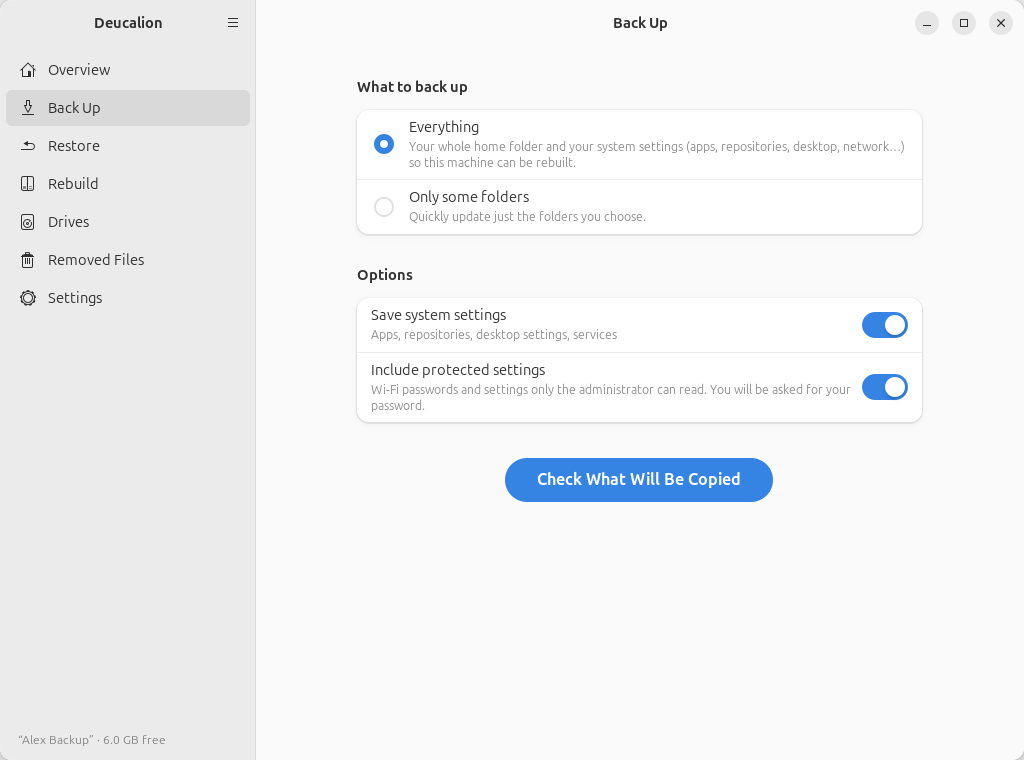
What to back up
- Everything: your whole home folder, your extra folders, and your system settings, so this computer can be rebuilt. This is a full backup.
-
Only some folders: quickly update just the folders you choose. A Folders list appears (No folders yet at first); use Add Folder… to choose folders (you can select several at once), and the bin button to take one off the list. This is a partial backup.
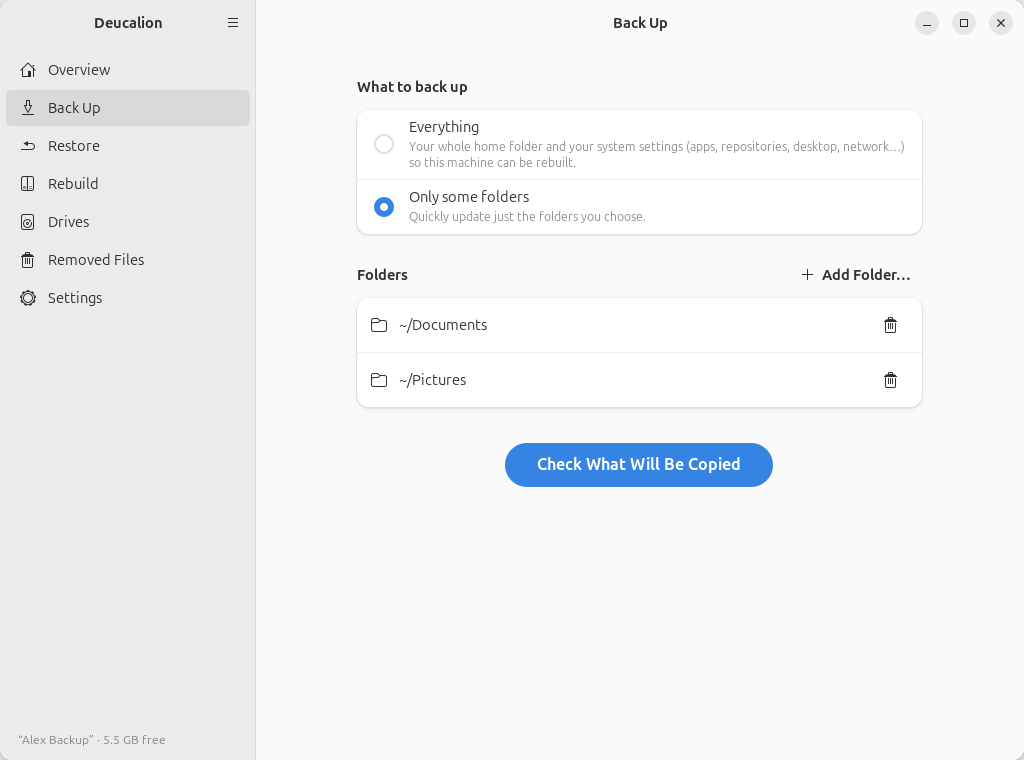
Options (only for Everything)
- Save system settings: save the system recipe (apps, software sources, desktop settings, services). Needed to rebuild a computer. On by default.
- Include protected settings: also save Wi-Fi passwords and settings only the administrator can read. Ubuntu asks for your administrator password. On by default. See Include protected settings.
These two switches are remembered; they are the same as in Settings.
Check What Will Be Copied starts the next stage. It is greyed out when the drive isn't ready, or when Only some folders has no folder yet. If the drive is locked, Deucalion asks for its password first.
2. Check what will be copied
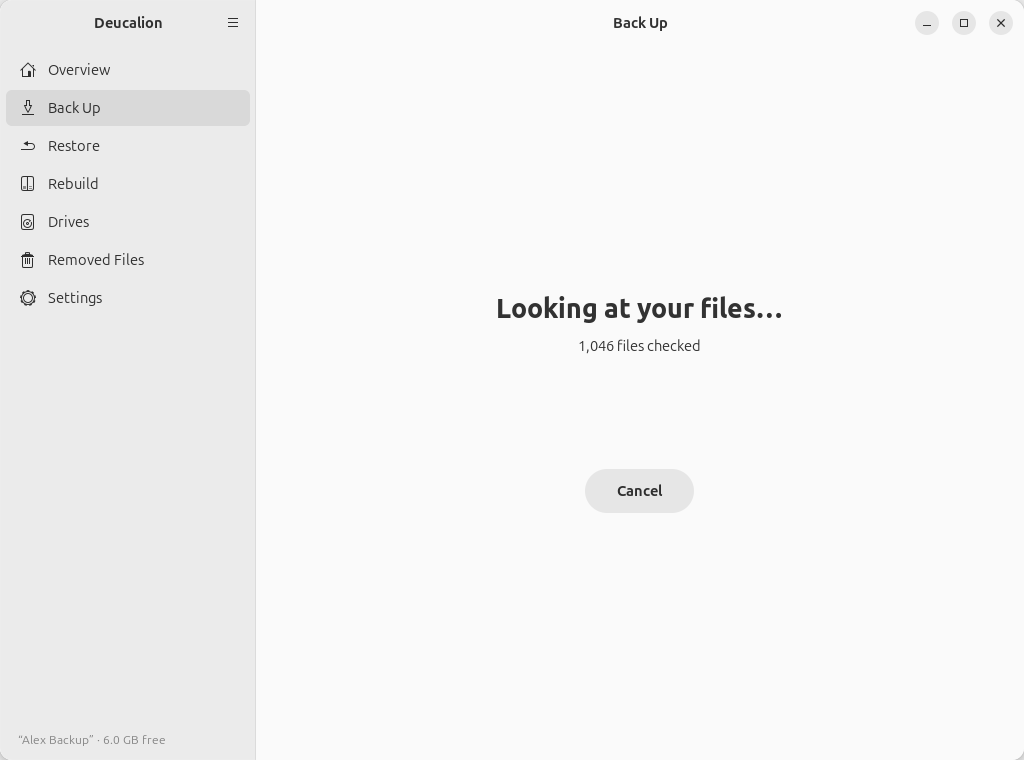
Deucalion saves your system recipe (for a full backup), then compares your files with the backup. Nothing is copied yet. Cancel stops it.
It then shows the plan:
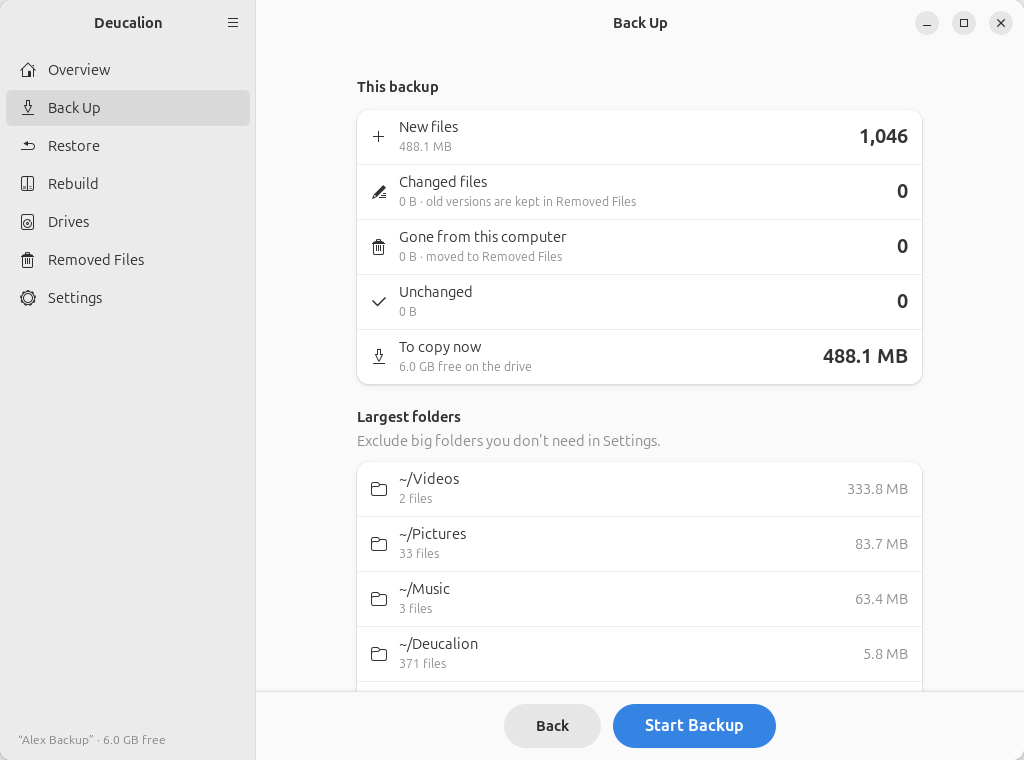
This backup
- New files: files not in the backup yet.
- Changed files: files that changed since the last backup; their old versions are kept in Removed Files.
- Gone from this computer: files and folders in the backup that are no longer on your computer (or that you now leave out); they are moved to Removed Files.
- Unchanged: files that don't need copying.
- To copy now: how much will be copied, and the free space on the drive.
Largest folders (full backups only): the biggest folders in this backup. If one of them is something you don't need (for example a downloads or virtual machines folder), click Back and leave it out in Settings.
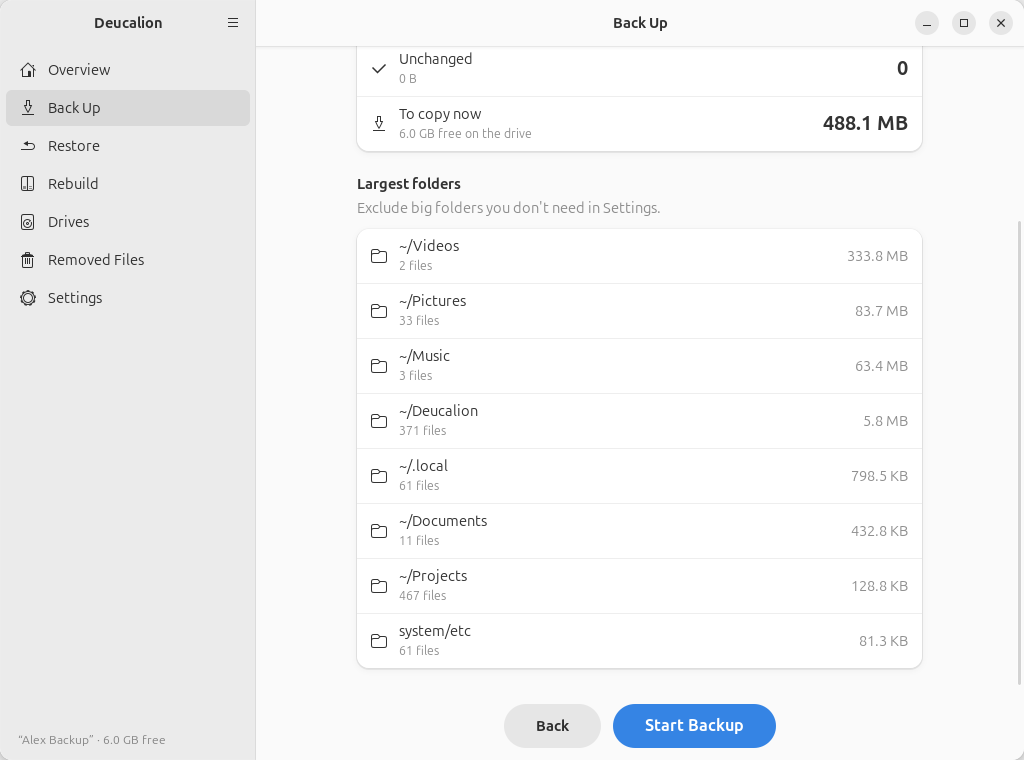
Worth knowing (only when there is something to say): warnings such as files that can't be read, special files that are skipped, or that the drive isn't encrypted and the backup holds keys or logged-in sessions.
A bar at the top warns you about a problem:
- Not enough space on the drive: the backup needs more space than is free. Start Backup is greyed out. See Free space on the drive.
- This drive holds the backup of another computer or user: see Messages and what to do.
Start Backup starts copying. When there is nothing to copy, it reads Finish (nothing to copy). Back returns to the first stage without copying anything.
3. Copying
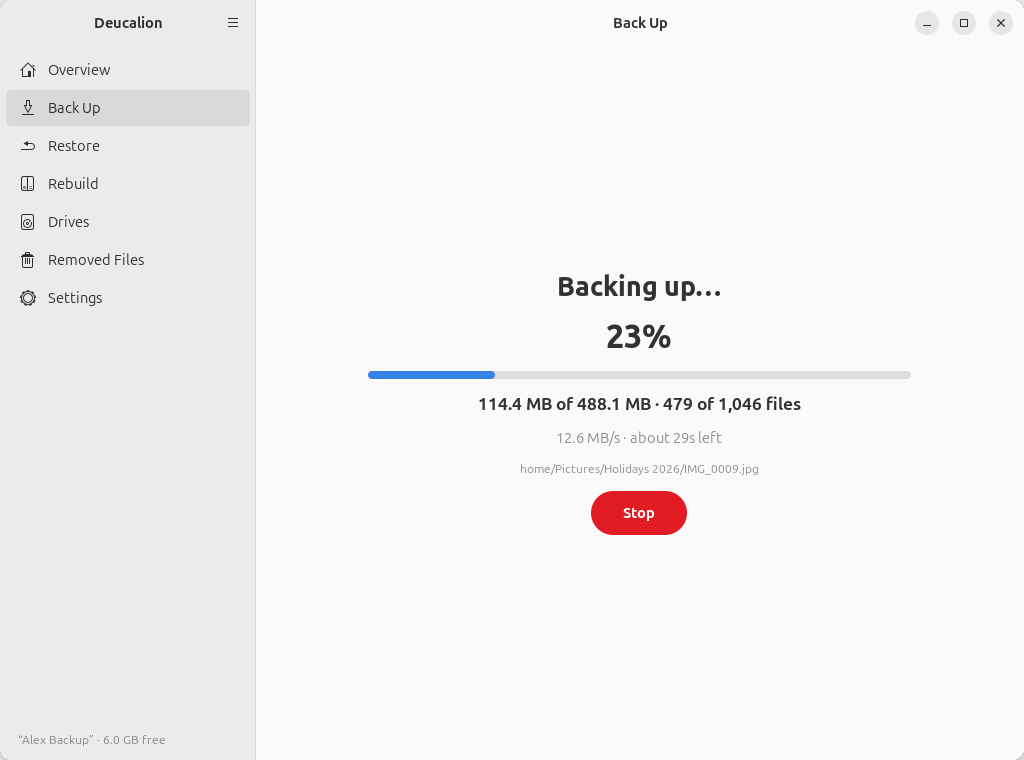
The page shows the percentage, how much is copied out of the total, the speed, the time left and the file being copied. You can keep working; files that change while they are being copied are copied again next time.
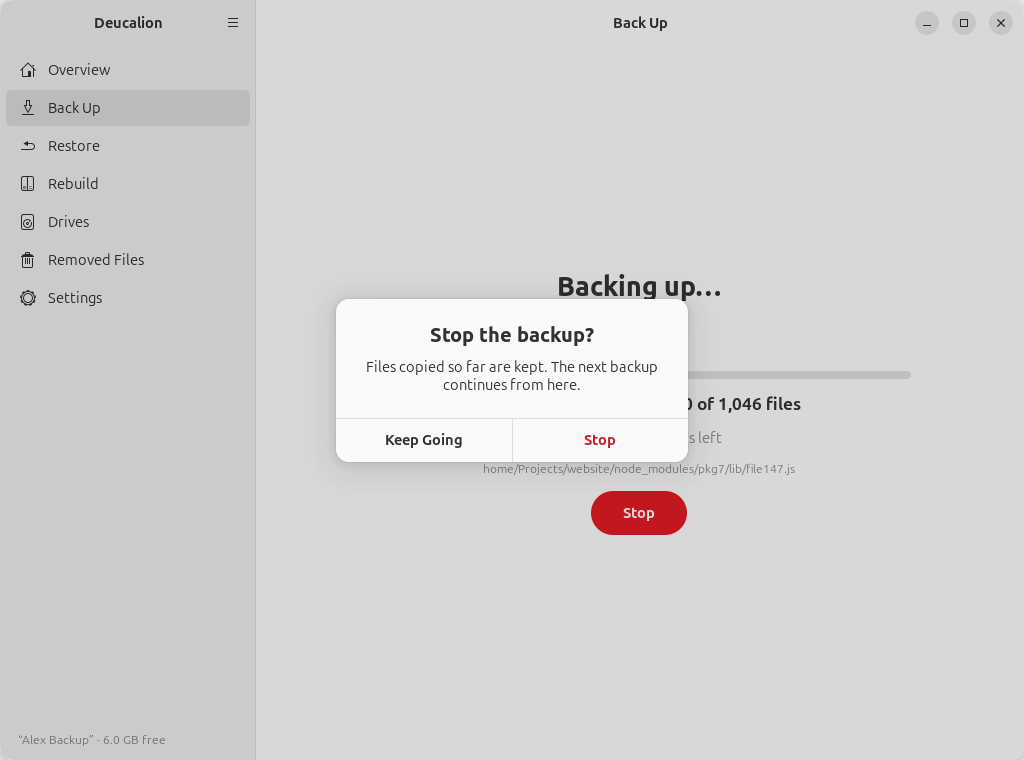
Stop asks first:
When it's done
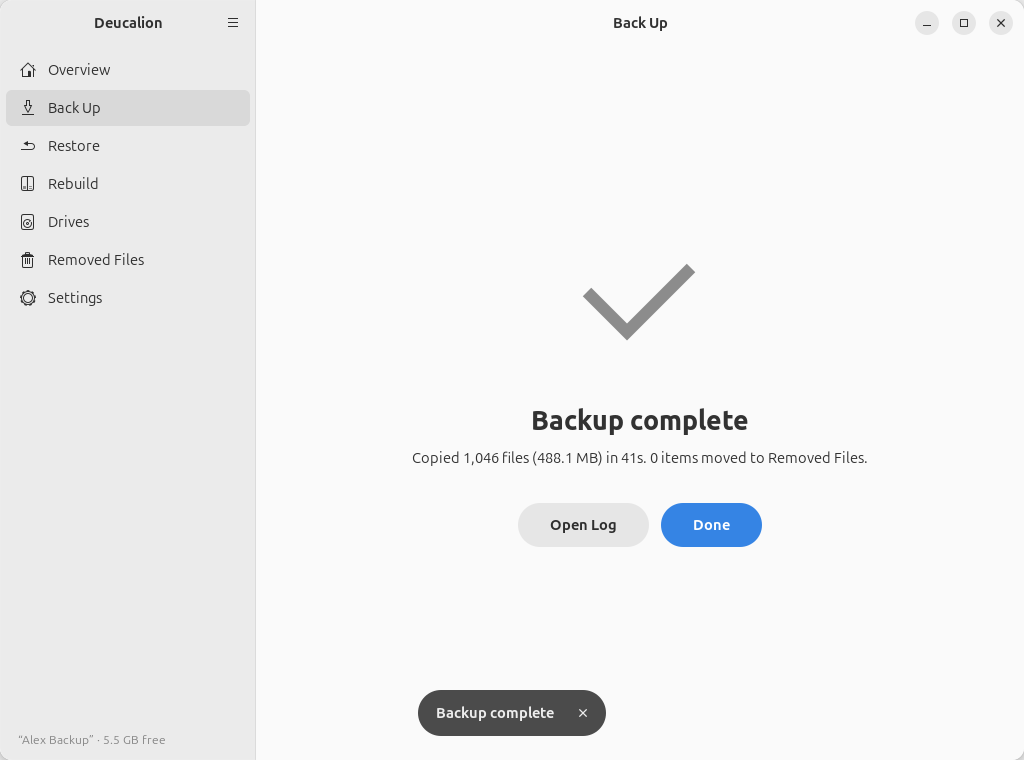
- Backup complete, Backup complete, with warnings (the warnings are listed under Warnings; they are also in the log), Backup stopped, or The backup failed with the reason.
- Open Log opens the log file of this backup.
- Done goes back to the first stage.
After a backup, Deucalion also refreshes the copy of itself and the READ-ME file on the drive's normal part, if it has one.