Rebuild your computer on a new Ubuntu version or a new computer
What you'll do: set up a freshly installed Ubuntu from your backup: your software sources, apps,
files, settings, scheduled tasks and network connections, step by step.
What you need:
- a full backup made on the old computer (with the system recipe; see Make a full backup);
- the backup drive and its password;
- the new computer (or your computer after a fresh install of a newer Ubuntu), with an internet connection;
- your administrator password on the new computer.
How long it takes: about an hour of your time, plus downloading your apps and copying your files.
In this walk-through, Alex's old laptop ran Ubuntu 24.04 with the user name alex. The new laptop
has a fresh Ubuntu 26.04, and this time Alex chose the user name alexk, so the home folder moves
from /home/alex to /home/alexk. The backup drive has an encrypted part and a normal part, with a
copy of Deucalion on it.
Before you start (on the old computer)
- Make a full backup (Back Up Now, or
deucalion backup). The Overview page shows when it finished. - Optionally, check it with
deucalion verify --full. - Lock the drive and unplug it.
Write down the backup password if you haven't already.
1. Install Ubuntu on the new computer
Install Ubuntu as usual from ubuntu.com. Use any user name. Connect to the internet and let Ubuntu finish its updates. Don't restore anything by hand yet.
Same disk, new version?
If you are upgrading the same computer by installing a newer Ubuntu from scratch, make sure the backup is complete before you erase the disk: the installer erases everything.
2. Open Deucalion from the drive
- Plug in the backup drive. Ubuntu shows its normal part in the Files app and in the dock.
- Open the normal part in the Files app. It contains
READ-ME-FIRST.txtand theDeucalion-Toolfolder. -
Open the
Deucalion-Toolfolder, right-click an empty area, and choose Open in Terminal. A terminal opens in that folder.Where is the drive?
Ubuntu 26.04 shows drives under
/run/media/<your name>/; older versions under/media/<your name>/. Open in Terminal takes you to the right place either way.No Deucalion-Tool folder?
A drive encrypted as a whole has no normal part. Then install Deucalion on the new computer first (and VeraCrypt for a VeraCrypt drive), and use
deucalioninstead ofbin/deucalionbelow. -
Unlock the backup. Deucalion finds it from the drive's
Deucalion-Tool/drive.json, asks for the password, unlocks it and registers it on this computer:$ bin/deucalion open Backup password: Unlocking (you will be asked for your administrator password)… Unlocking (VeraCrypt volumes can take up to a minute)… Registered backup drive 'Alex Backup' on this machine. Backup drive 'Alex Backup' is open: /media/alexk/Alex Backup/Deucalion-BackupFor a VeraCrypt drive it also asks for your administrator password ("Unlocking (you will be asked for your administrator password)…").
Don't back up yet
If you back up now, the drive would become a mirror of this new, empty computer: everything only in the old backup would move to Removed Files. Deucalion warns you, and asks first:
$ bin/deucalion backup --dry-run
Backing up to Alex Backup  /media/alexk/Alex Backup/Deucalion-Backup
This drive holds the backup of alex@alex-laptop (home folder /home/alex), but this is alexk@alex-new-laptop (home folder /home/alexk). Backing up will make the drive mirror this machine: anything that is only in the old backup will be moved to _removed/. If this is a new machine, restore your files first.
Saving the system recipe (packages, settings, services)…
Backup plan (full: everything)
  New files:               3   3.9 KB
  Changed files:          68   94.6 KB (previous versions go to _removed/)
  Gone/excluded:          46   368.7 MB (moved to _removed/)
  Unchanged:               0   0 B
  Largest folders in this backup:
       56.1 KB          48 files  system/etc
       32.0 KB          10 files  system/packages
        4.7 KB           3 files  home (files)
        2.1 KB           2 files  system/services
        1.9 KB           2 files  system (files)
        1.4 KB           2 files  home/.config
         331 B           1 files  system/software
         105 B           1 files  home/.ssh
          27 B           1 files  home/Documents
           0 B           1 files  system/desktop
  Warnings (1):
    13 system files (and network connections) can only be saved with administrator access.
Dry run: nothing was copied. Add --details to list every file.
Rebuild first; back up after.
3. Rebuild
Do this either in the app (recommended) or in the terminal. Both do the same steps. Close other apps first. Every step first shows what it will do, and changes nothing until you Apply. You can stop at any time and continue later.
-
In the terminal (in the
Deucalion-Toolfolder), start the app:bin/deucalion -
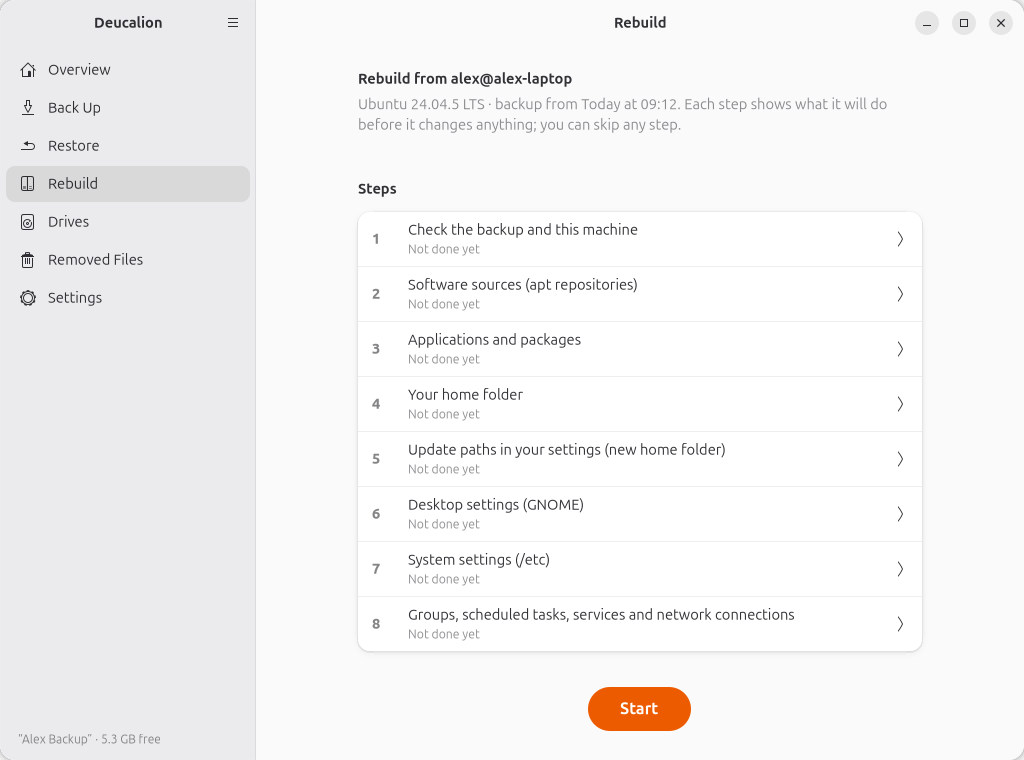
Go to Rebuild. It shows where the backup comes from and the eight steps:
-
Click Start. Each step opens in turn. At the bottom: Skip This Step, and Apply (or Continue when there is nothing to do). After applying, click Next Step.
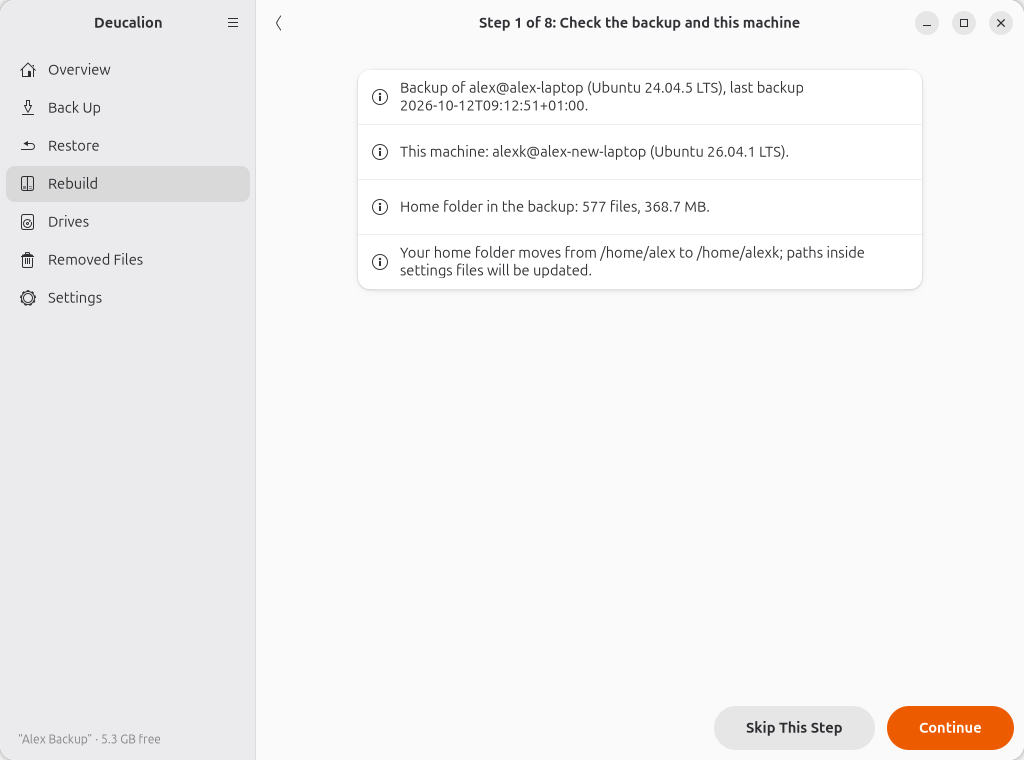
Step 1: Check the backup and this machine. Read it: where the backup comes from, this
computer, the size of your home folder, and that your home folder moves from /home/alex to
/home/alexk. A WARNING appears if there isn't enough free space or the processor type is
different. Click Continue.
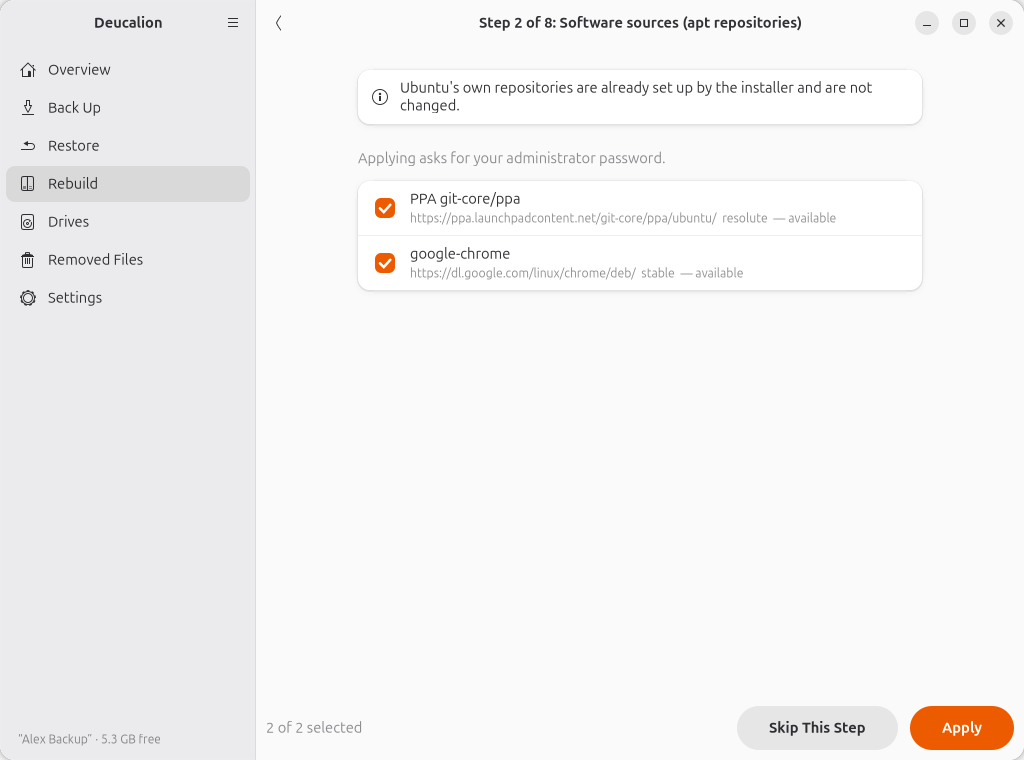
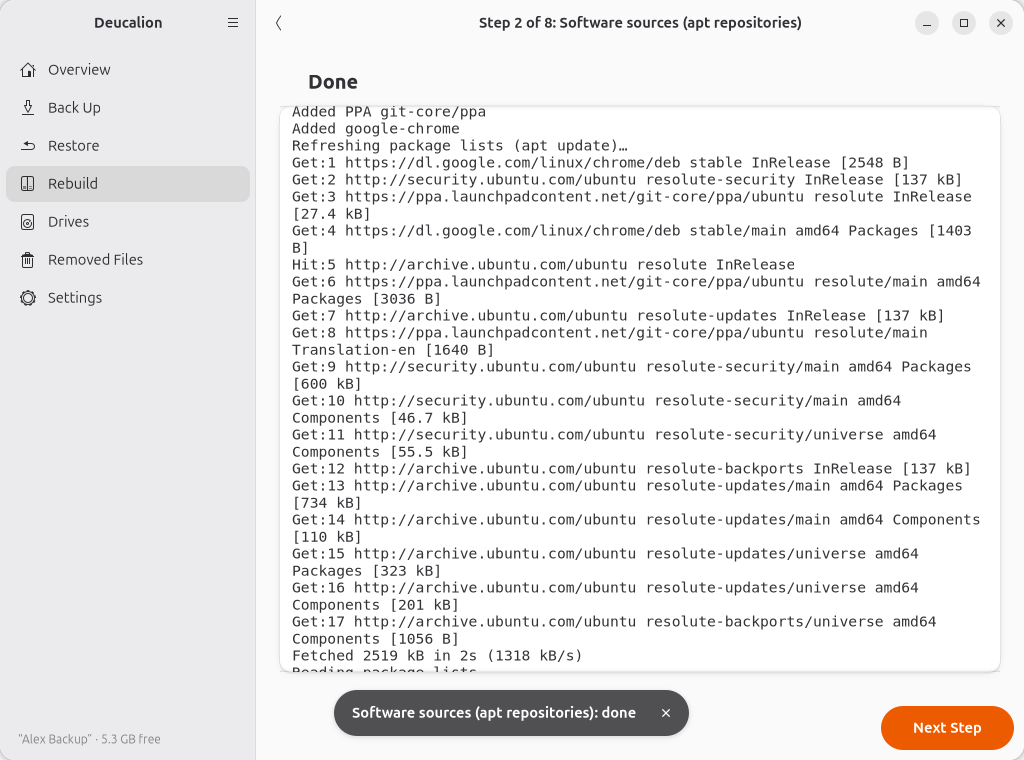
Step 2: Software sources. Your extra software sources, adapted to the new Ubuntu version and checked online. Ones that are NOT available for this Ubuntu version are unticked. Ubuntu's own sources are never touched. Click Apply (Ubuntu asks for your administrator password). Deucalion adds the sources and refreshes the package lists.
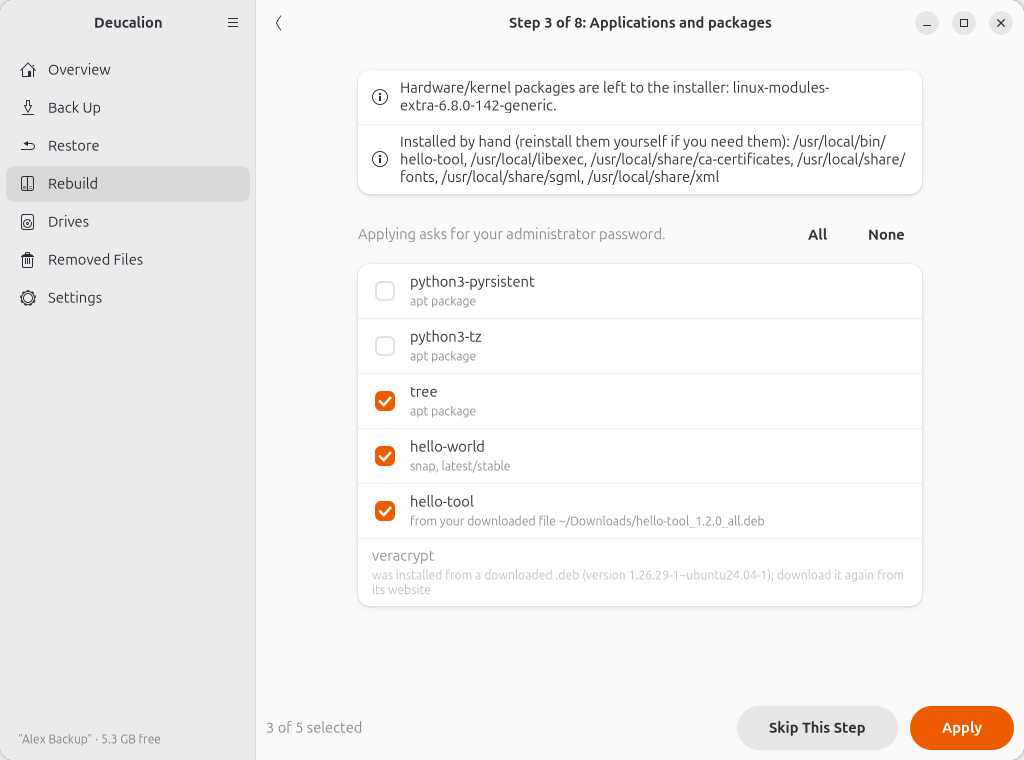
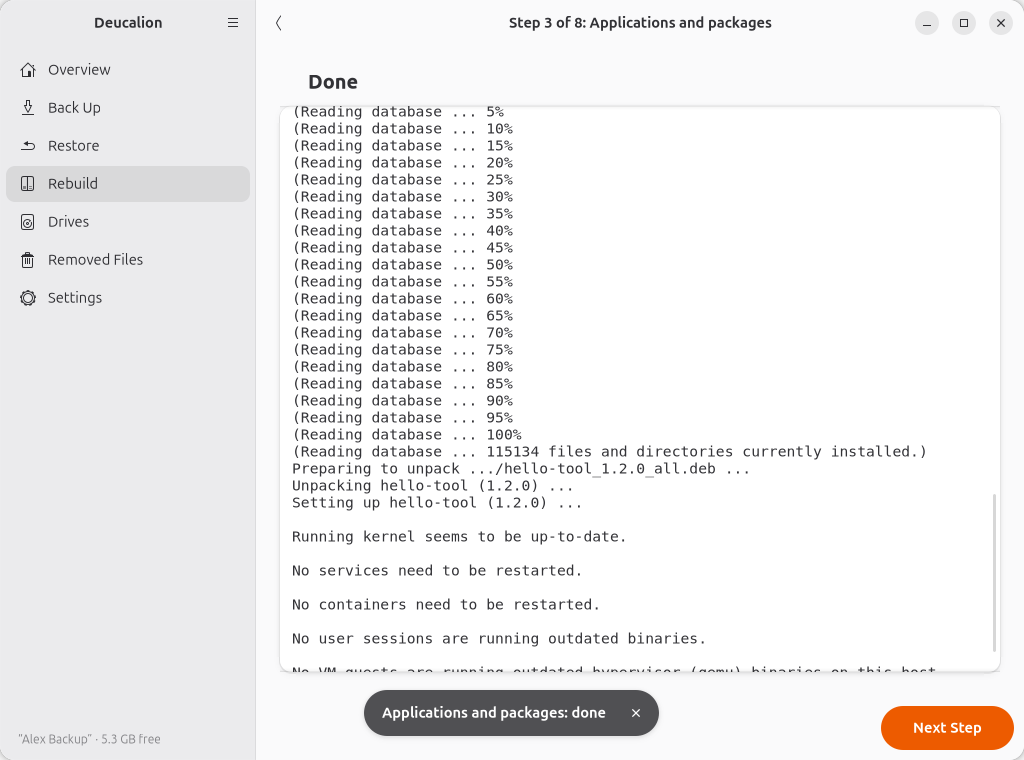
Step 3: Applications and packages. The apt packages, snaps and downloaded .deb files you
had, that aren't installed here. Untick what you no longer want; All and None help with
long lists. Kernel and hardware packages are left to the installer, and packages that don't exist
any more are listed for information. Click Apply. This downloads and installs everything, so it
can take a while; the log shows the progress.
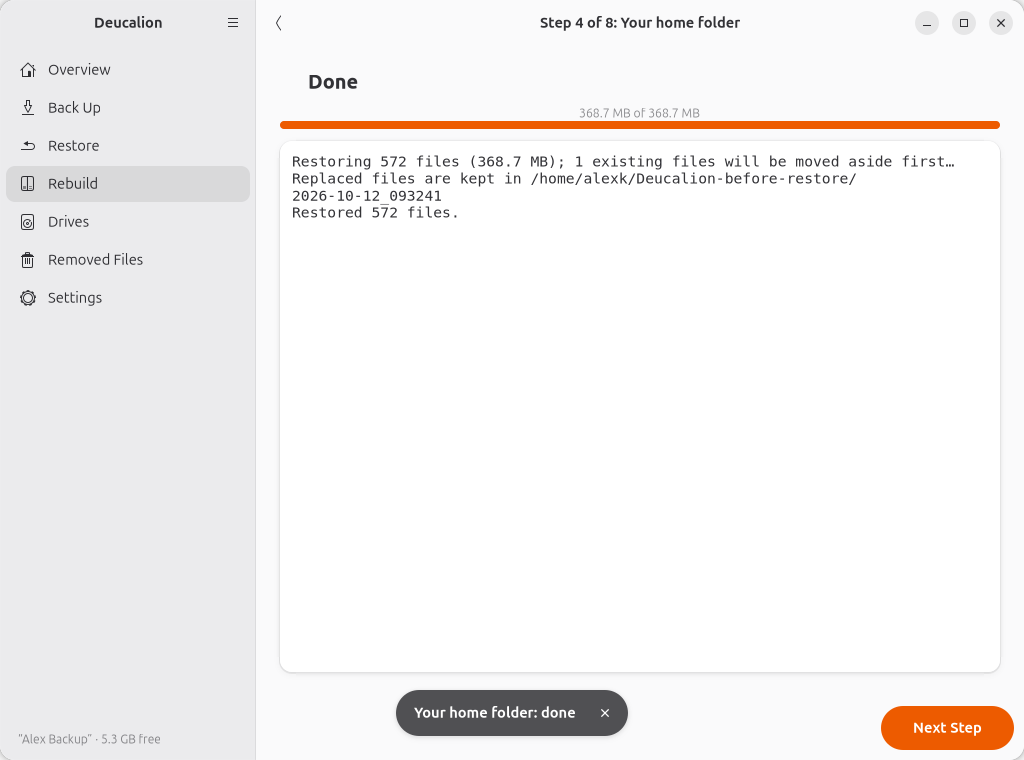
Step 4: Your home folder. One line per folder of your home folder in the backup. Untick folders
you don't want here (for example if the new computer has less space). Click Apply. Files that
already exist and are different are first moved to ~/Deucalion-before-restore/.
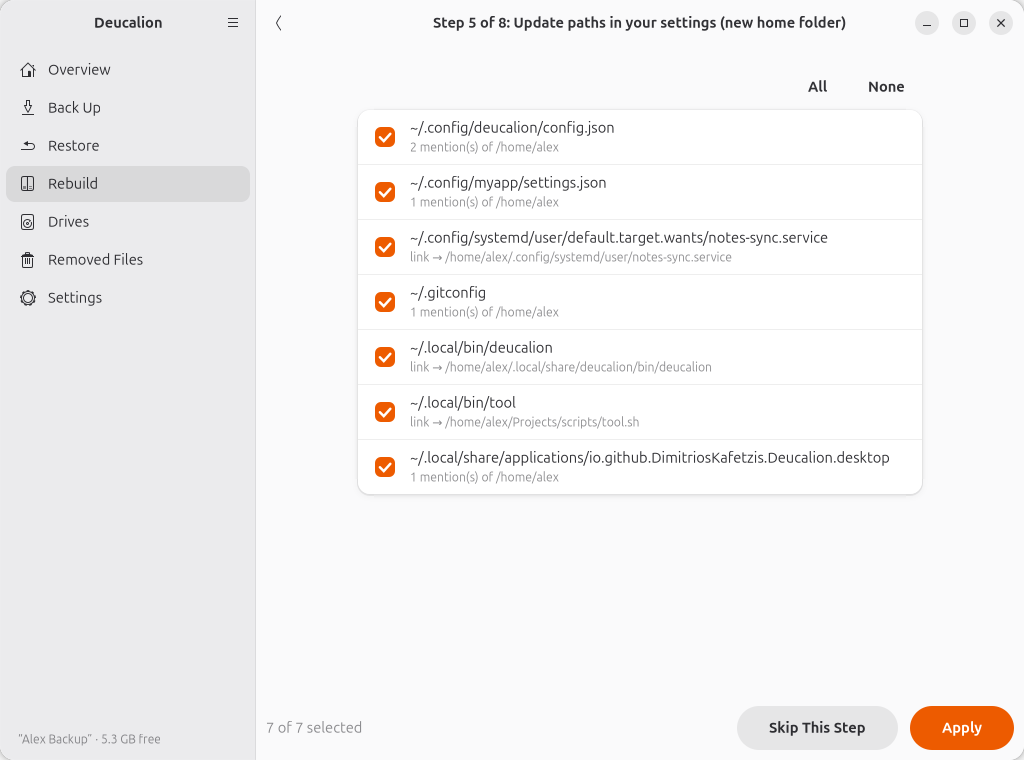
Step 5: Update paths in your settings. Because the home folder moved, settings files and links
that still mention /home/alex are listed. Click Apply: Deucalion replaces the old path with
/home/alexk, only where it is a whole path, and keeps the originals in the undo folder.
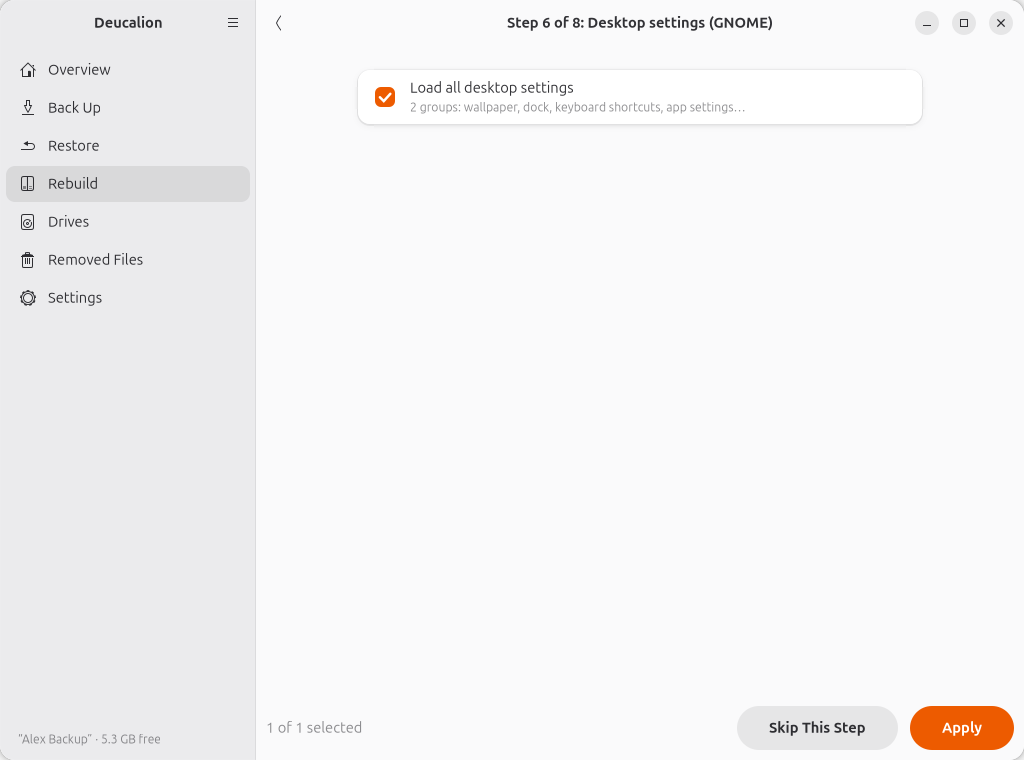
Step 6: Desktop settings (GNOME). Loads all your desktop settings. Your current ones are saved first. Click Apply.
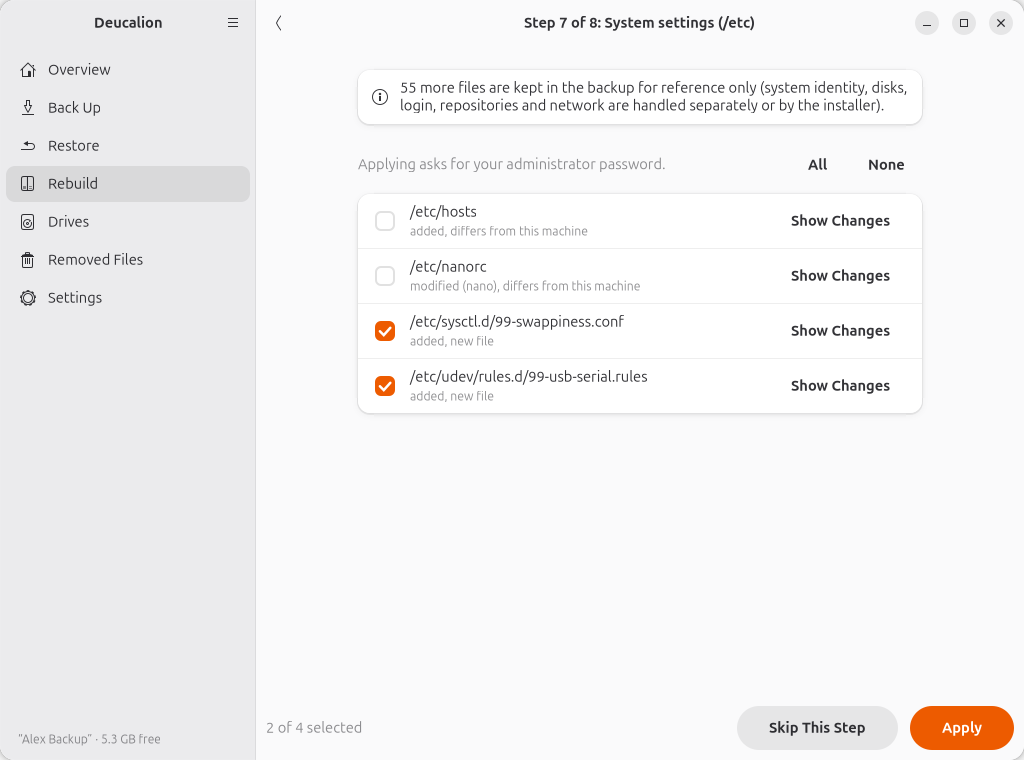
Step 7: System settings (/etc). The system files you had changed. Files in well-understood
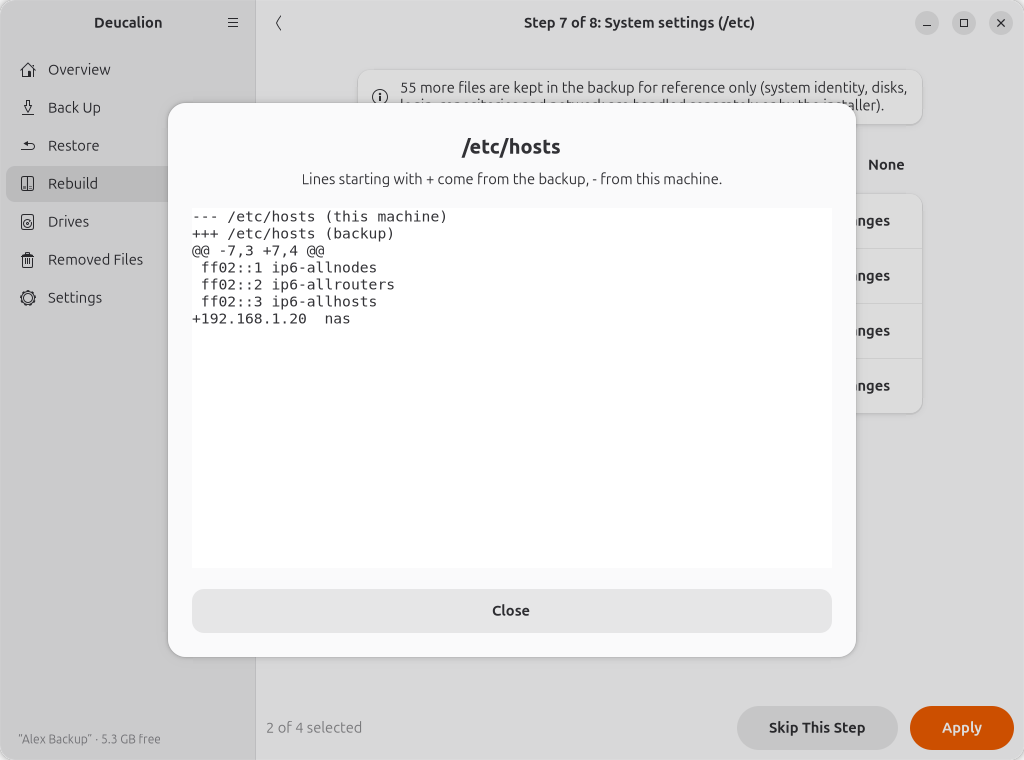
places are ticked; others are not. Click Show Changes to see the difference for a file (+
lines come from the backup, - from this computer). Tick only what you understand and need. Click
Apply (administrator password). Replaced files are kept in /var/backups/deucalion/.
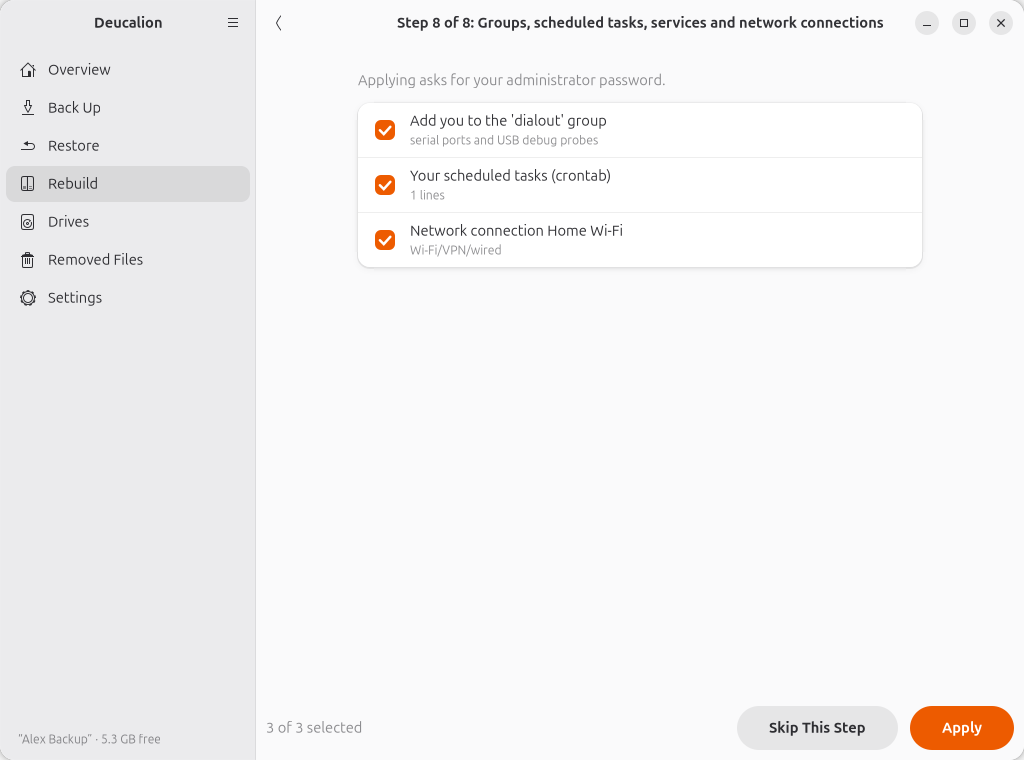
Step 8: Groups, scheduled tasks, services and network connections. Adds you to the groups you
were in (for example dialout for serial ports), restores your crontab, enables services, and
imports your Wi-Fi and VPN connections. Click Apply (administrator password).
-
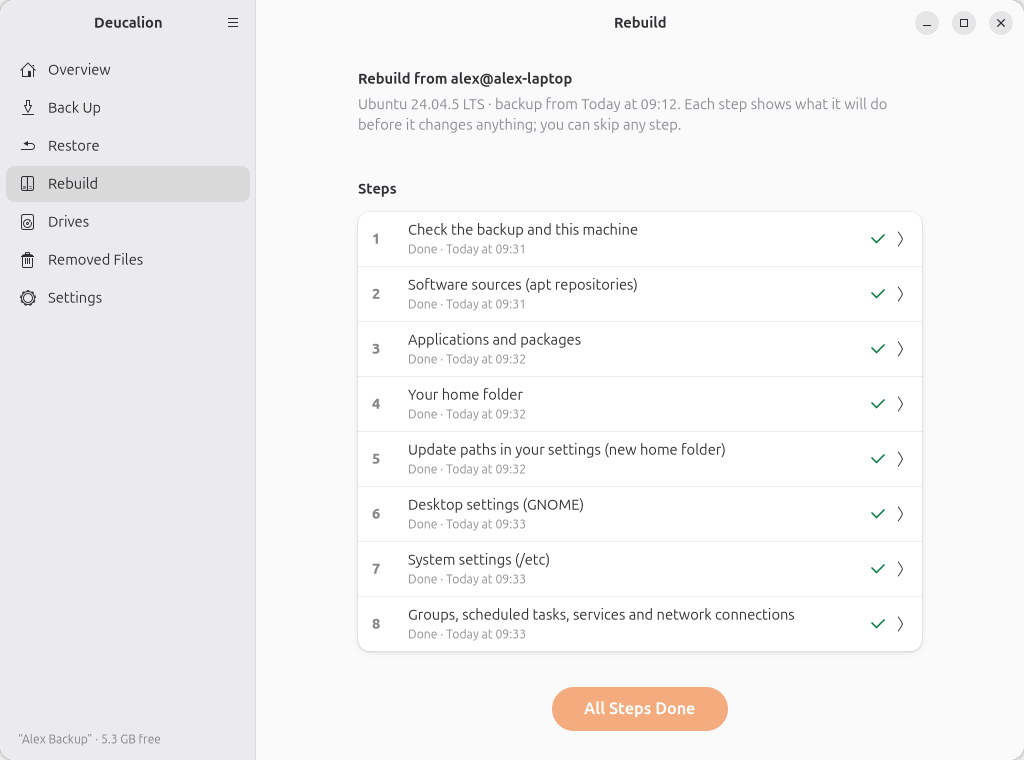
When the last step is done, the list shows every step as done (or skipped):
-
Optionally, see every step's plan without changing anything:
bin/deucalion rebuild --dry-run -
Run the rebuild:
bin/deucalion rebuildAt each step, read the list. Enter applies the ticked items;
nskips the step; numbers (2 5-7) tick or untick items;all/none;d 1shows the changes of item 1 (step 7);qstops (run it again later to continue). Step 1 asks Continue? [y/N]: typey.A complete run on Alex's new laptop:
$ bin/deucalion rebuild
Rebuild from backup 'Alex Backup'

Step 1/8: Check the backup and this machine
  Backup of alex@alex-laptop (Ubuntu 24.04.5 LTS), last backup 2026-10-12T09:12:51+01:00.
  This machine: alexk@alex-new-laptop (Ubuntu 26.04.1 LTS).
  Home folder in the backup: 577 files, 368.7 MB.
  Your home folder moves from /home/alex to /home/alexk; paths inside settings files will be updated.
  Continue? [y/N] y

Step 2/8: Software sources (apt repositories)
  Ubuntu's own repositories are already set up by the installer and are not changed.
  [x]   1  PPA git-core/ppa  — https://ppa.launchpadcontent.net/git-core/ppa/ubuntu/  resolute  — available
  [x]   2  google-chrome  — https://dl.google.com/linux/chrome/deb/  stable  — available
  Enter = apply the checked items · n = skip this step · numbers (2 5-7) = check/uncheck · all / none · d N = show the change for item N · q = stop here
  >
    Added PPA git-core/ppa
    Added google-chrome
    Refreshing package lists (apt update)…
    …

Step 3/8: Applications and packages
  Hardware/kernel packages are left to the installer: linux-modules-extra-6.8.0-142-generic.
  Installed by hand (reinstall them yourself if you need them): /usr/local/bin/hello-tool, /usr/local/libexec, /usr/local/share/ca-certificates, /usr/local/share/fonts, /usr/local/share/sgml, /usr/local/share/xml
  [x]   1  python3-pyrsistent  — apt package
  [x]   2  python3-tz  — apt package
  [x]   3  tree  — apt package
  [x]   4  hello-world  — snap, latest/stable
  [x]   5  hello-tool  — from your downloaded file ~/Downloads/hello-tool_1.2.0_all.deb
   -    6  veracrypt  — was installed from a downloaded .deb (version 1.26.29-1~ubuntu24.04-1); download it again from its website
  Enter = apply the checked items · n = skip this step · numbers (2 5-7) = check/uncheck · all / none · d N = show the change for item N · q = stop here
  >
    Refreshing package lists (apt update)…
    …
    Installing 3 apt packages…
    …
    Installing snap hello-world…
    …
    hello-world 6.4 from Canonical** installed
    Installing hello-tool from /media/alexk/Alex Backup/Deucalion-Backup/home/Downloads/hello-tool_1.2.0_all.deb…
    …

Step 4/8: Your home folder
  Restores into /home/alexk. Files that would be overwritten are first moved to ~/Deucalion-before-restore/. Close other apps before you continue.
  [x]   1  Files directly in your home folder  — 6 files, 4.8 KB
  [x]   2  .config/  — 5 files, 2.1 KB
  [x]   3  .local/  — 63 files, 875.1 KB
  [x]   4  .ssh/  — 4 files, 305 B
  [x]   5  Desktop/  — 11 files, 21.4 MB
  [x]   6  Deucalion/  — 371 files, 5.8 MB
  [x]   7  Documents/  — 12 files, 191.2 MB
  [x]   8  Downloads/  — 1 files, 572 B
  [x]   9  Music/  — 3 files, 63.4 MB
  [x]  10  Pictures/  — 34 files, 86.0 MB
  [x]  11  Projects/  — 67 files, 120.3 KB
  Enter = apply the checked items · n = skip this step · numbers (2 5-7) = check/uncheck · all / none · d N = show the change for item N · q = stop here
  >
    Restoring 572 files (368.7 MB); 1 existing files will be moved aside first…
    Replaced files are kept in /home/alexk/Deucalion-before-restore/2026-10-12_100913
    Restored 572 files.

Step 5/8: Update paths in your settings (new home folder)
  [x]   1  ~/.config/deucalion/config.json  — 2 mention(s) of /home/alex
  [x]   2  ~/.config/myapp/settings.json  — 1 mention(s) of /home/alex
  [x]   3  ~/.config/systemd/user/default.target.wants/notes-sync.service  — link → /home/alex/.config/systemd/user/notes-sync.service
  [x]   4  ~/.gitconfig  — 1 mention(s) of /home/alex
  [x]   5  ~/.local/bin/deucalion  — link → /home/alex/.local/share/deucalion/bin/deucalion
  [x]   6  ~/.local/bin/tool  — link → /home/alex/Projects/scripts/tool.sh
  [x]   7  ~/.local/share/applications/io.github.DimitriosKafetzis.Deucalion.desktop  — 1 mention(s) of /home/alex
  Enter = apply the checked items · n = skip this step · numbers (2 5-7) = check/uncheck · all / none · d N = show the change for item N · q = stop here
  >
    Updated 7 files (originals in /home/alexk/Deucalion-before-restore/2026-10-12_100917-paths).

Step 6/8: Desktop settings (GNOME)
  [x]   1  Load all desktop settings  — 2 groups: wallpaper, dock, keyboard shortcuts, app settings…
  Enter = apply the checked items · n = skip this step · numbers (2 5-7) = check/uncheck · all / none · d N = show the change for item N · q = stop here
  >
    Your current desktop settings are saved in /home/alexk/Deucalion-before-restore/2026-10-12_100918-desktop/dconf-before.ini (to go back: dconf reset -f / && dconf load / < /home/alexk/Deucalion-before-restore/2026-10-12_100918-desktop/dconf-before.ini)
    Desktop settings loaded. Log out and back in to see all of them.

Step 7/8: System settings (/etc)
  55 more files are kept in the backup for reference only (system identity, disks, login, repositories and network are handled separately or by the installer).
  [ ]   1  /etc/hosts  — added, differs from this machine
  [ ]   2  /etc/nanorc  — modified (nano), differs from this machine
  [x]   3  /etc/sysctl.d/99-swappiness.conf  — added, new file
  [x]   4  /etc/udev/rules.d/99-usb-serial.rules  — added, new file
  Enter = apply the checked items · n = skip this step · numbers (2 5-7) = check/uncheck · all / none · d N = show the change for item N · q = stop here
  > d 1
--- /etc/hosts (this machine)
+++ /etc/hosts (backup)
@@ -7,3 +7,4 @@
 ff02::1 ip6-allnodes
 ff02::2 ip6-allrouters
 ff02::3 ip6-allhosts
+192.168.1.20  nas
  >
    Restored /etc/sysctl.d/99-swappiness.conf
    Restored /etc/udev/rules.d/99-usb-serial.rules
    …
    Previous versions of replaced files are in /var/backups/deucalion/2026-10-12_100919

Step 8/8: Groups, scheduled tasks, services and network connections
  [x]   1  Add you to the 'dialout' group  — serial ports and USB debug probes
  [x]   2  Your scheduled tasks (crontab)  — 1 lines
  [x]   3  Network connection Home Wi-Fi  — Wi-Fi/VPN/wired
  Enter = apply the checked items · n = skip this step · numbers (2 5-7) = check/uncheck · all / none · d N = show the change for item N · q = stop here
  >
    Added you to: dialout (takes effect after you log in again)
    Restored your crontab
    Imported 1 network connections

Summary
  done       Software sources (apt repositories)
  done       Applications and packages
  done       Your home folder
  done       Update paths in your settings (new home folder)
  done       Desktop settings (GNOME)
  done       System settings (/etc)
  done       Groups, scheduled tasks, services and network connections
Log out and back in to finish (new groups and desktop settings take effect then).
4. Log out and back in
Log out and back in (or restart). New group memberships and some desktop settings only take effect then.
5. Check the result
-
Your files are in your home folder. Anything that was already on the new computer is still there; a file it replaced is in
~/Deucalion-before-restore/.$ cat ~/Documents/new-laptop.txt Written on the new laptop. -
Paths in your settings point to the new home folder:
$ cat ~/.gitconfig
[user]
    name = Alex
    email = alex@example.com
[core]
    excludesfile = /home/alexk/.gitignore_global
$ readlink ~/.local/bin/tool /home/alexk/Projects/scripts/tool.sh -
Software sources were added as new files; Ubuntu's own are unchanged:
$ ls /etc/apt/sources.list.d git-core-ubuntu-ppa-noble.sources google-chrome.list ubuntu.sources -
Groups:
$ id -nG alexk alexk adm dialout sudo plugdev -
Open your apps and check they work. Apps installed by hand (in
/opt,/usr/local), Flatpak apps, and VeraCrypt itself are listed by step 3 but not installed: install them yourself. - Check your Wi-Fi connects, your printer works, and your scheduled tasks run.
Running it again
It is safe to run the rebuild again: finished steps are skipped, and a second run of a step changes nothing that is already right.
$ bin/deucalion rebuild
Rebuild from backup 'Alex Backup'

✓ Check the backup and this machine: done 2026-10-12T10:08:30+01:00 (run again with --step check)

✓ Software sources (apt repositories): done 2026-10-12T10:08:38+01:00 (run again with --step repositories)

✓ Applications and packages: done 2026-10-12T10:09:12+01:00 (run again with --step packages)

✓ Your home folder: done 2026-10-12T10:09:17+01:00 (run again with --step home)

✓ Update paths in your settings (new home folder): done 2026-10-12T10:09:17+01:00 (run again with --step paths)

✓ Desktop settings (GNOME): done 2026-10-12T10:09:18+01:00 (run again with --step desktop)

✓ System settings (/etc): done 2026-10-12T10:09:19+01:00 (run again with --step system-config)

✓ Groups, scheduled tasks, services and network connections: done 2026-10-12T10:09:21+01:00 (run again with --step services)
To redo one step, open it from the list in the app, or use --step (for example
bin/deucalion rebuild --step packages).
Then: back up again
When you are happy with the new computer, install Deucalion on it and
make a full backup. The first time, Deucalion warns that the drive holds the backup
of the old computer (in the app, a bar above the plan; in the terminal it asks Continue anyway?,
answer y). From then on, the drive mirrors the new computer. Files from the old computer
that you didn't restore move to Removed Files, where they stay until you empty them.
What you have now: your new computer, set up like the old one.
See also: What a rebuild restores, deucalion rebuild,
the app's Rebuild page.