Your first backup
What you'll do: prepare an external drive for backups, then back up your home folder and your
system recipe to it.
What you need: Deucalion installed; an external drive; if you want encryption, a
password you will not forget.
How long it takes: about 10 minutes, plus the copying. A first backup copies everything, so it
can take an hour or more for a large home folder. Later backups copy only what changed.
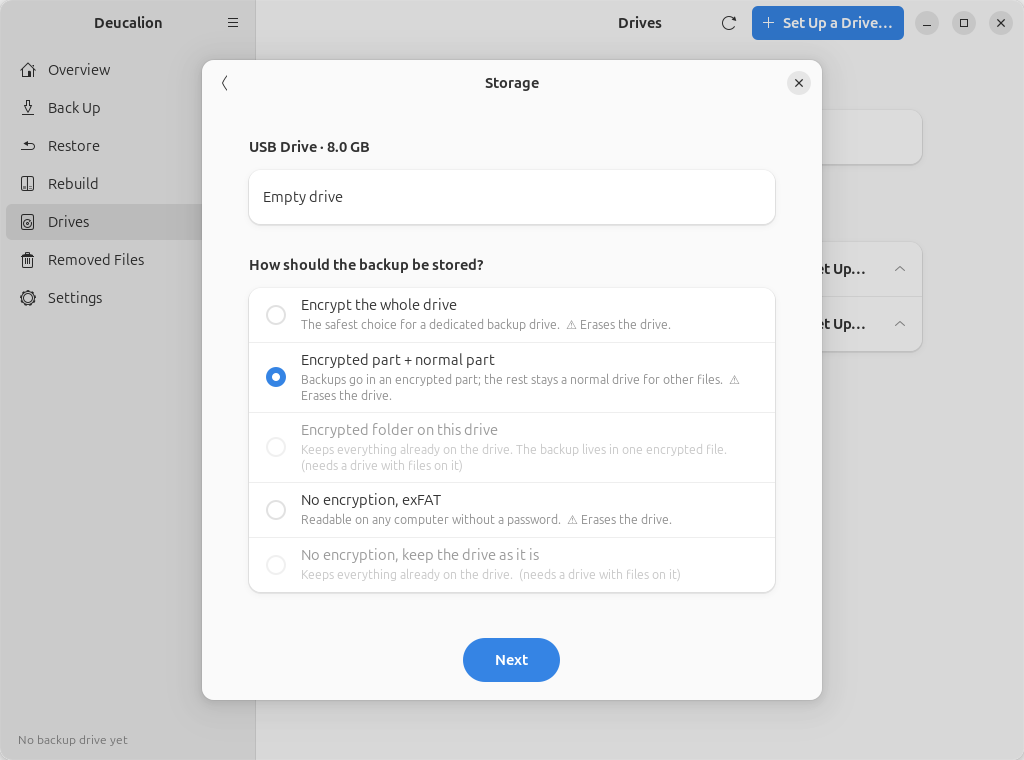
This page uses the most common choice: an encrypted part for the backup and a normal part for the copy of Deucalion and a READ-ME file. For other choices, see Choosing a drive.
Preparing a drive this way erases it
Everything on the drive is deleted. If the drive has files you want to keep, copy them somewhere else first, or choose Encrypted folder on this drive or keep the drive as it is, which keep its files (see Choosing a drive).
- Plug in the drive.
-
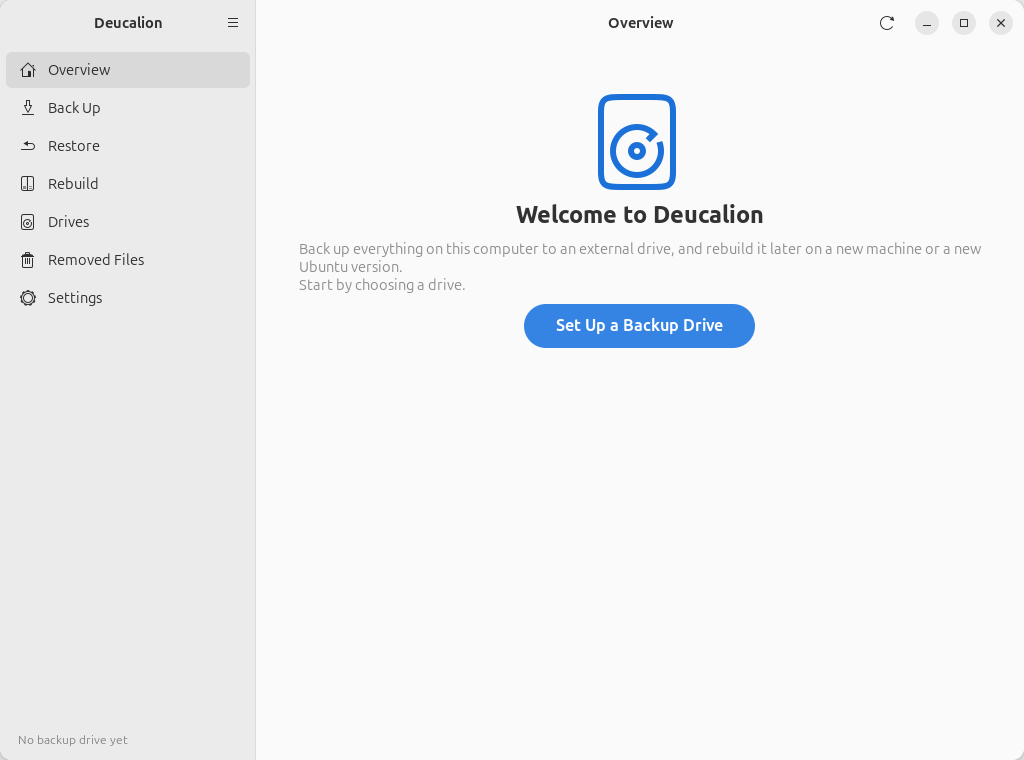
Open Deucalion from the app menu. The Overview page welcomes you:
-
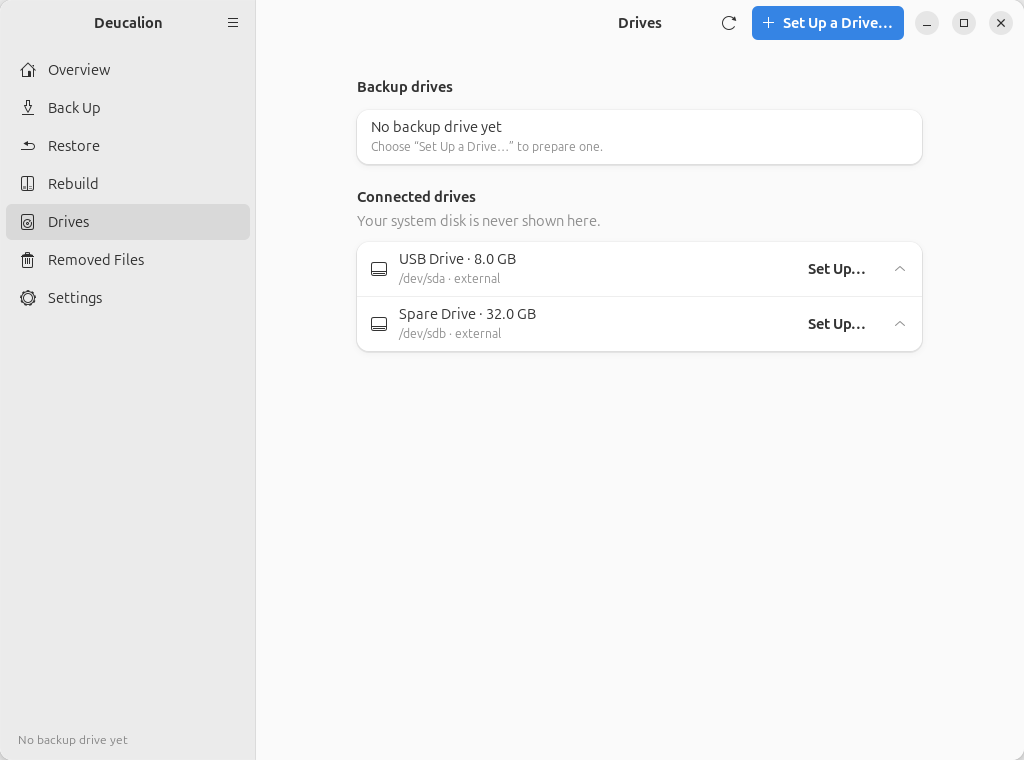
Click Set Up a Backup Drive. A window opens and lists your external drives. Your computer's own disk is never listed. Choose your drive and click Next.
-
Under How should the backup be stored?, choose Encrypted part + normal part and click Next.
-
Under Which encryption?, keep VeraCrypt (you can then open the backup on Windows and macOS too) and click Next.
-
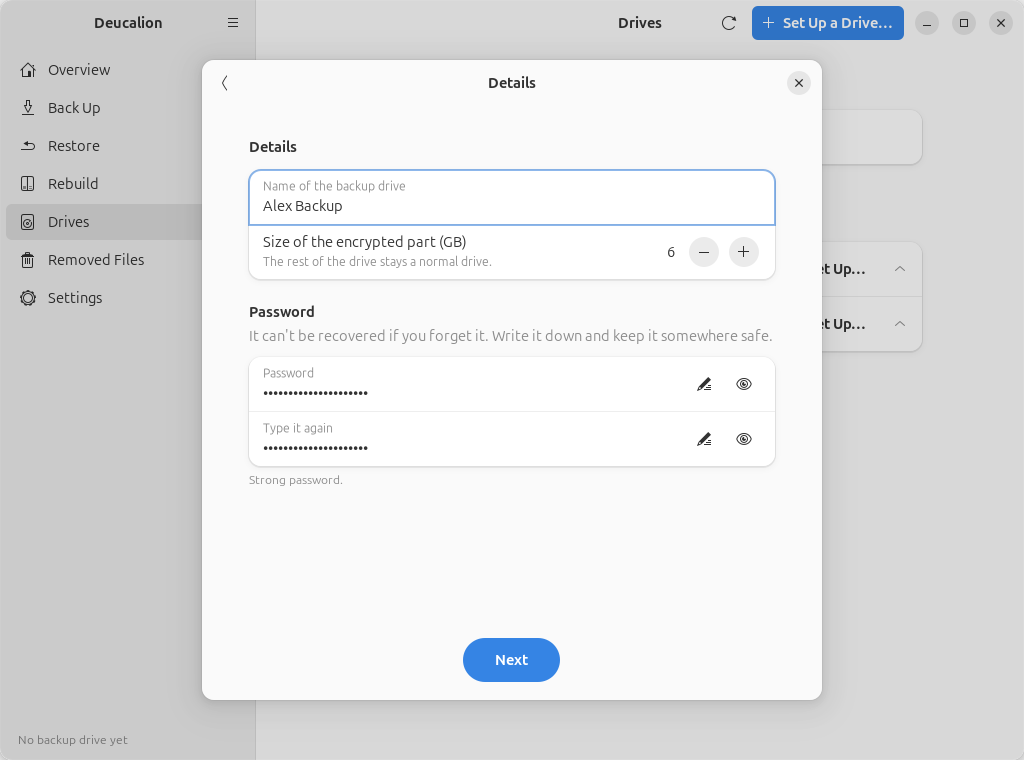
- Name of the backup drive: a name you'll recognise, for example
Alex Backup. - Size of the encrypted part (GB): how much of the drive holds the backup. The rest stays a normal drive. The suggestion (80 % of the drive) is a good choice.
- Password and Type it again: the backup's password. Use at least 8 characters; a few words make a strong password that is easy to remember.
On the Details page:
Write the password down
Nobody can recover this password, not even with Deucalion. If you forget it, the backup is lost. Write it down and keep it somewhere safe, away from the computer.
- Name of the backup drive: a name you'll recognise, for example
-
Click Next. The Confirm page sums up your choices. To confirm that the drive may be erased, type the drive's name shown there (for example
sda) into Drive name, then click Erase and Set Up.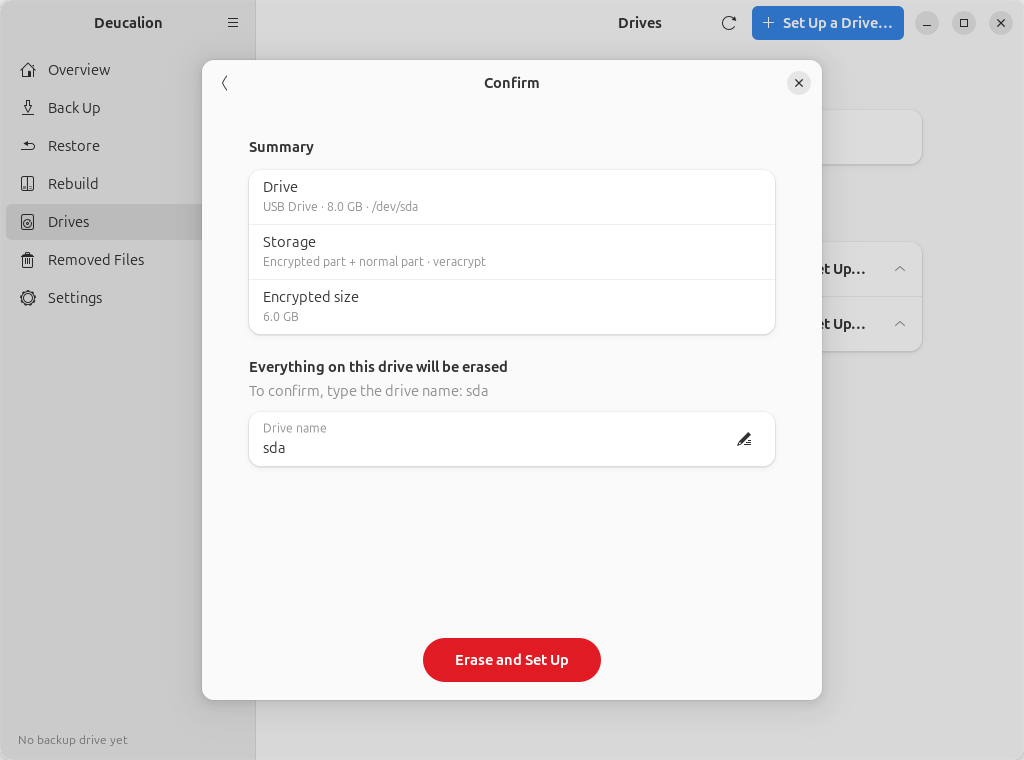
-
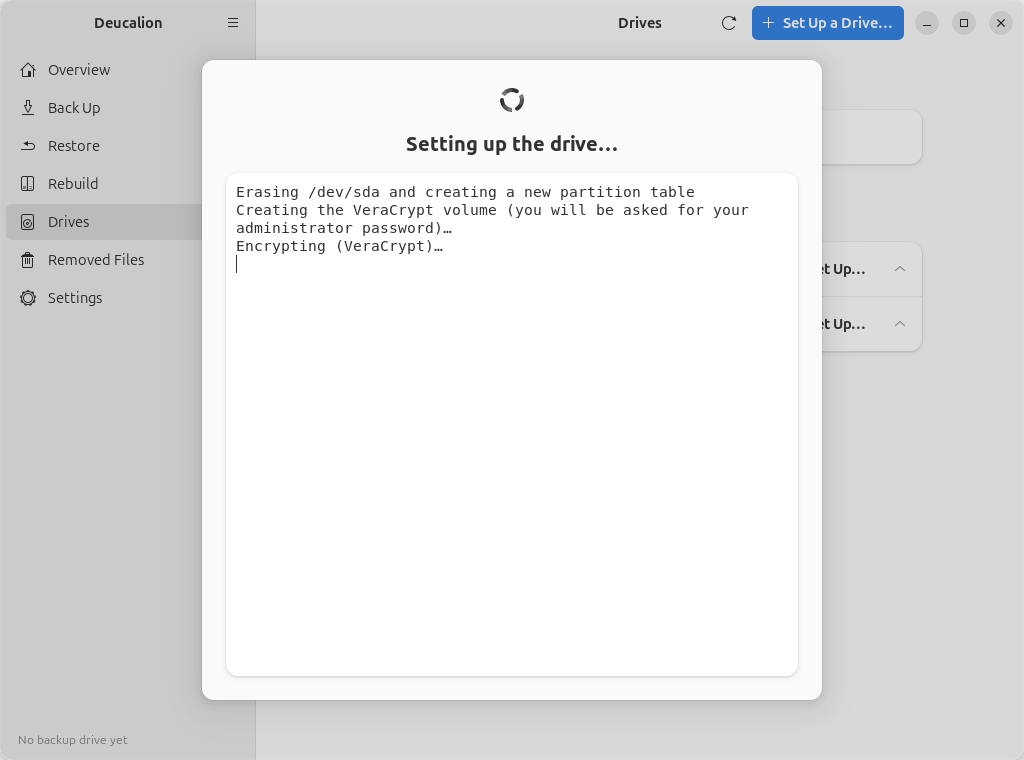
Ubuntu may ask for your administrator password (VeraCrypt needs it). Deucalion then prepares the drive. This takes a minute or two for the encrypted part to be created; on a large drive, creating a VeraCrypt part can take much longer, because the whole part is filled with encrypted data.
-
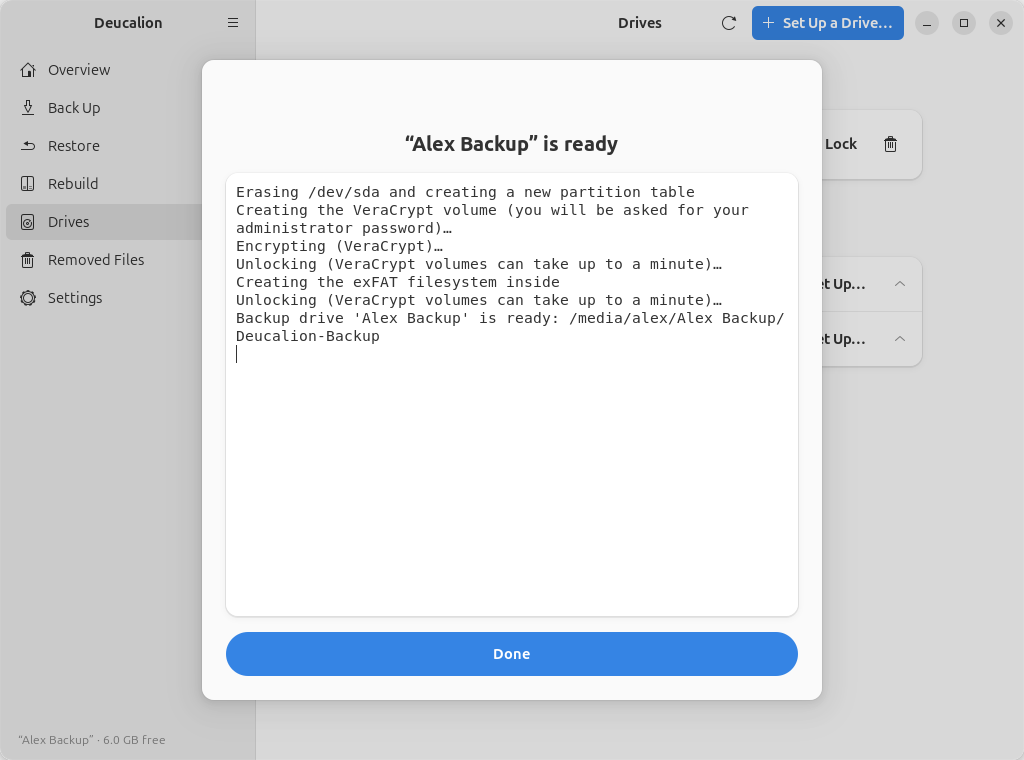
When it says "Alex Backup" is ready, click Done.
-
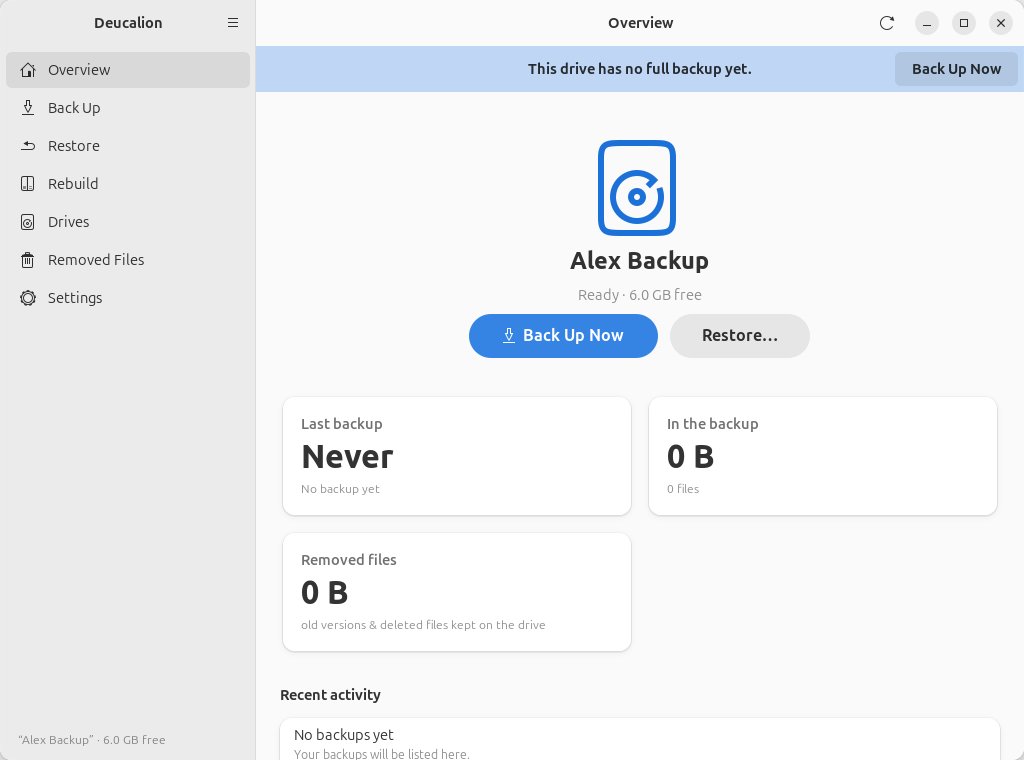
The Overview page now shows your drive, and a bar saying This drive has no full backup yet. Click Back Up Now.
-
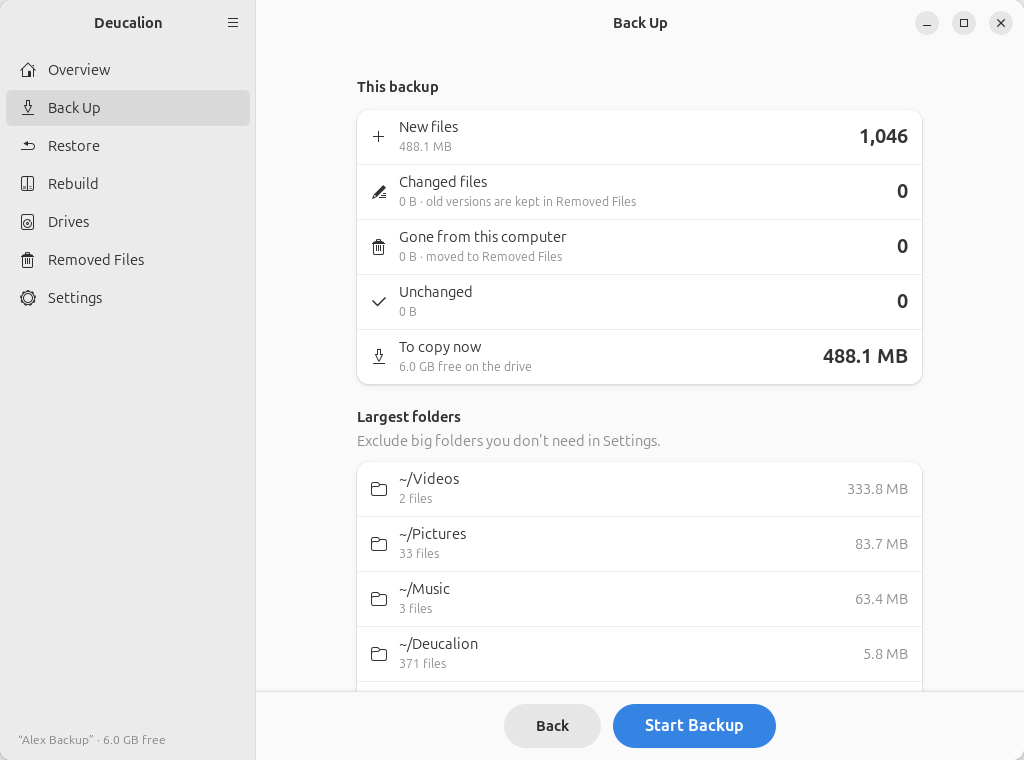
Deucalion first saves your system recipe (Ubuntu may ask for your administrator password), then looks at your files. Nothing is copied yet. It then shows what it will copy:
-
Check the numbers and the Largest folders list. If a big folder you don't need is listed, click Back and leave it out in Settings (see Leave folders out). Otherwise click Start Backup.
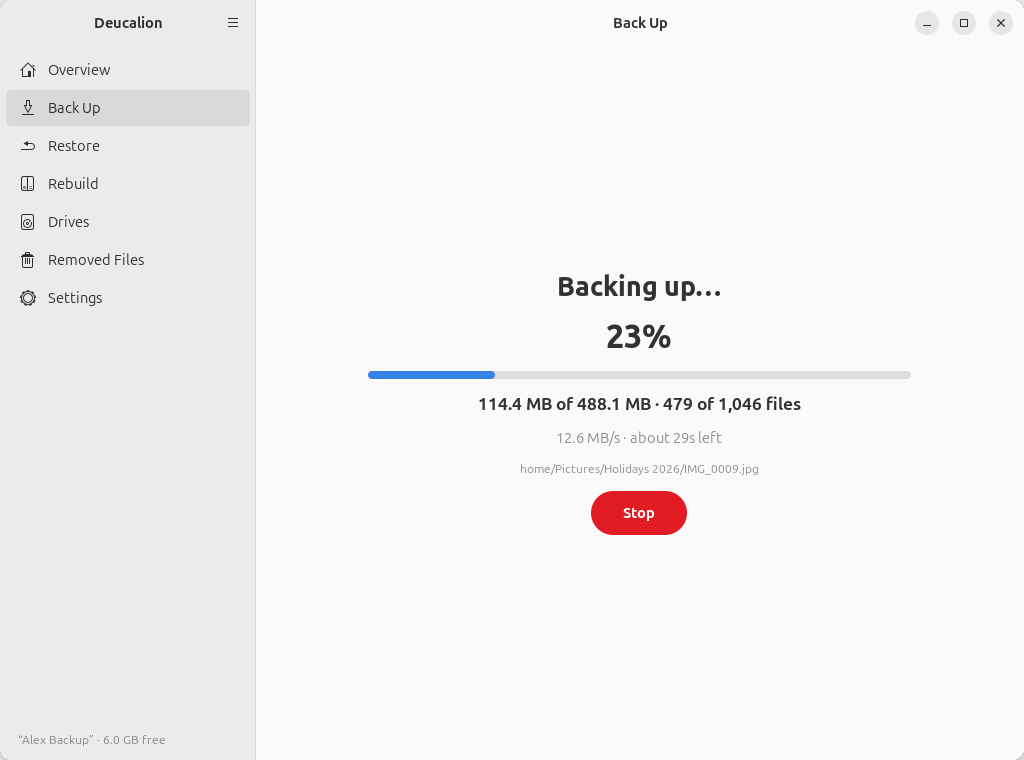
-
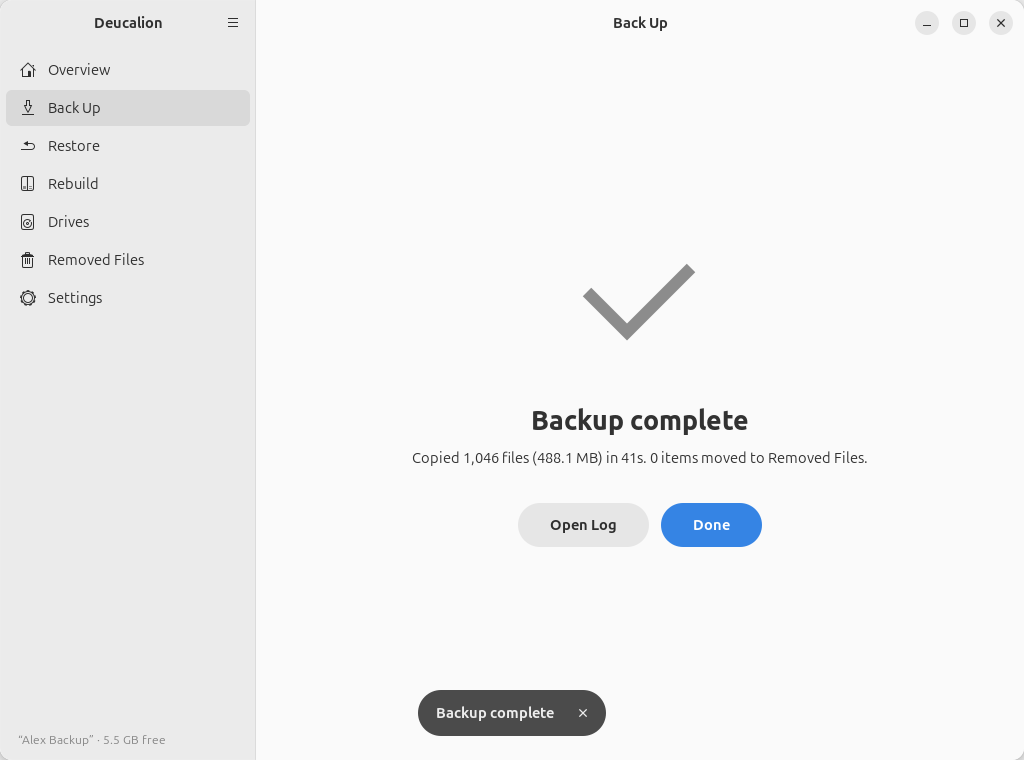
When it says Backup complete, click Done. The Overview page shows when your last backup was and how much is in it.
You can keep using your computer during the backup. If you need to stop, click Stop: the files copied so far are kept, and the next backup continues from there.
- Plug in the drive and open a terminal (Ctrl+Alt+T).
-
Prepare the drive. Run:
deucalion setup-driveDeucalion asks you questions one by one. Type the number of your answer (or the text asked for) and press Enter. Press Enter alone to accept the default shown.
- Which drive? your external drive. Your computer's own disk is never listed.
- How should the backup be stored? the line that starts with Encrypted part for the backup.
- Which encryption? VeraCrypt (opens on Windows and macOS too).
- Size of the encrypted part: press Enter for the suggestion.
- A name for this backup drive: for example
Backup. - To confirm, type the drive name: the name shown in brackets, such as
sdb. This erases the drive. - Backup password, then Type it again: nothing appears while you type.
$ deucalion setup-drive
Which drive?
  1) /dev/sda  Backup Drive  8.0 GB
  Choose [1-1] (default 1):

/dev/sda  Backup Drive  8.0 GB
  (empty)

How should the backup be stored?
  1) Encrypt the whole drive
  2) Encrypted part for the backup + a normal part for other files
  3) No encryption: erase and format the whole drive as exFAT
  Choose [1-3] (default 1): 2

Which encryption?
  1) VeraCrypt: open it on Linux, macOS and Windows (with VeraCrypt)
  2) LUKS: built into Ubuntu, no extra software, Linux only
  Choose [1-2] (default 1): 1
  Size of the encrypted part for backups? [default 5 GB, max 7 GB]: 5
  A name for this backup drive [Deucalion]: Backup

Summary
  Drive:  /dev/sda  Backup Drive  8.0 GB
  Layout: Encrypted part for the backup + a normal part for other files (veracrypt)
  Encrypted size: 5.0 GB
  EVERYTHING on /dev/sda will be erased.
  To confirm, type the drive name (sda): sda

Choose the password for the backup. It cannot be recovered if you forget it: write it down and keep it somewhere safe.
  Backup password:
  Type it again:
  Erasing /dev/sda and creating a new partition table
  Creating the VeraCrypt volume (you will be asked for your administrator password)…
  Encrypting (VeraCrypt)…
  Unlocking (VeraCrypt volumes can take up to a minute)…
  Creating the exFAT filesystem inside
  Unlocking (VeraCrypt volumes can take up to a minute)…
  Backup drive 'Backup' is ready: /media/alex/Backup/Deucalion-Backup

Done. Back up with: deucalion backup  (drive 'Backup')
Write the password down
Nobody can recover this password, not even with Deucalion. If you forget it, the backup is lost.
-
See what would be copied, without copying anything:
deucalion backup --dry-runIt lists the number of new files and the largest folders. If a big folder you don't need is listed, leave it out first (see Leave folders out).
-
Back up:
deucalion backupWhile it copies, one line shows a progress bar, the amount copied, the speed and the time left. When it finishes:
$ deucalion backup Backing up to Backup /media/alex/Backup/Deucalion-Backup Saving the system recipe (packages, settings, services) — you may be asked for your administrator password… Backup plan (full: everything) New files: 1,031 230.6 MB Changed files: 0 0 B (previous versions go to _removed/) Gone/excluded: 0 0 B (moved to _removed/) Unchanged: 0 0 B Backup finished in 1s: copied 1,031 files (230.6 MB), moved 0 items to _removed/. Log: /media/alex/Backup/Deucalion-Backup/.deucalion/logs/2026-10-12_092317-backup.log -
Check the result:
deucalion status
To stop a backup, press Ctrl+C once. Deucalion stops safely; the next backup continues where it stopped.
What you have now: a backup drive with a full backup of your home folder and your system recipe, and a copy of Deucalion and a READ-ME file on the drive's normal part.
Next steps:
- Back up again whenever you like: it only copies what changed. See Make a full backup.
- Learn how to find and restore a file.
- Before you unplug the drive, lock it: Unlock and lock an encrypted drive.