Settings
The Settings page decides what is backed up. Changes are saved as soon as you make them.
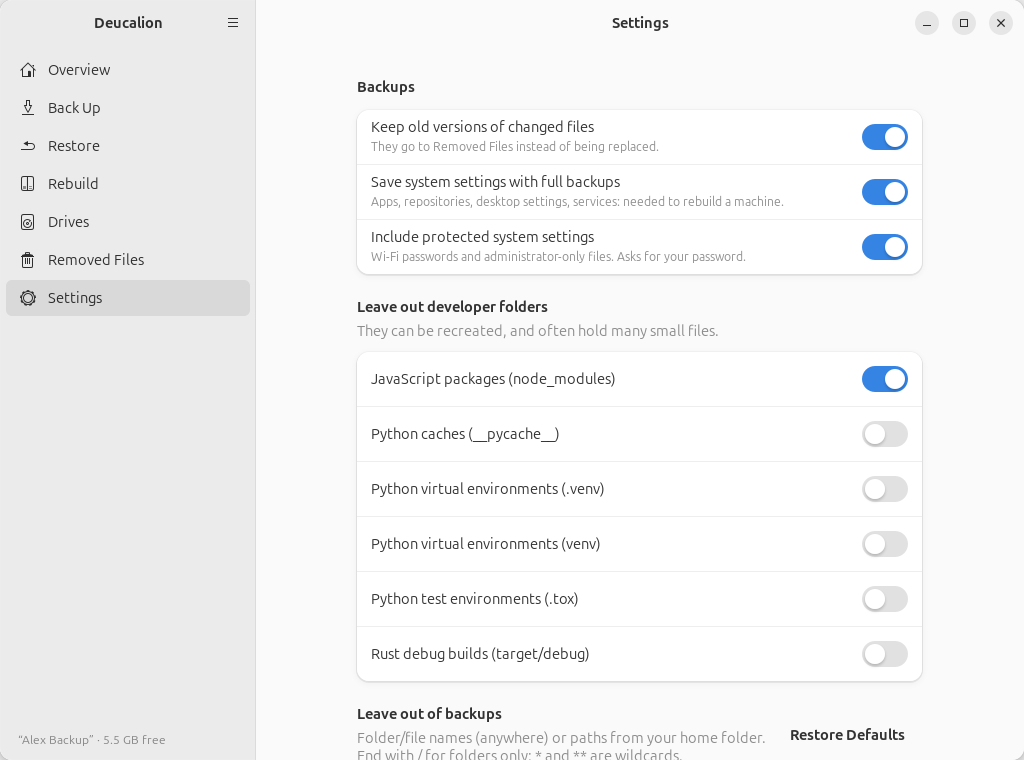
Backups
| Switch | What it does | Default |
|---|---|---|
| Keep old versions of changed files | When a file changed, its previous version goes to Removed Files. When off, the old version is replaced directly. Files deleted from your computer always go to Removed Files. | on |
| Save system settings with full backups | Saves the system recipe, needed to rebuild a computer. | on |
| Include protected system settings | Also saves Wi-Fi passwords and administrator-only files; asks for your password at each full backup. | on |
The last two are the same switches as on the Back Up page.
Leave out developer folders
One switch per kind of folder that programmers' tools recreate by themselves, and that often hold many small files. (These patterns are shown only here, not in the list below.) When a switch is on, every folder with that name is left out, wherever it is in your home folder:
| Switch | Leaves out |
|---|---|
| JavaScript packages (node_modules) | node_modules/ |
| Python caches (__pycache__) | __pycache__/ |
| Python virtual environments (.venv) | .venv/ |
| Python virtual environments (venv) | venv/ |
| Python test environments (.tox) | .tox/ |
| Rust debug builds (target/debug) | target/debug/ |
All are off by default.
Leave out of backups
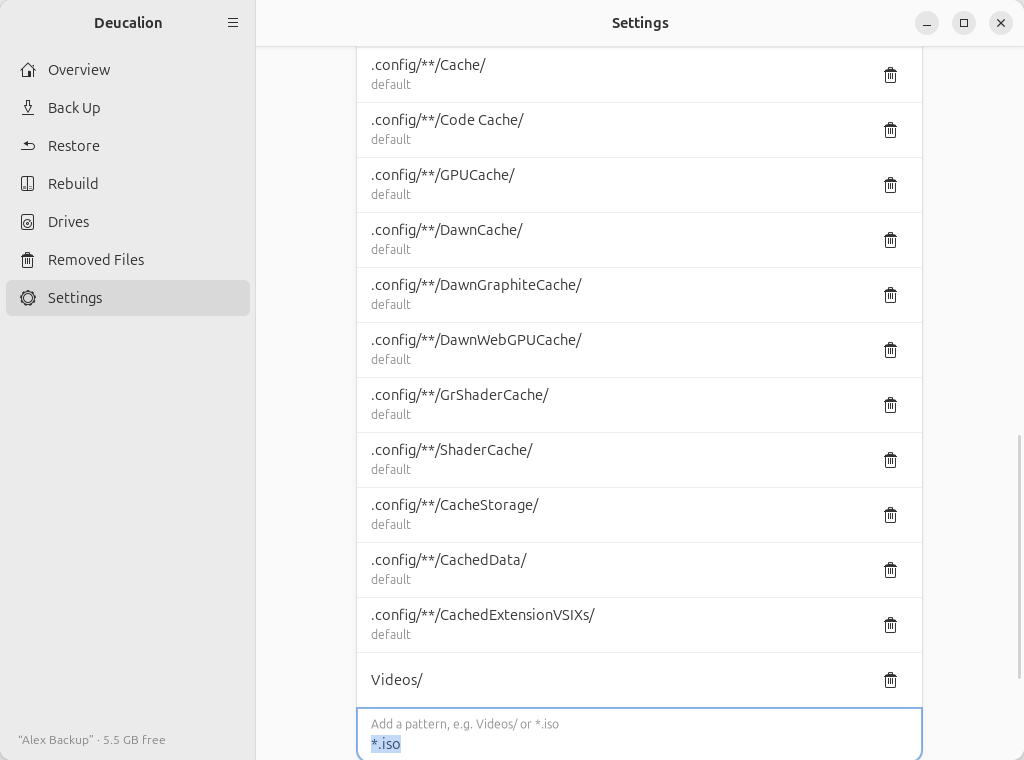
The list of what is left out of your home folder. Each line is a pattern:
- a name, like
Videos/or*.iso, matches files or folders with that name anywhere; - a path with
/in it, like.local/share/Trash/, matches from the top of your home folder; - a
/at the end means folders only; *matches any part of a name,**any number of folders,?one character.
See Exclusion patterns for examples.
- Lines marked default come with Deucalion: caches, the Trash and similar (see Default exclusions).
- The bin button removes a line.
- To add one, type it in Add a pattern… and press Enter (or click the ✓ button).
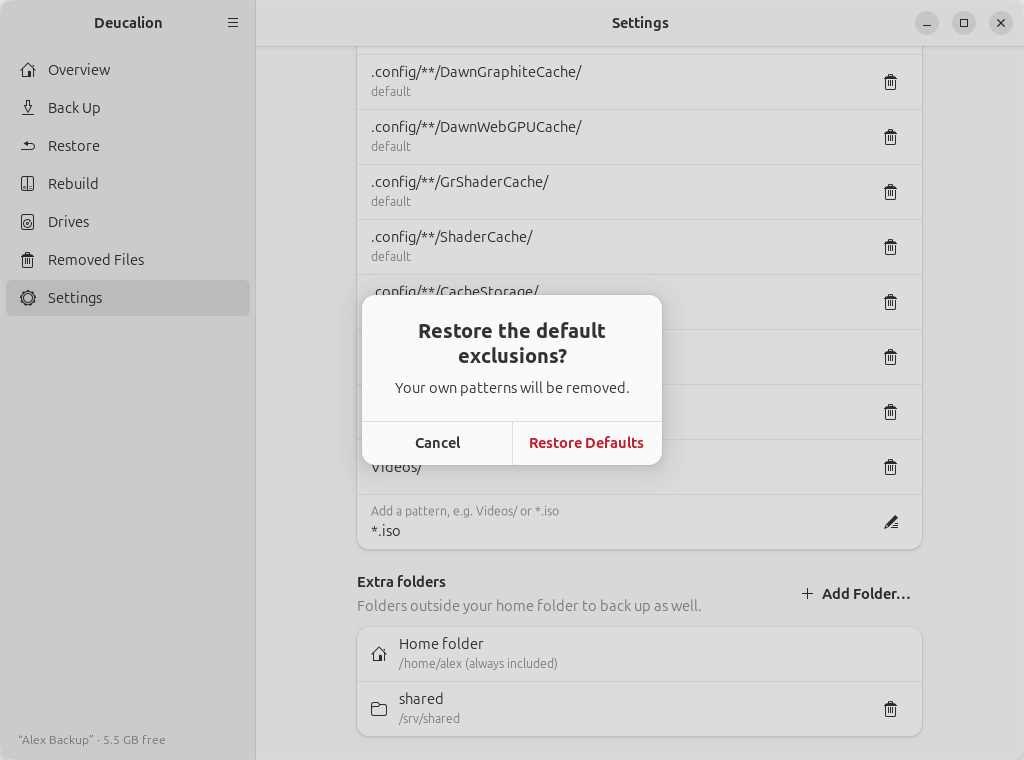
- Restore Defaults puts back the default list and removes your own patterns (it asks first).
Leaving out something that is already backed up
The next full backup moves it from the backup to Removed Files (it is no longer part of what you back up). It is not deleted.
Extra folders
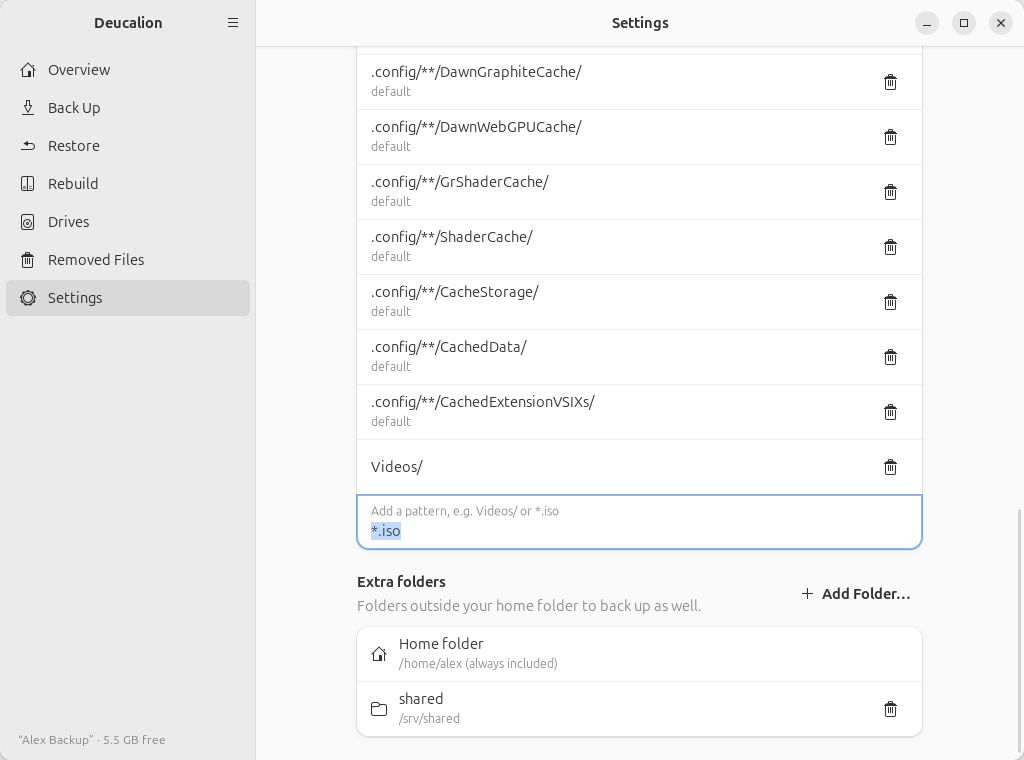
Folders outside your home folder to back up as well, for example /srv/shared or a second disk
mounted at /data. Your home folder is always included.
- Add Folder… opens a folder chooser. A folder inside your home folder is refused ("Already
included"). The folder gets a short name from its last part (
sharedfor/srv/shared); in the backup it is stored underextras/shared. - The bin button removes a folder from the list. What was already backed up from it stays in the backup.
See Back up a folder outside your home.