Back up a folder outside your home
What you'll do: add a folder that isn't in your home folder (for example /srv/shared, or a
second disk mounted at /data) to your full backups.
What you need: a folder you can read.
How long it takes: 2 minutes, plus the next backup.
- Open Deucalion and go to Settings.
- Scroll to Extra folders and click Add Folder….
-
Choose the folder and click Select. It appears in the list with a short name (the last part of its path):
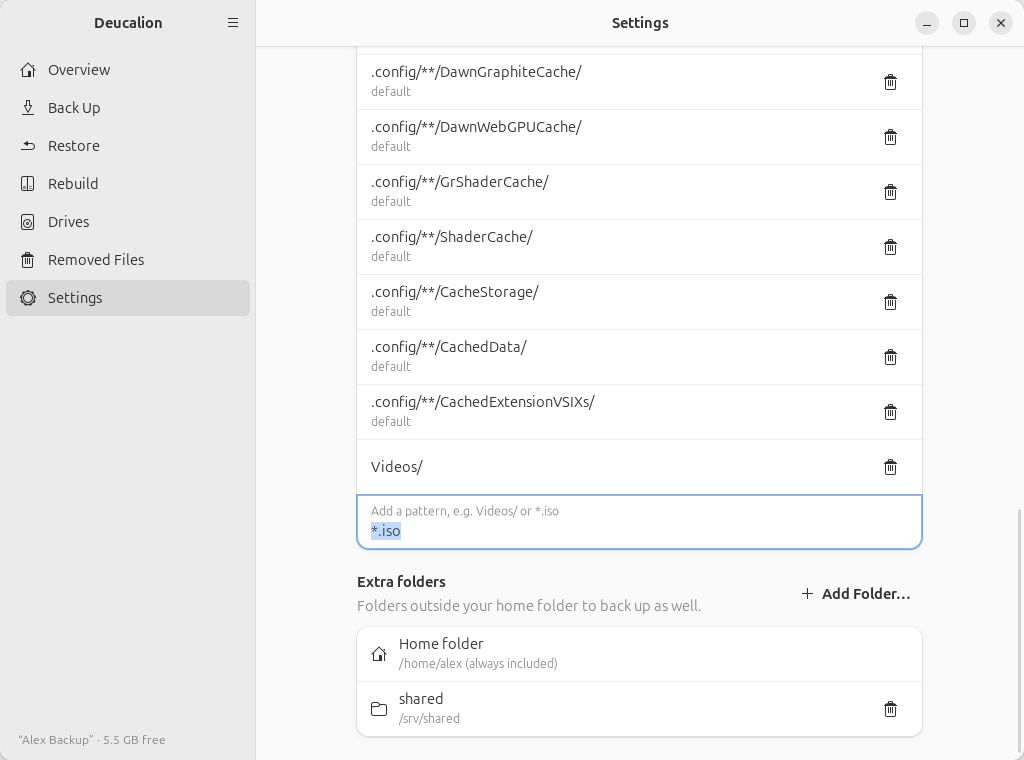
-
Back up (Back Up Now on the Overview page). The folder is included in every full backup.
-
Add the folder:
$ deucalion folder add /srv/shared home: /home/alex (always included) shared: /srv/shared -
Back up with
deucalion backup. The folder is included in every full backup. You can also back it up alone:deucalion backup --only /srv/shared.
Where it goes in the backup
In extras/<name>, next to home and system:
$ deucalion ls
home/  from /home/alex  (565 files, 156.5 MB)
extras/shared/  from /srv/shared  (2 files, 293.0 KB)
system/  from /home/alex/.local/state/deucalion/system  (81 files, 134.8 KB)
On restore, it goes back to its original place (/srv/shared), or wherever you choose.
Note
- A folder inside your home folder is refused: your home folder is always backed up.
- Deucalion reads the folder as you: files only the administrator can read are skipped (with a warning).
- If the folder is empty at backup time but the backup has files from it (for example because its disk isn't mounted), Deucalion skips it to keep the backup safe.
What you have now: the folder is part of every full backup.
Next steps: to stop backing it up, remove it in Settings (bin button) or with
deucalion folder remove shared. What was already backed up stays in the backup.