Back up only some folders
What you'll do: quickly update a few folders in your backup, without a full backup.
What you need: a backup drive with a backup on it (or not: a partial backup on an empty drive
works too).
How long it takes: a minute or two.
A partial backup only looks at the folders you choose and leaves the rest of the backup exactly as it was. It doesn't save the system recipe. See Full and partial backups.
- Open Deucalion and go to Back Up.
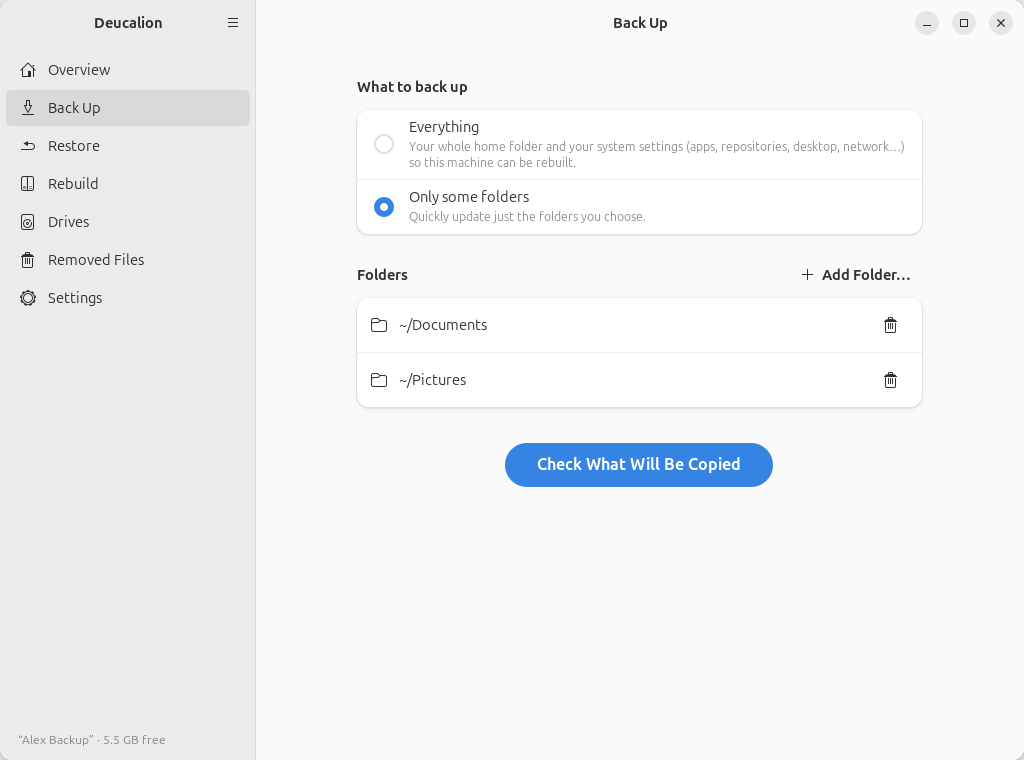
- Choose Only some folders.
-
Click Add Folder… and choose one or more folders (hold Ctrl to select several). They must be in your home folder or in an extra folder. Repeat to add more. The bin button removes one from the list.
-
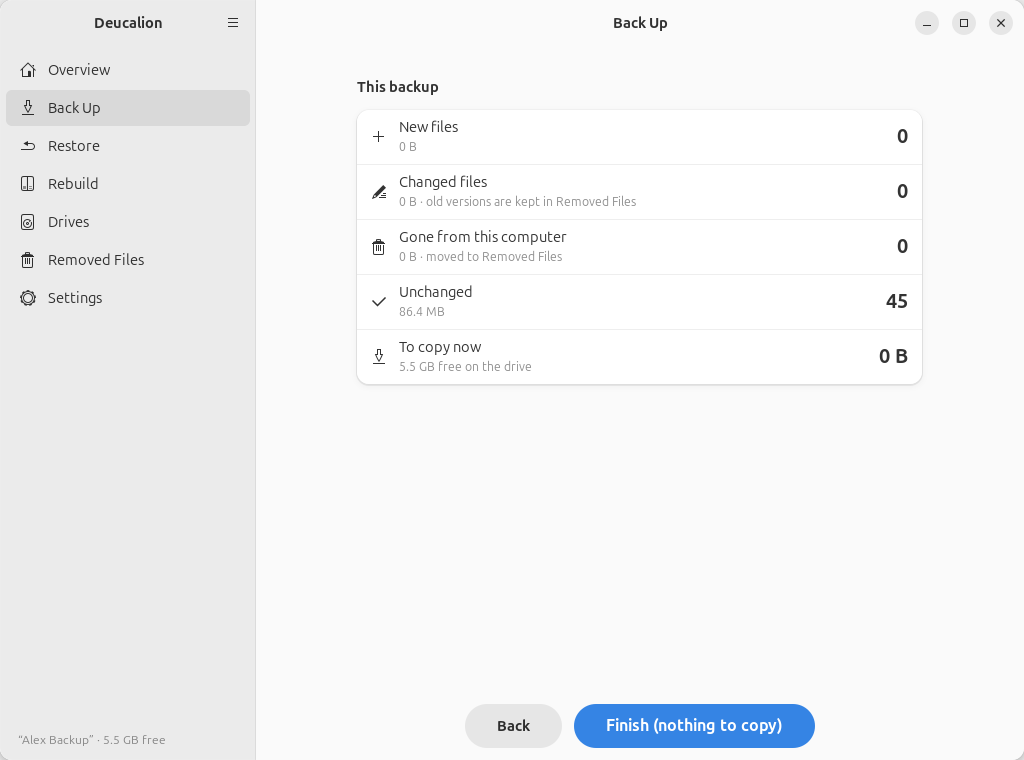
Click Check What Will Be Copied. The plan covers only these folders:
-
Click Start Backup (it reads Finish (nothing to copy) when nothing changed, as here), then Done when it is finished.
Name the folders (or files) after --only:
$ deucalion backup --only ~/Documents ~/Pictures
Backing up to Alex Backup  /media/alex/Alex Backup/Deucalion-Backup
Backup plan (partial: /home/alex/Documents, /home/alex/Pictures)
  New files:               0   0 B
  Changed files:           1   72 B (previous versions go to _removed/)
  Gone/excluded:           0   0 B (moved to _removed/)
  Unchanged:              44   86.4 MB
Backup finished in 0s: copied 1 file (72 B), moved 0 items to _removed/.
Log: /media/alex/Alex Backup/Deucalion-Backup/.deucalion/logs/2026-10-12_091020-backup.log
Add --dry-run to only see the plan.
What you have now: the chosen folders are up to date in your backup. Recent activity (or
deucalion status) lists it as a partial backup.
Next steps: if you back up the same folders often, save them as a profile.