Rebuild
The Rebuild page sets up this computer from a full backup, in eight steps. For the full walk-through, see Rebuild your computer; for what each step does and doesn't do, see What a rebuild restores.
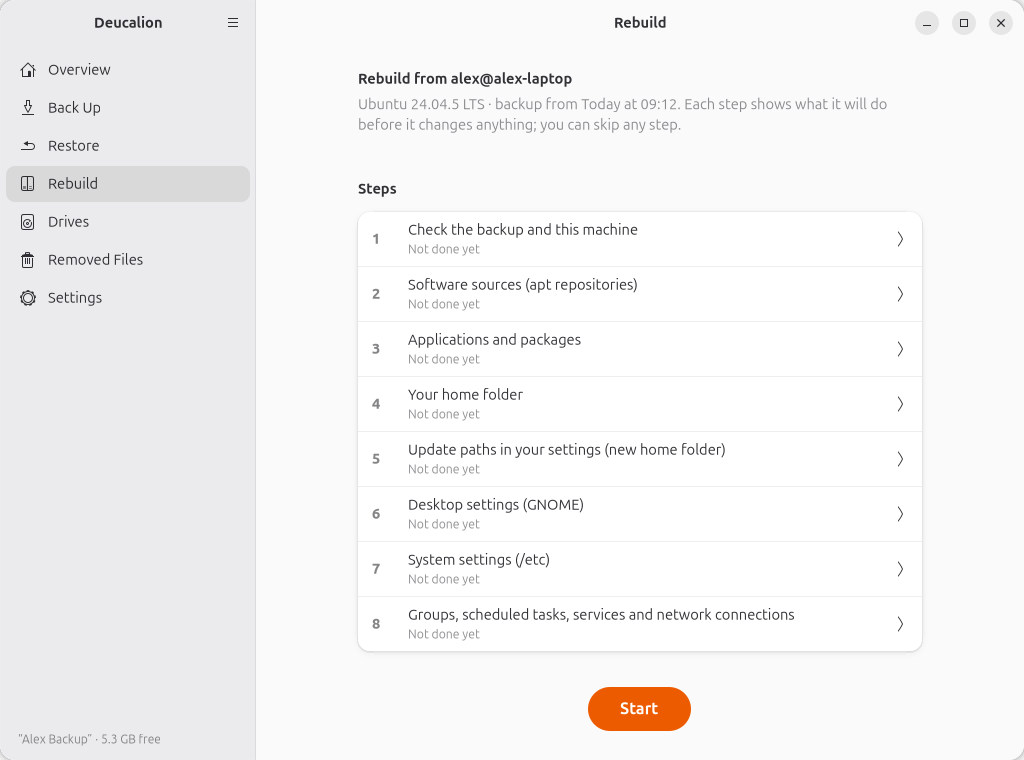
The list of steps
- The title says which computer and user the backup comes from, its Ubuntu version and when it was made.
- Each step shows Not done yet, Done, Skipped or Failed, with when. Click a step to open it (also to run it again).
- Start opens the first step; later it reads Continue (the first step not done or skipped), or All Steps Done.
If the drive isn't connected the page says so; if it is locked it has an Unlock button:
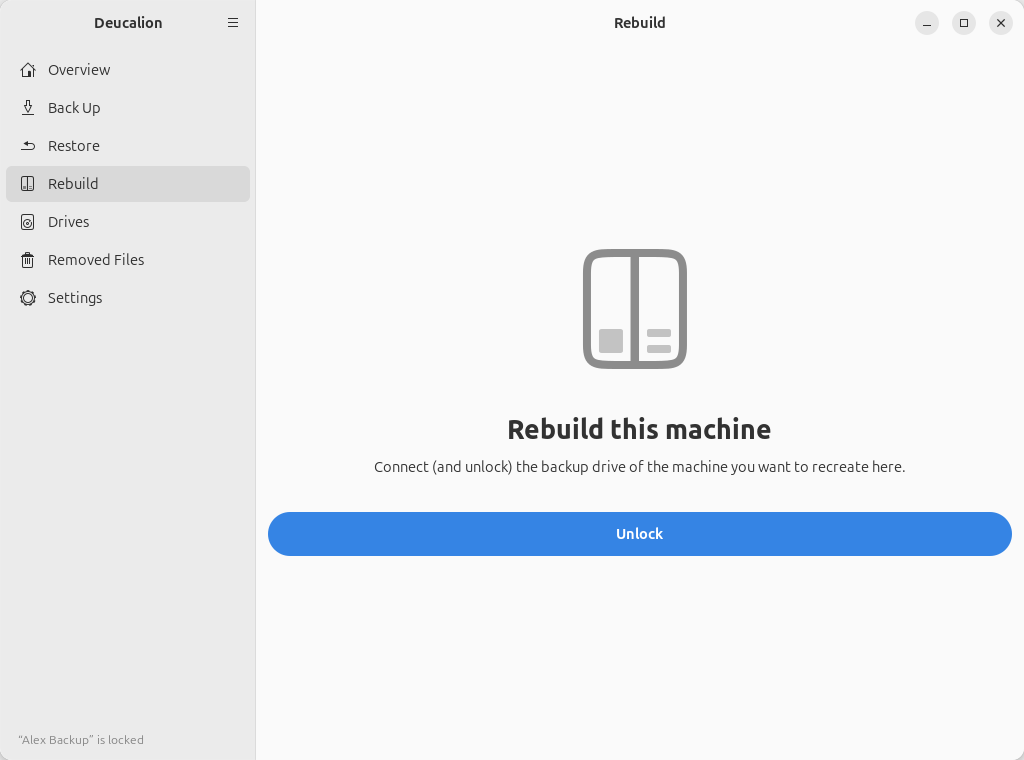
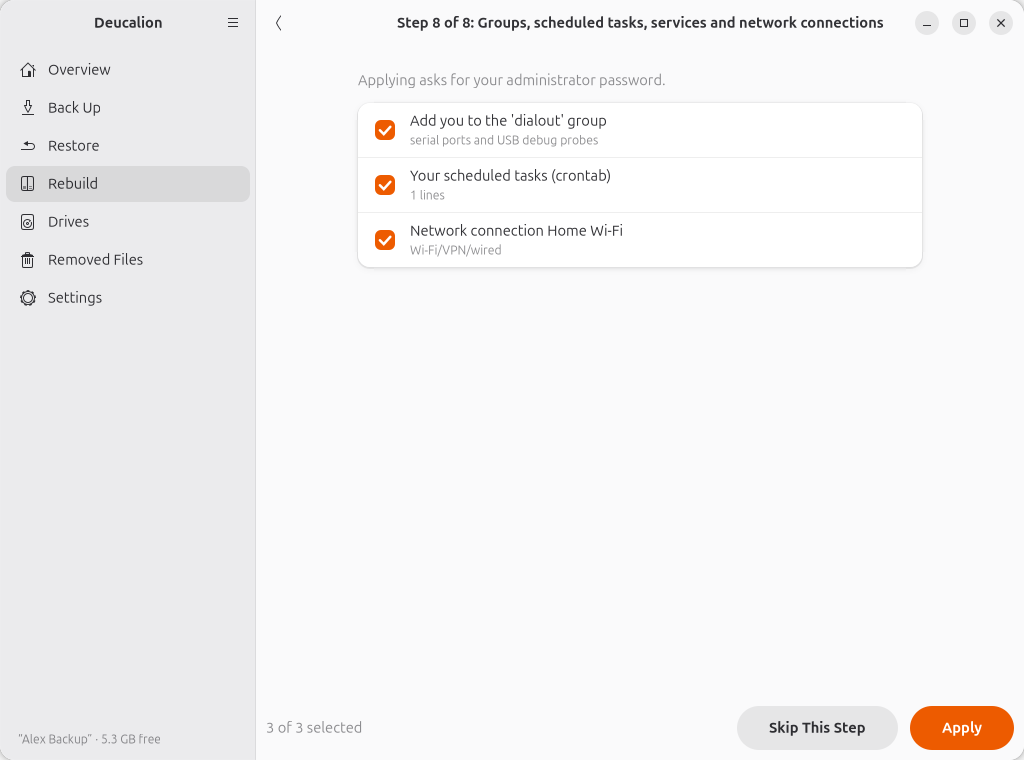
A step
- While the step looks at the backup and this computer, it says Looking at the backup and this machine…. Nothing is changed.
- Notes (with an ⓘ) explain things worth knowing.
- Items have tick boxes; greyed-out items are for information only. The count at the bottom left says how many are selected. With more than three, All and None buttons appear.
- In step 7, Show Changes next to each file shows the difference between this computer's file and
the backup's (
+lines from the backup,-from this computer). - Applying asks for your administrator password appears on steps that need it.
Buttons:
| Button | What it does |
|---|---|
| Skip This Step | Marks the step Skipped and opens the next one. |
| Apply | Applies the ticked items. A log shows what happens; step 4 also shows a progress bar. |
| Continue | (Instead of Apply, when the step has nothing to do.) Marks it done and opens the next one. |
| Next Step | After applying: opens the next step. |
| ‹ (top left) | Back to the list. |
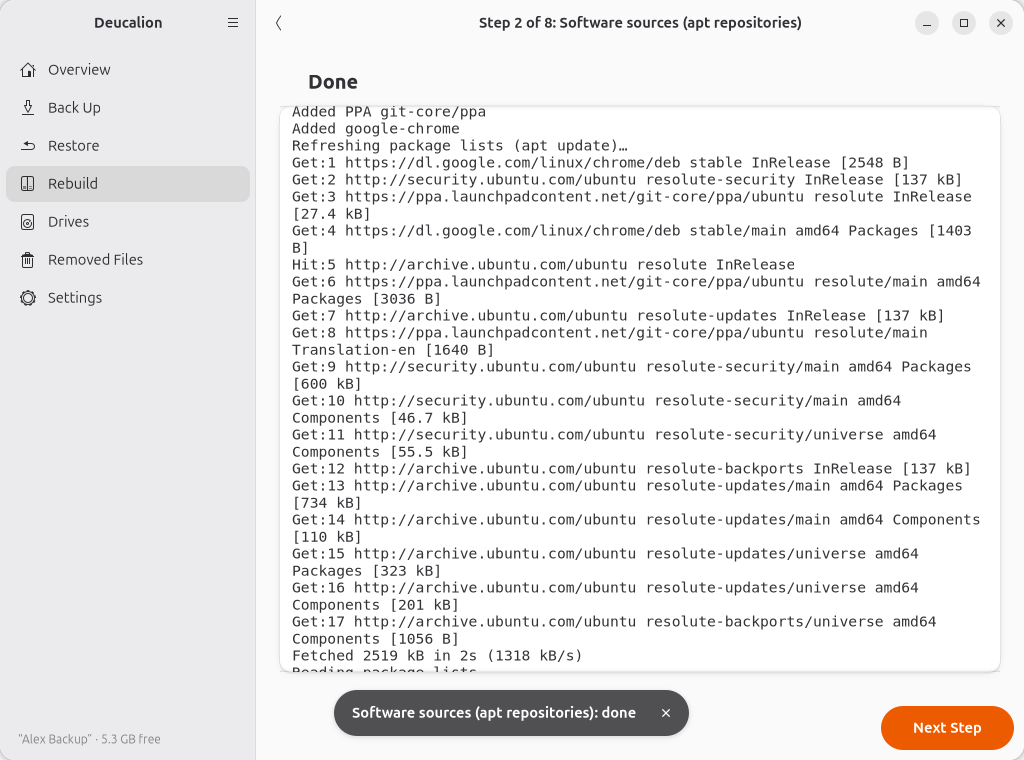
When a step fails, it says This step failed with the reason in the log. Fix the cause and open the step again from the list.