Overview
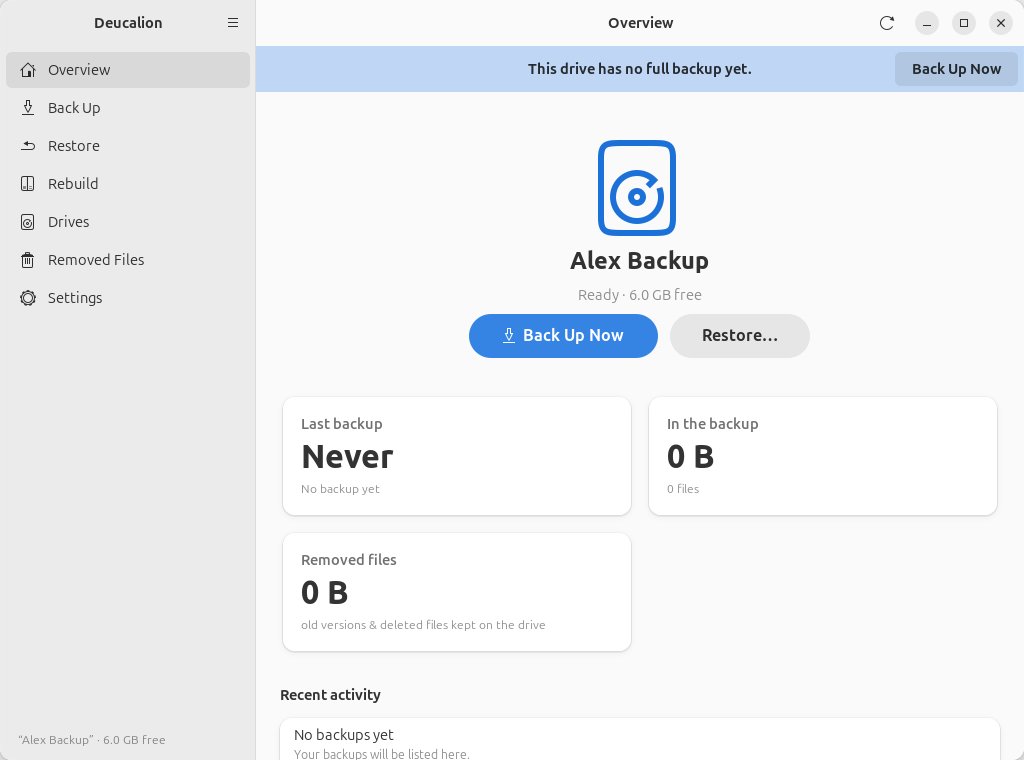
The Overview page is the first page you see. It shows your backup drive and what it holds.
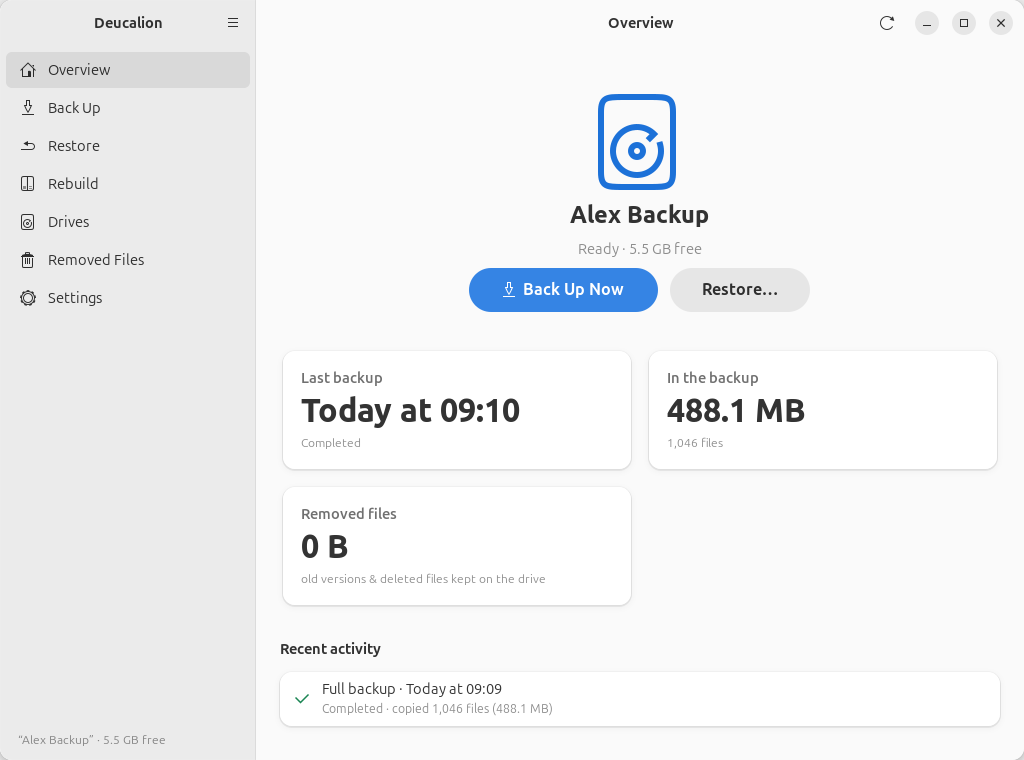
What it shows
- The drive's name and state: Ready with the free space, or one of the states below.
- Back Up Now: starts a full backup (it first shows you what it will copy; nothing is copied until you click Start Backup). See Back Up.
- Restore…: opens the Restore page.
- Last backup: when the last backup finished, and how it ended: Completed, Completed with warnings, Stopped, Failed, or Interrupted (the computer or Deucalion stopped in the middle).
- In the backup: the size and number of files in the backup.
- Removed files: how much space old versions and deleted files take on the drive (see Removed Files).
- Recent activity: the last six backups, full or partial, with how many files each copied (No backups yet before the first one).
- The refresh button (⟳, top right): looks at the drive again, for example after you plugged it in.
A bar at the top of the page reminds you when the drive has no full backup yet, or when your last full backup was 7 or more days ago. Its Back Up Now button opens the Back Up page.
The other states
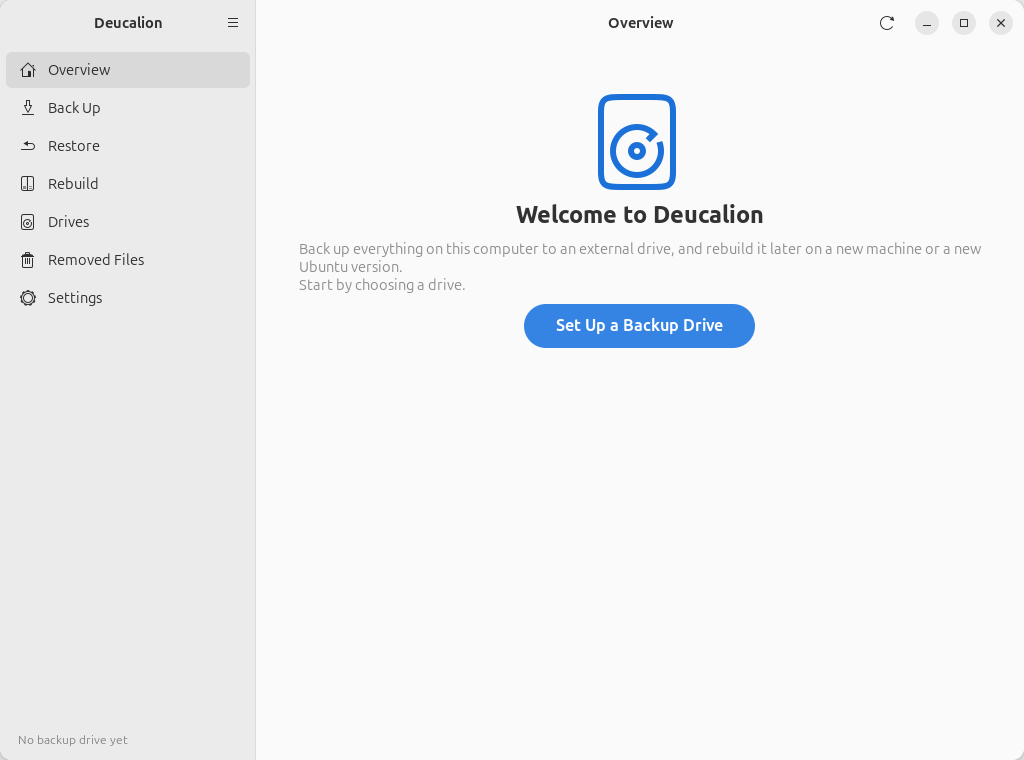
The first time, the page welcomes you. Set Up a Backup Drive opens the drive setup wizard.
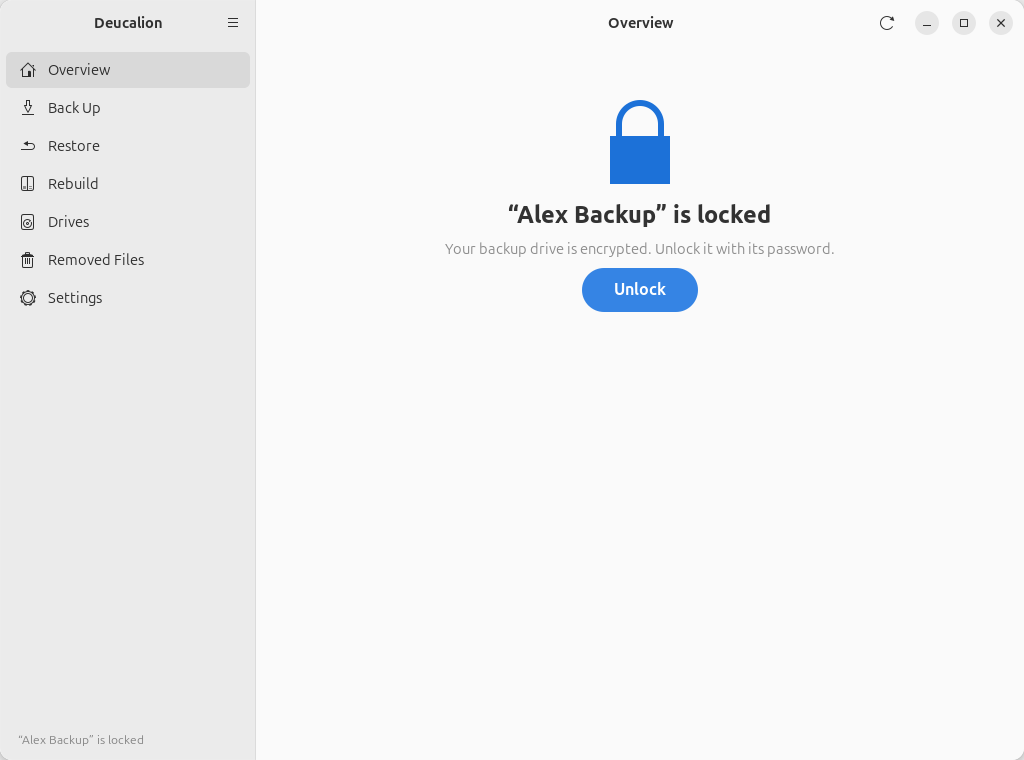
The drive is plugged in but encrypted and locked. Unlock asks for its password.
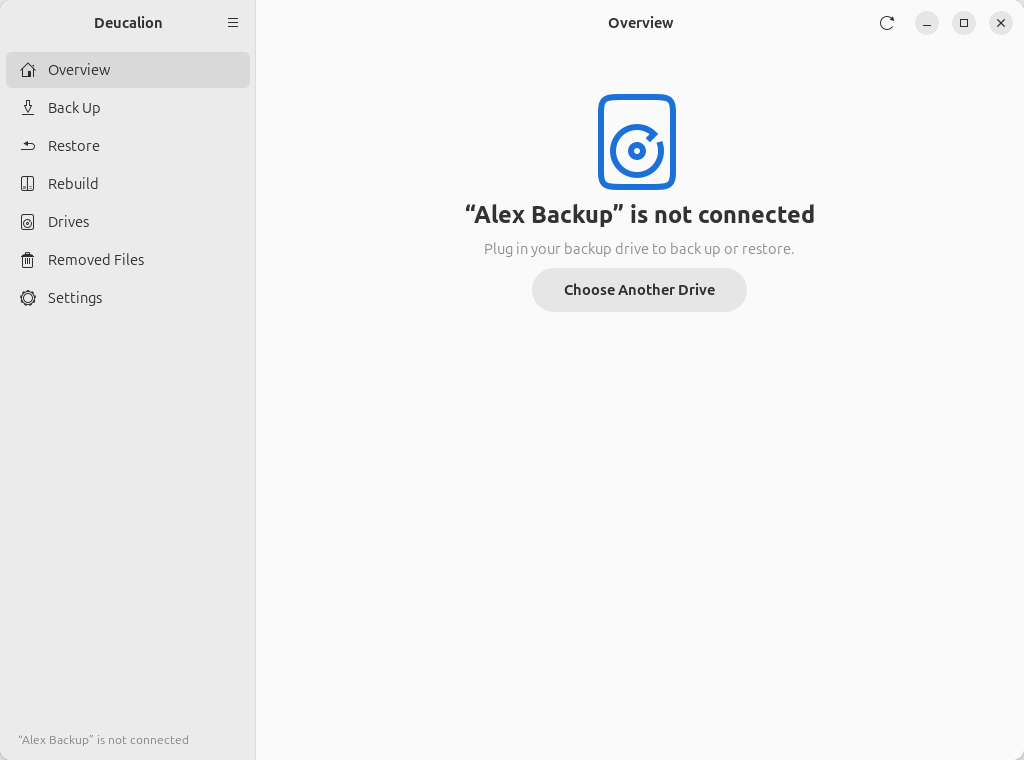
The drive isn't plugged in (or Deucalion can't find it). Plug it in; the page updates by itself. Choose Another Drive opens the Drives page.
Right after setting up a drive.
Related
- Your first backup
deucalion statusshows the same information in a terminal.