Set up a drive: whole drive, VeraCrypt
What you'll do: turn a whole drive into one encrypted VeraCrypt volume for your backups.
What you need: Deucalion with VeraCrypt installed; an external
drive whose contents you don't need (it will be erased); a password you will remember; your
administrator password.
How long it takes: 5 minutes of your time. Creating the volume fills the whole drive with
encrypted data, which takes from a minute on a small drive to several hours on a large hard disk.
Good for: a drive used only for backups, that you may need to open on Windows or macOS. Keep in mind: the drive has no unencrypted part, so it carries no copy of Deucalion and no READ-ME file. On a new computer, install Deucalion first.
This erases the whole drive
Everything on it is deleted. Copy anything you want to keep somewhere else first.
- Plug in the drive. Open Deucalion and go to Drives.
- Next to the drive under Connected drives, click Set Up….
-
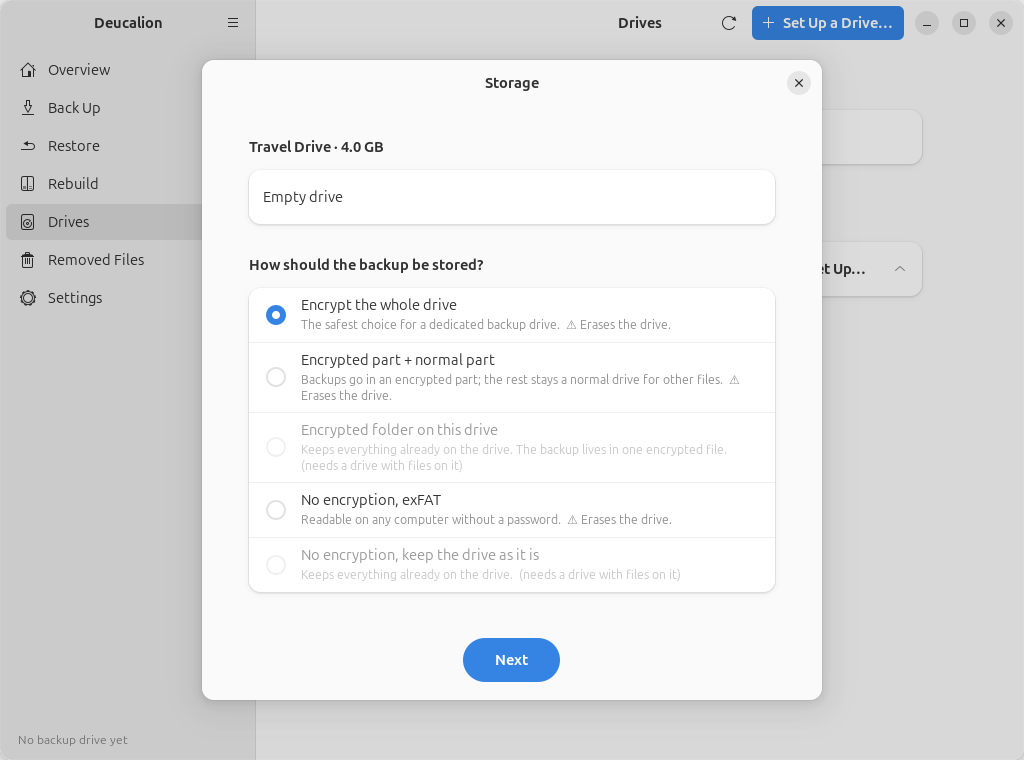
Choose Encrypt the whole drive and click Next.
-
Choose VeraCrypt and click Next.
-
Type a Name of the backup drive (here
Travel) and the Password twice. Click Next.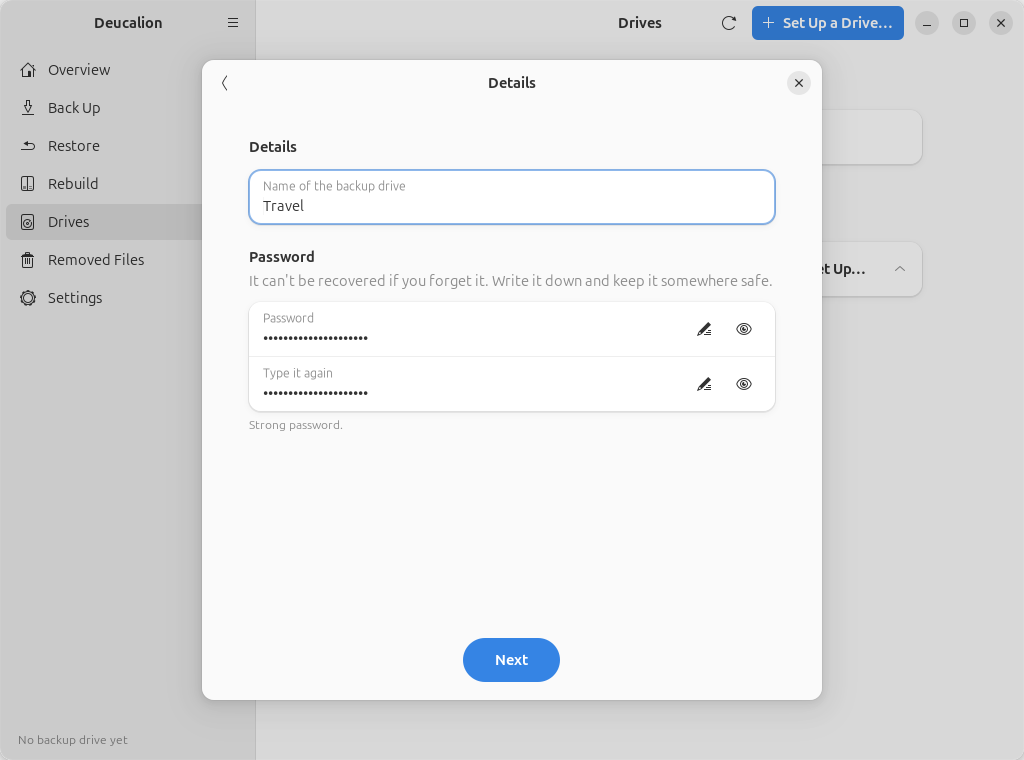
Write the password down
Nobody can recover it. Without it, the backup can't be opened.
-
Type the drive's name shown on the Confirm page (for example
sdb) and click Erase and Set Up.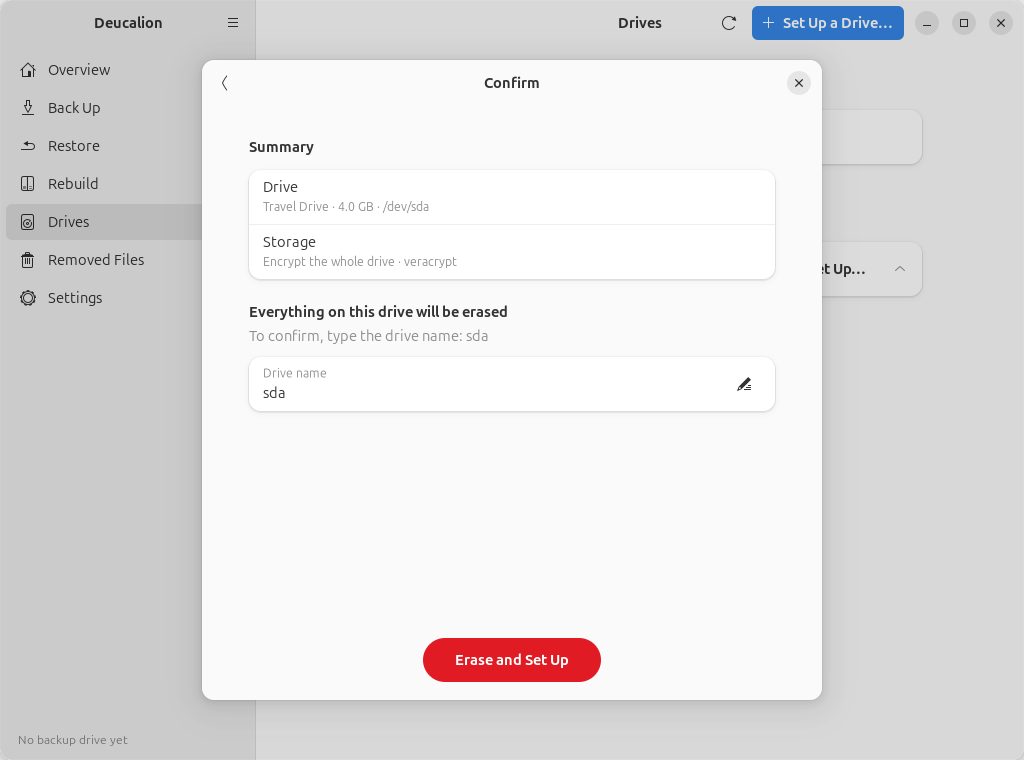
-
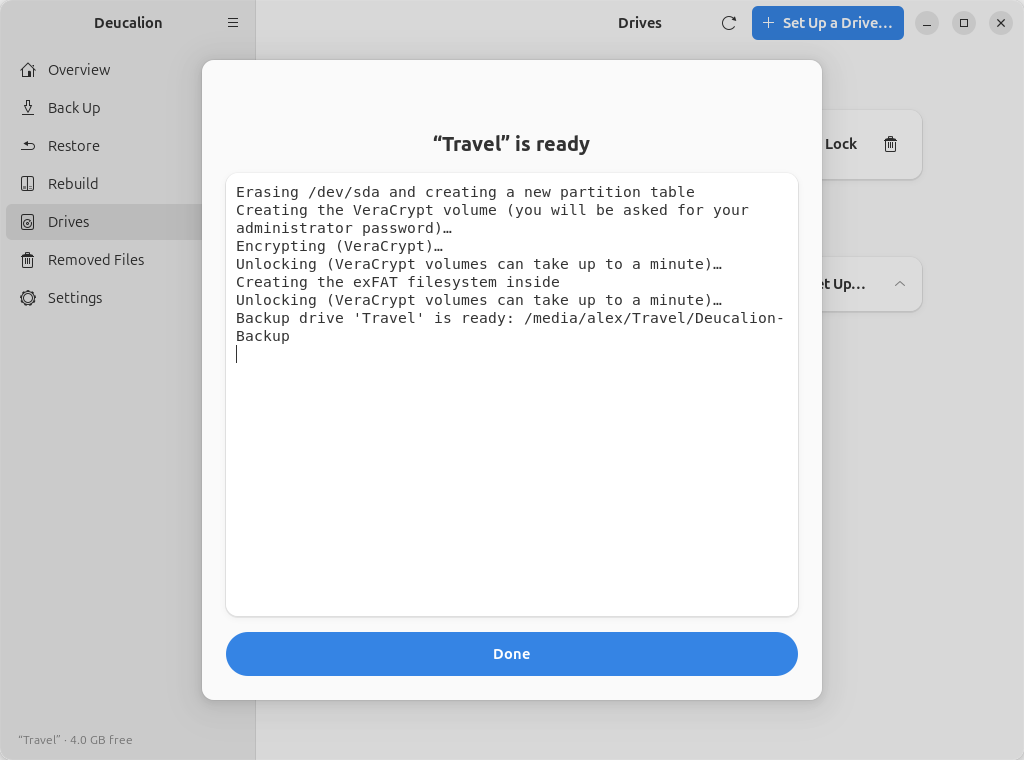
Ubuntu asks for your administrator password. Deucalion creates the volume, unlocks it, creates the backup folder, and registers the drive.
-
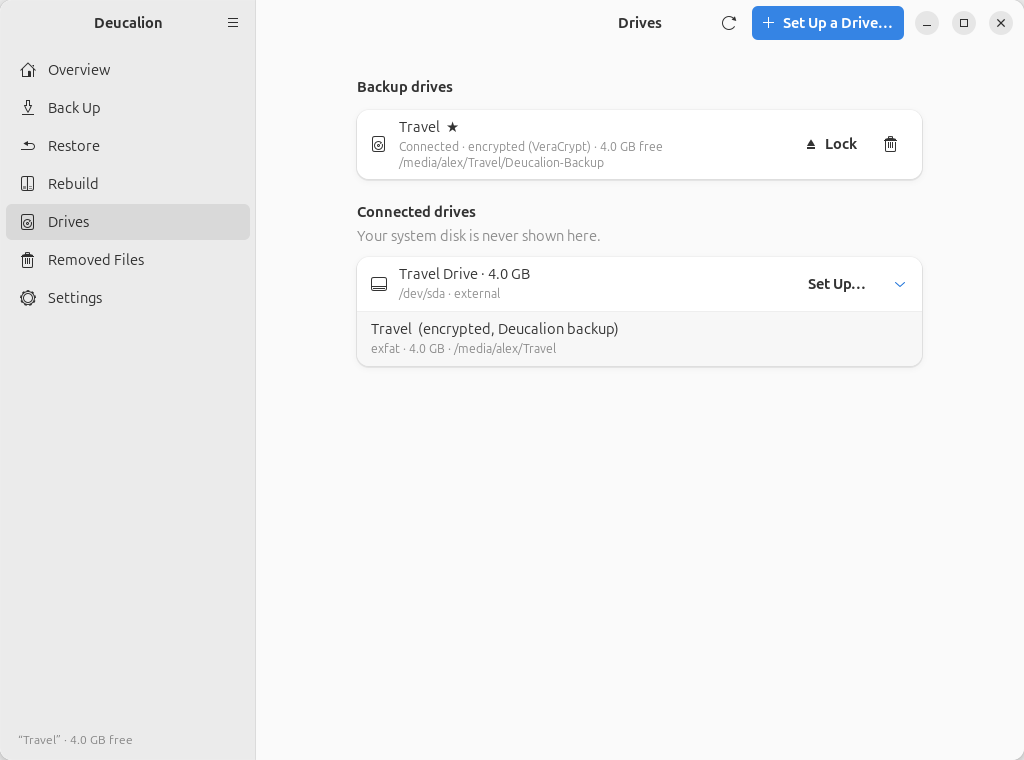
Click Done. Under Connected drives, the drive now shows one encrypted part holding a Deucalion backup:
- Plug in the drive and open a terminal.
-
Run
deucalion setup-driveand answer: the drive; 1 (Encrypt the whole drive); 1 (VeraCrypt); a name; the drive's short name to confirm; the password twice. Your administrator password is asked when the volume is created.$ deucalion setup-drive Which drive? 1) /dev/sda Travel Drive 4.0 GB Choose [1-1] (default 1): /dev/sda Travel Drive 4.0 GB (empty) How should the backup be stored? 1) Encrypt the whole drive 2) Encrypted part for the backup + a normal part for other files 3) No encryption: erase and format the whole drive as exFAT Choose [1-3] (default 1): 1 Which encryption? 1) VeraCrypt: open it on Linux, macOS and Windows (with VeraCrypt) 2) LUKS: built into Ubuntu, no extra software, Linux only Choose [1-2] (default 1): 1 A name for this backup drive [Deucalion]: Travel Summary Drive: /dev/sda Travel Drive 4.0 GB Layout: Encrypt the whole drive (veracrypt) EVERYTHING on /dev/sda will be erased. To confirm, type the drive name (sda): sda Choose the password for the backup. It cannot be recovered if you forget it: write it down and keep it somewhere safe. Backup password: Type it again: Erasing /dev/sda and creating a new partition table Creating the VeraCrypt volume (you will be asked for your administrator password)… Encrypting (VeraCrypt)… Unlocking (VeraCrypt volumes can take up to a minute)… Creating the exFAT filesystem inside Unlocking (VeraCrypt volumes can take up to a minute)… Backup drive 'Travel' is ready: /media/alex/Travel/Deucalion-Backup Done. Back up with: deucalion backup (drive 'Travel')Write the password down
Nobody can recover it. Without it, the backup can't be opened.
-
Check it:
$ deucalion drives
/dev/sda  Travel Drive  4.0 GB  (external, usb)
    /dev/mapper/deucalion-4754663baa38 “Travel”  exfat  4.0 GB  /media/alex/Travel  [encrypted, Deucalion backup]
The same without questions (only the password is asked):
deucalion setup-drive /dev/sdb --layout encrypt-all --method veracrypt --name Travel --yes-erase sdb.
What you have now: an encrypted backup drive, unlocked, registered as your default backup drive.
Next steps:
- Make a full backup.
- Lock the drive before unplugging it.
- To open it on Windows or macOS, see Open your backup without Deucalion.