Drives and drive setup
The Drives page lists your backup drives and the drives plugged into your computer, and lets you prepare a new backup drive.
Backup drives
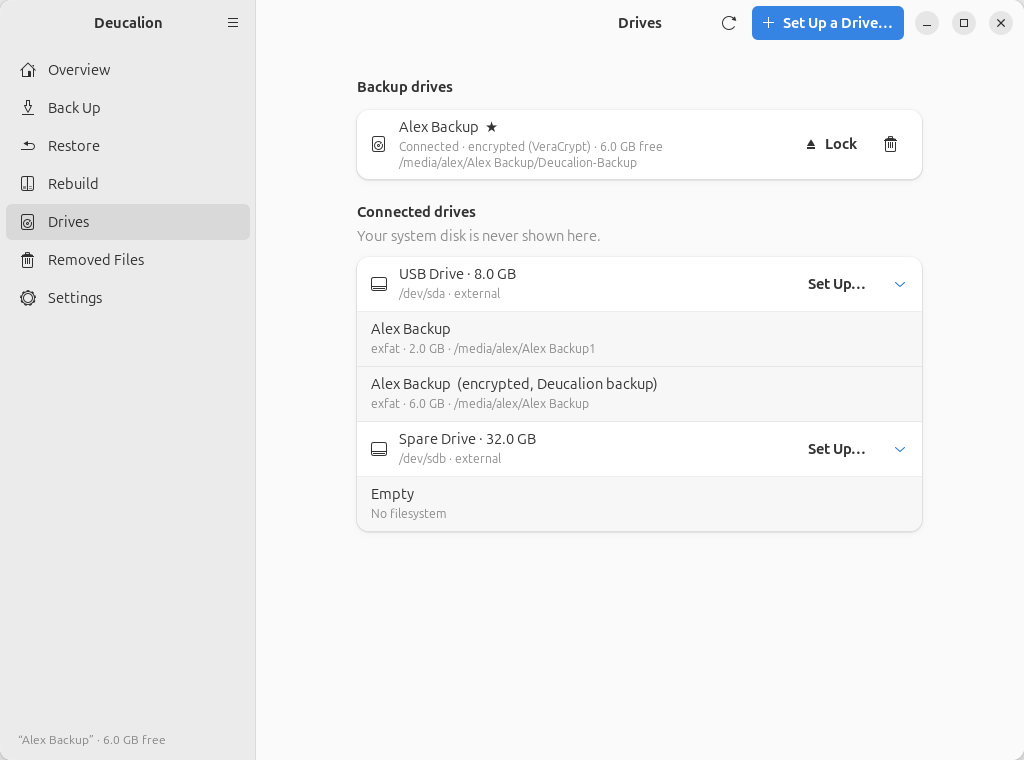
Every drive registered for backups, with:
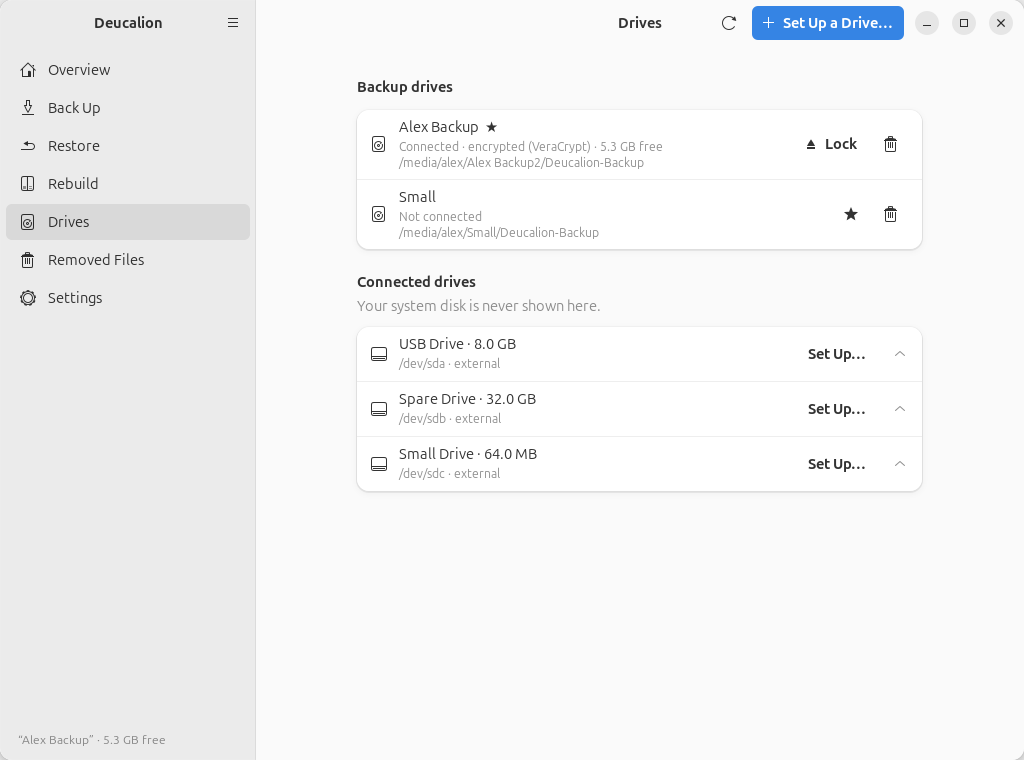
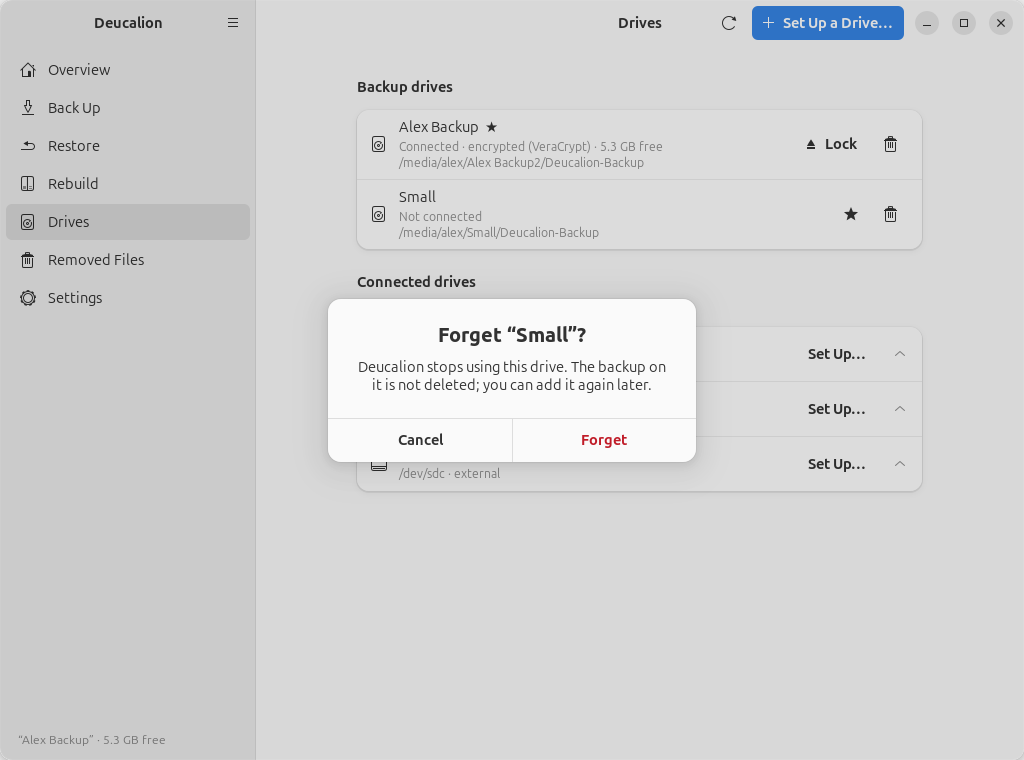
- its name, and a ★ for the default drive (the one Deucalion backs up to);
- Connected or Not connected, the encryption (VeraCrypt or LUKS) and the free space;
- where it is mounted.
Buttons on each row:
| Button | What it does |
|---|---|
| Lock (encrypted drives) / Unmount (others) | Closes the drive so you can unplug it safely. |
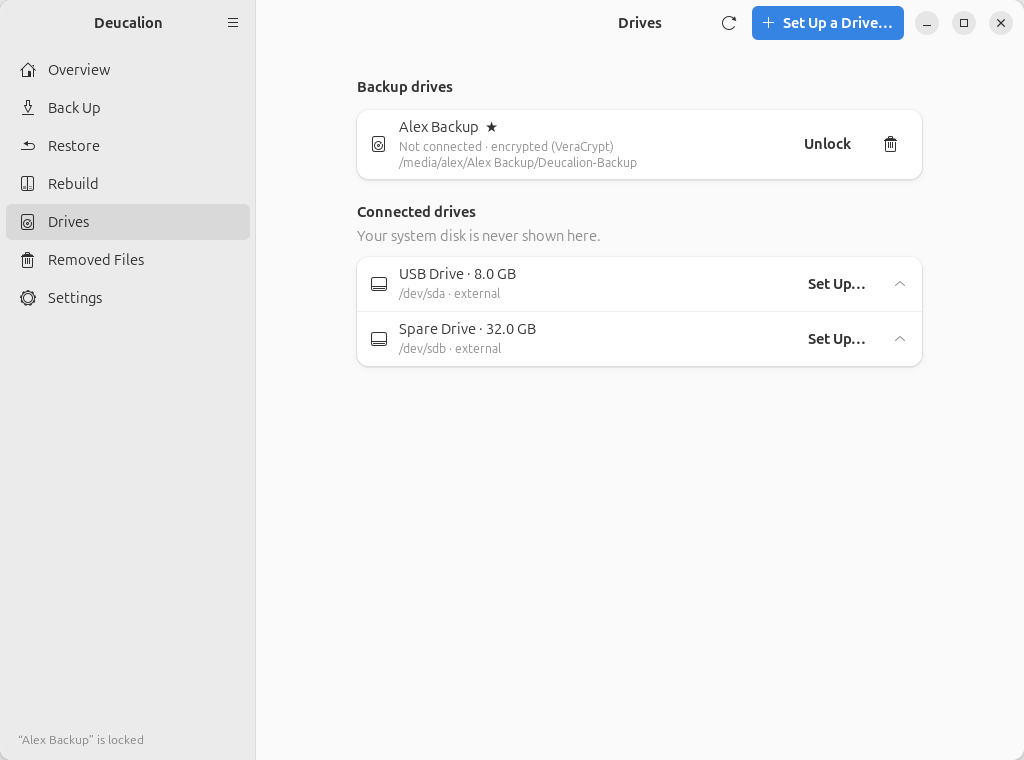
| Unlock | Shown when the default drive is plugged in but locked. Asks for its password. |
| ★ (star button, Use this drive for backups) | Makes it the default drive. Shown on drives that aren't the default. |
| 🗑 Forget this drive | Deucalion stops using the drive. The backup on it is not deleted; you can add it again later. Asks first. |
With two backup drives, the default one has a ★ after its name, and the other one a star button:
When the default drive is plugged in but locked, its row has Unlock:
Connected drives
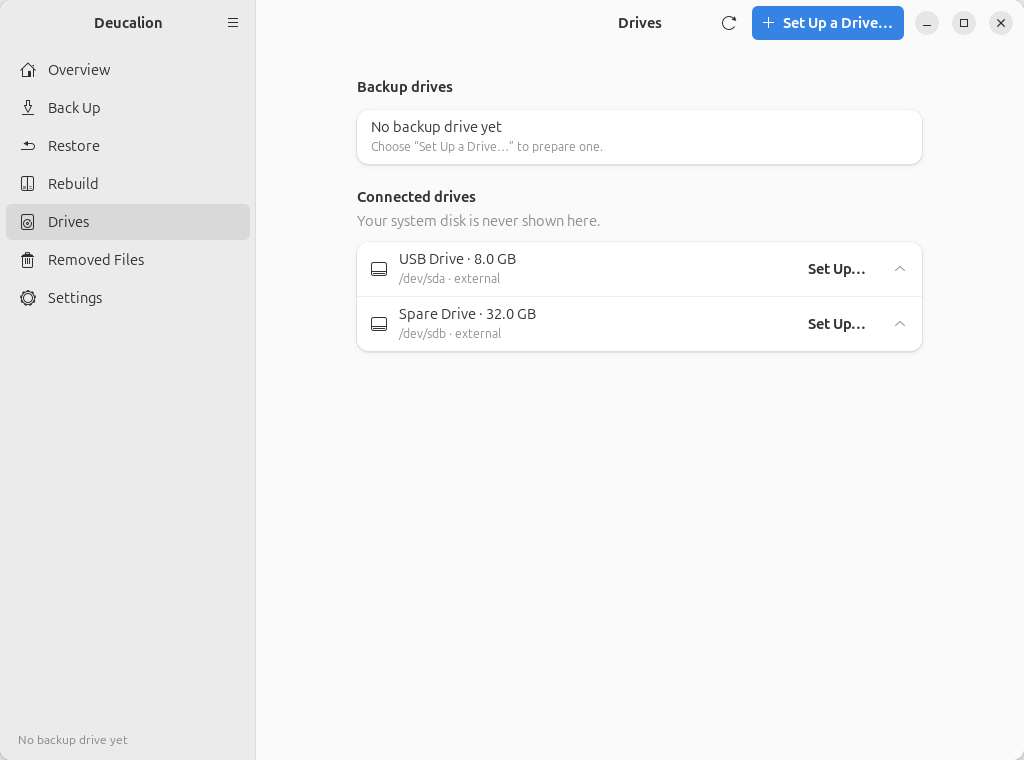
Every drive plugged in, except the disk your system runs from, which is never shown. Click a drive's row to see its parts (partitions): name, format, size and where it is mounted, and tags such as encrypted or Deucalion backup. Set Up… starts the setup wizard for that drive.
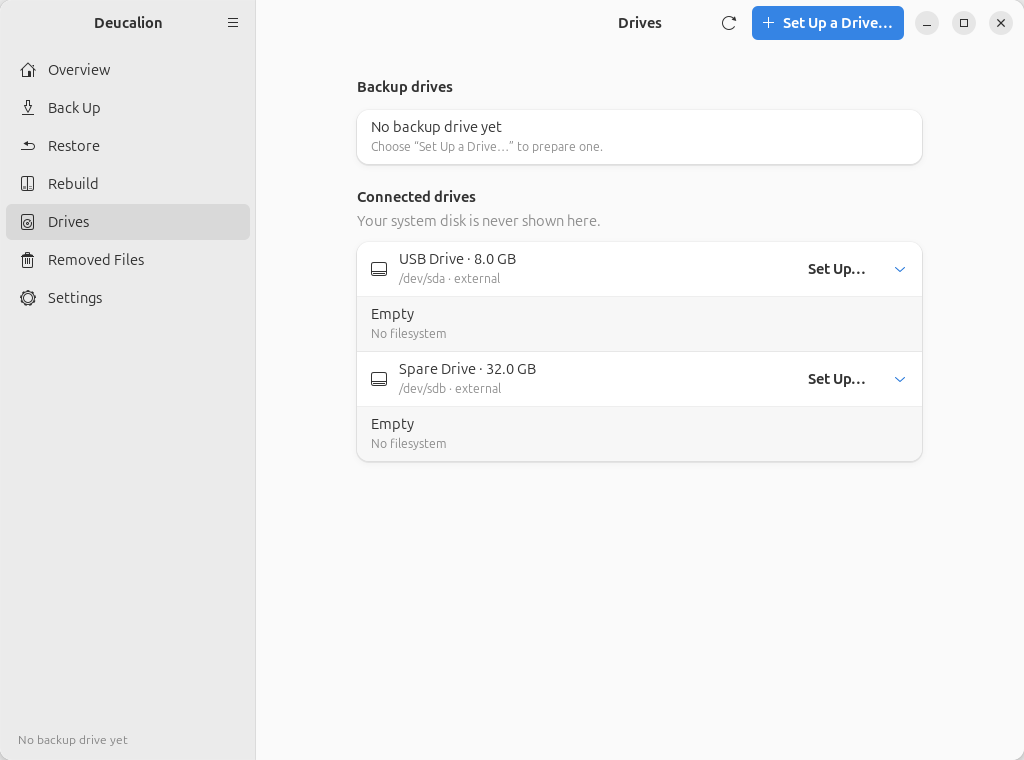
The refresh button (⟳) looks for drives again. The page also updates by itself when you plug a drive in or out.
The setup wizard
Set Up a Drive… (top right), or Set Up… next to a drive, opens the wizard. It takes you through these pages. Nothing on the drive changes until the last page. You can go back with the arrow at the top left, or close the wizard with ✕.
1. Choose a drive
Shown when you start from Set Up a Drive…. Lists the external drives; your system disk is never listed. Pick one and click Next.
2. Storage
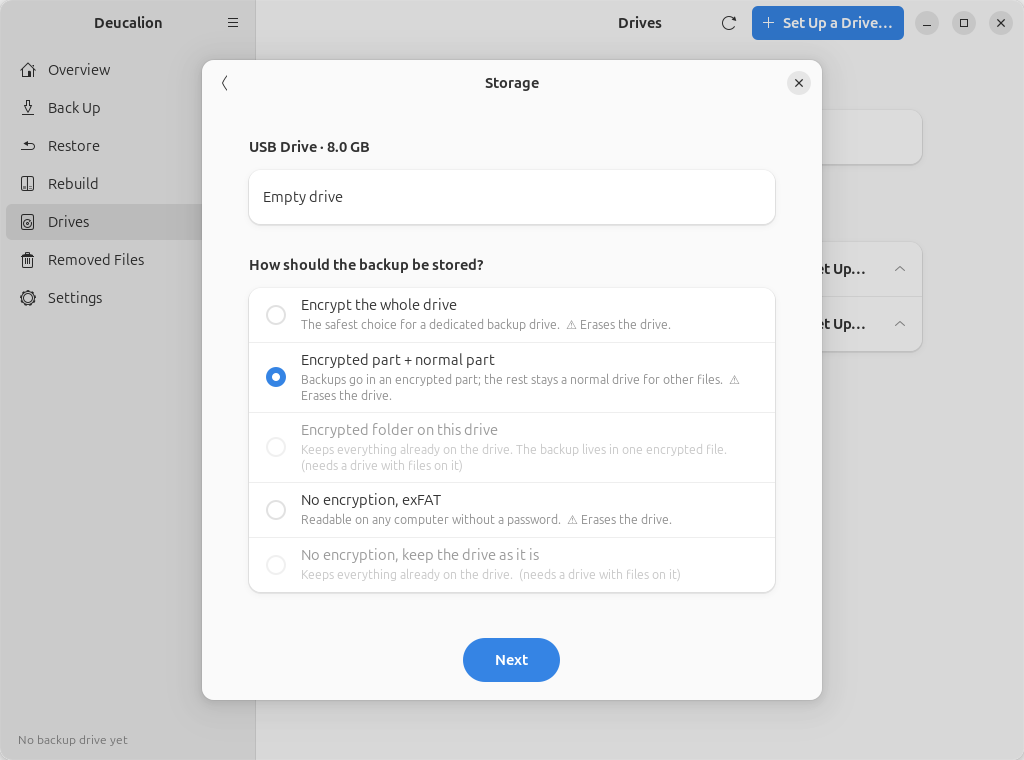
Shows what is on the drive now, then How should the backup be stored? The five layouts are explained in a line each. Those that erase the drive say ⚠ Erases the drive. The two that keep the drive's files (Encrypted folder on this drive and No encryption, keep the drive as it is) need a drive that already has a filesystem with files; on an empty drive they are greyed out.
3. Encryption
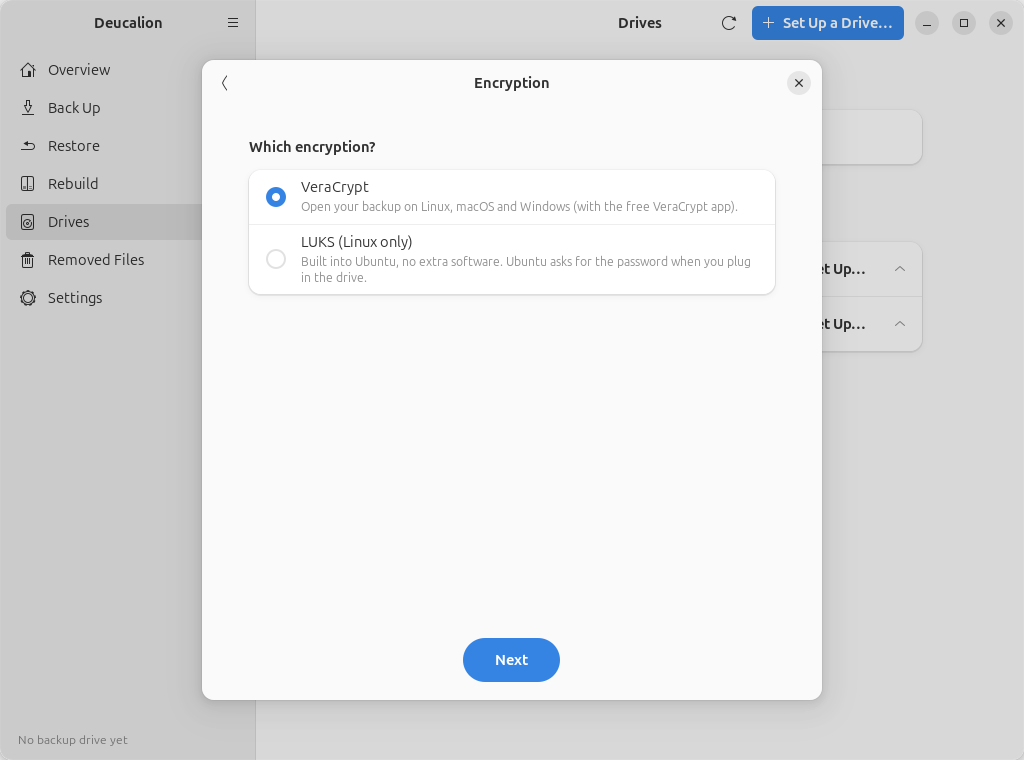
Only for the three encrypted layouts. Choose VeraCrypt (open the backup on Linux, macOS and Windows) or LUKS (Linux only).
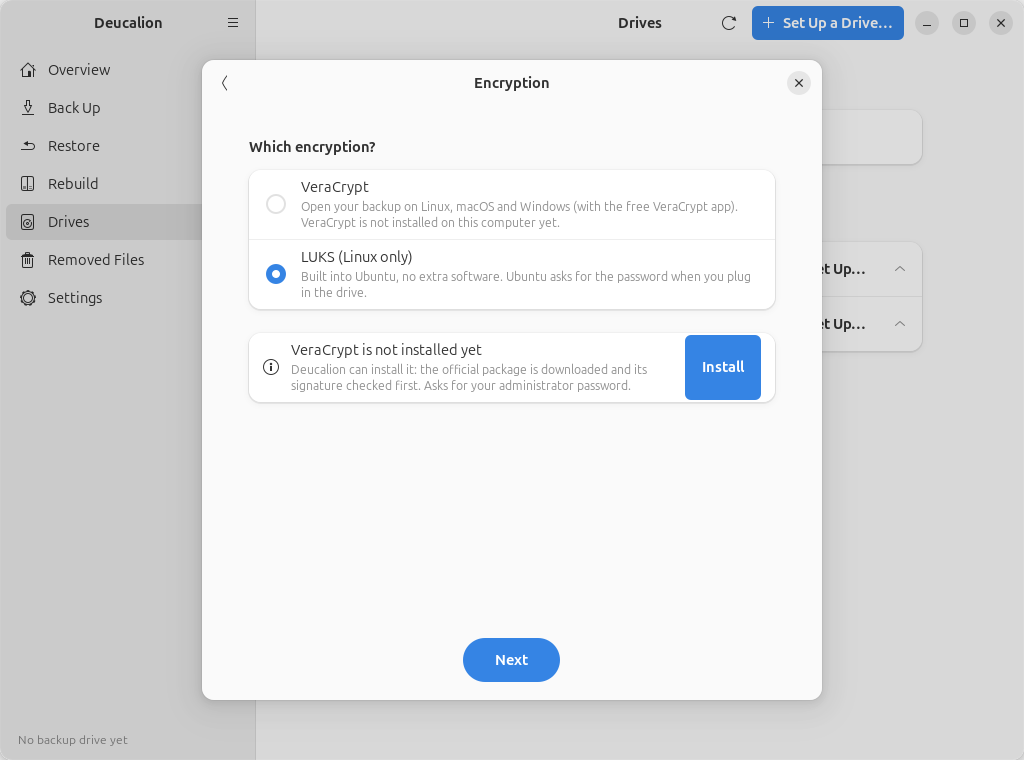
If VeraCrypt isn't installed, the page says so, and LUKS is chosen. Install downloads VeraCrypt, checks its signature and installs it (Ubuntu asks for your administrator password).
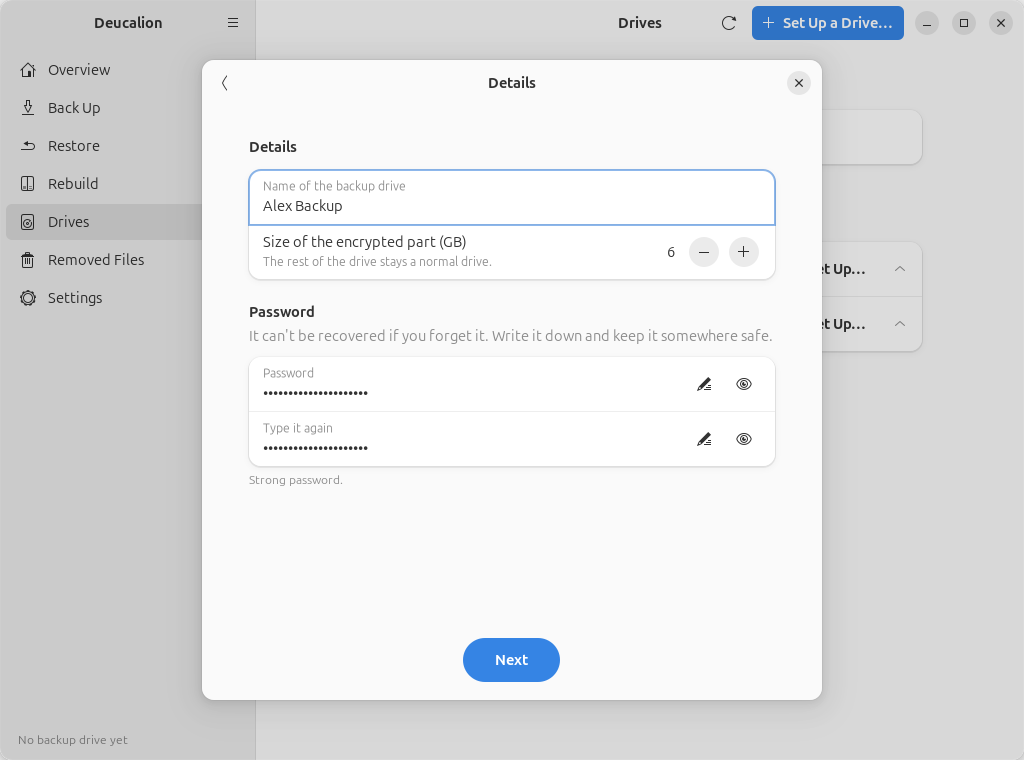
4. Details
- Name of the backup drive: the name Deucalion and Ubuntu show (default:
Deucalion). On the drive itself, the name is limited to 11 letters, digits, spaces,.,_and-. - Size of the encrypted part (GB) (encrypted part + normal part) or Size of the encrypted folder (GB) (encrypted folder). An encrypted folder can't grow later, so leave room.
- Password and Type it again (encrypted layouts). The hint below tells you when the password is long enough (at least 8 characters) and when the two match; Next stays greyed out until then. 12 characters or more is recommended.
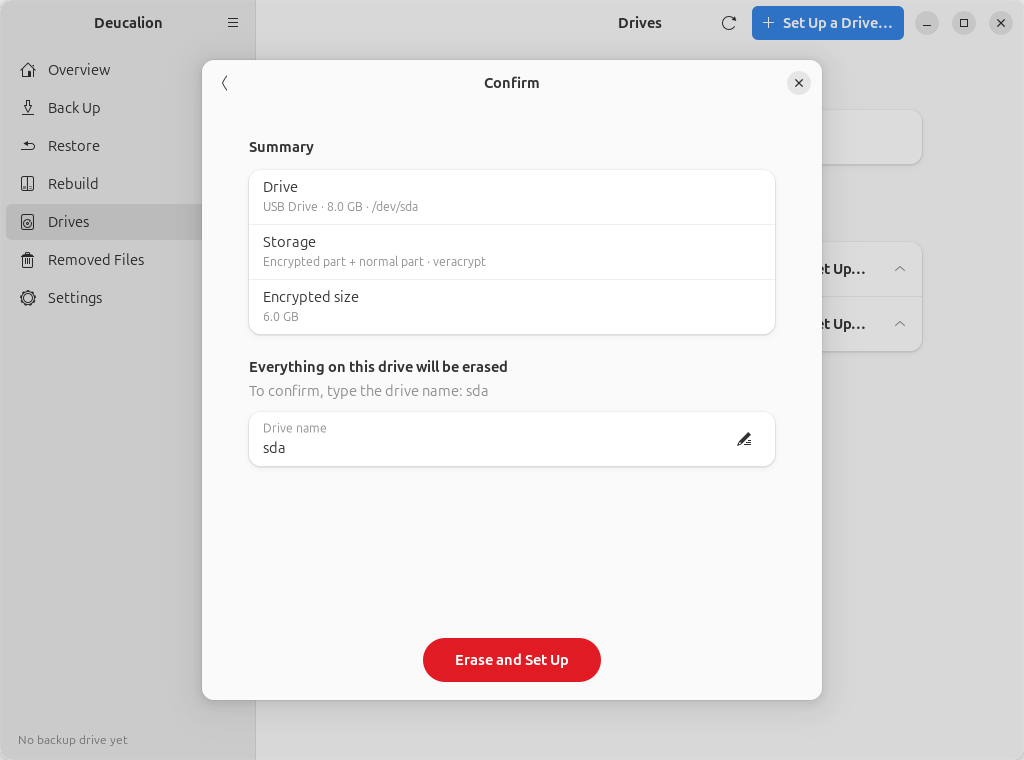
5. Confirm
A summary of your choices. For layouts that erase the drive, the page says Everything on this drive
will be erased, and you must type the drive's device name (shown there, for example sda) before
the red Erase and Set Up button works. For the other layouts the button is Set Up.
If something is missing (for example the exfatprogs package needed to create exFAT), the page says
One more thing is needed, with an Install button; other problems (for example "This drive is FAT32, which cannot hold
files of 4 GB or more.") are shown with Can't continue.
6. Setting up
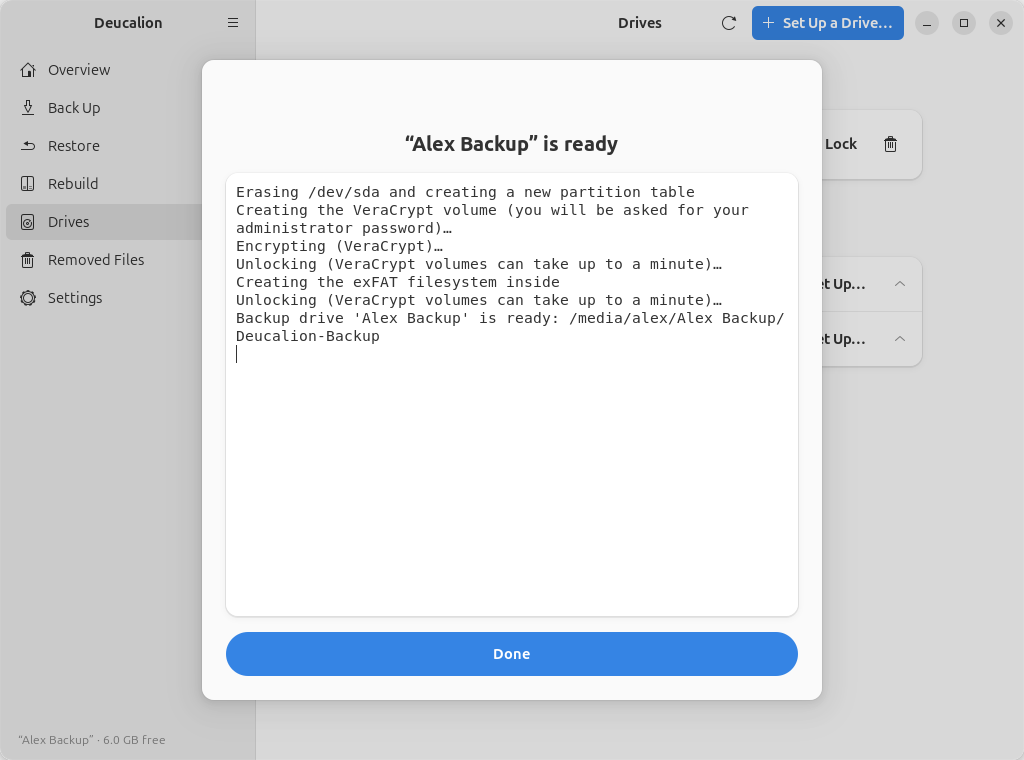
A log shows each step. For VeraCrypt, Ubuntu asks for your administrator password. The window can't be closed until it finishes.
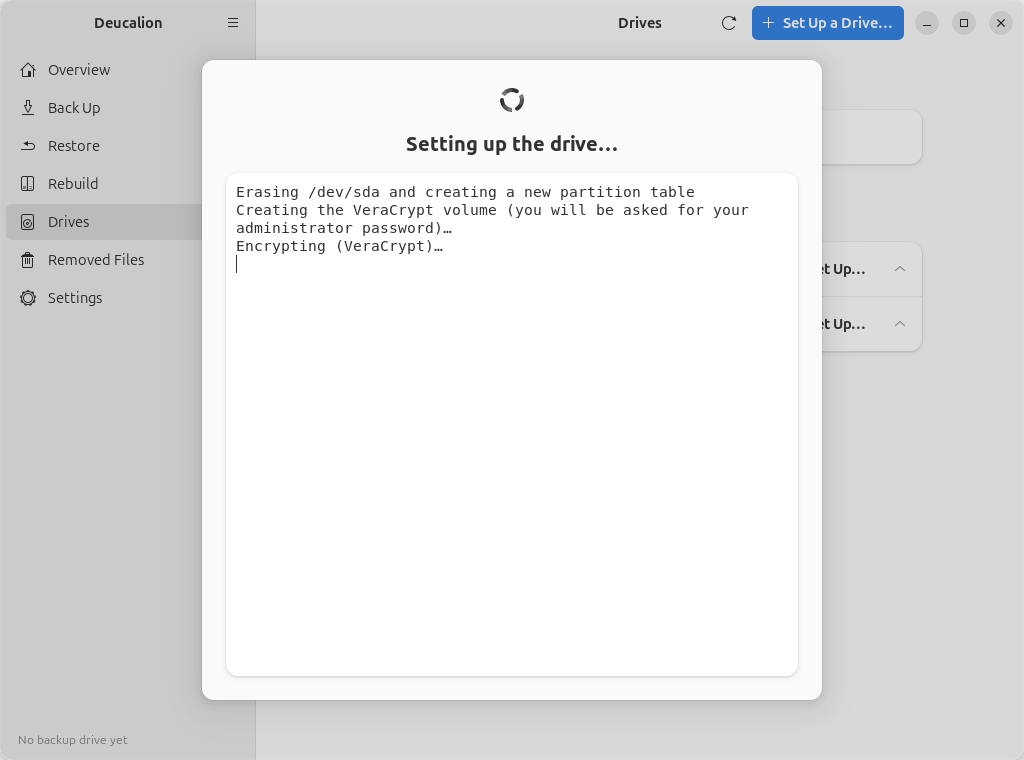
When it is ready, click Done. The new drive becomes your default backup drive.
If something goes wrong, the page says Setup failed, with the reason at the end of the log; click Close. A drive that was being erased may be left half-prepared: fix the cause and run the setup again. Don't close the app while a drive is being set up: that stops the setup half way.