Restore a folder to another place
What you'll do: copy a folder from the backup into a folder of your choice, without touching the
current version.
What you need: your backup drive.
How long it takes: 2 minutes, plus copying.
Useful to compare the backup with what you have now, to look at the system recipe, or to restore files onto another computer's account.
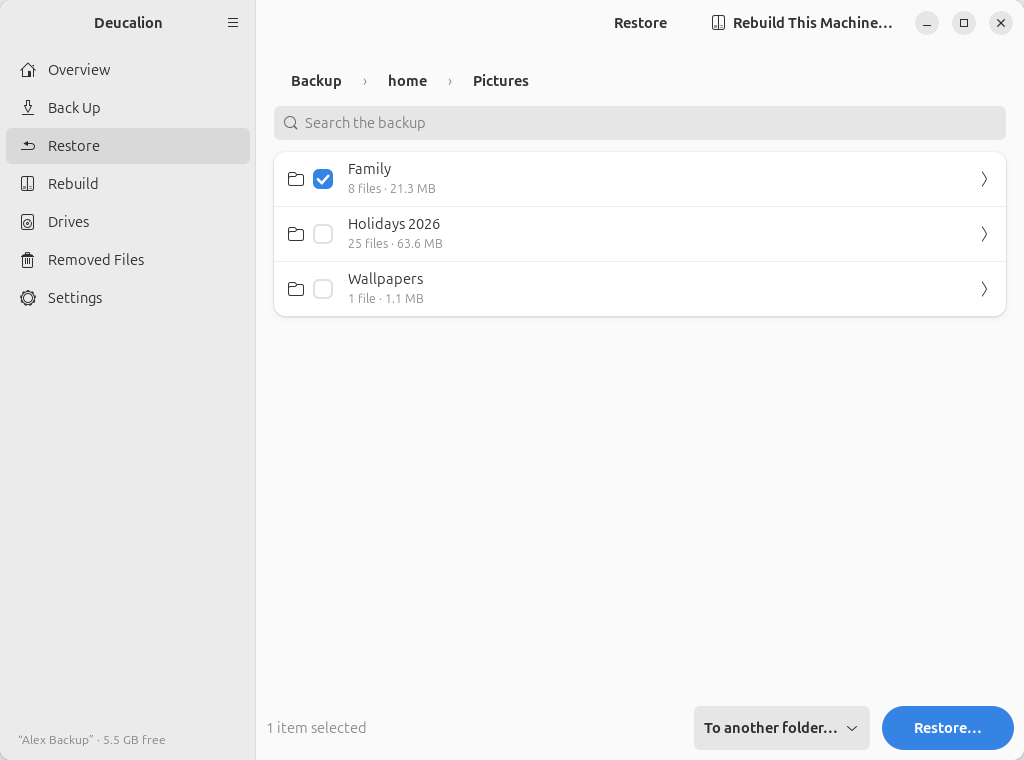
- In Restore, browse to the folder and tick it (here Pictures › Family).
-
In the list at the bottom, choose To another folder…. A folder chooser opens: pick (or create) the folder to restore into, here Desktop/Recovered. A message confirms Restoring into ….
-
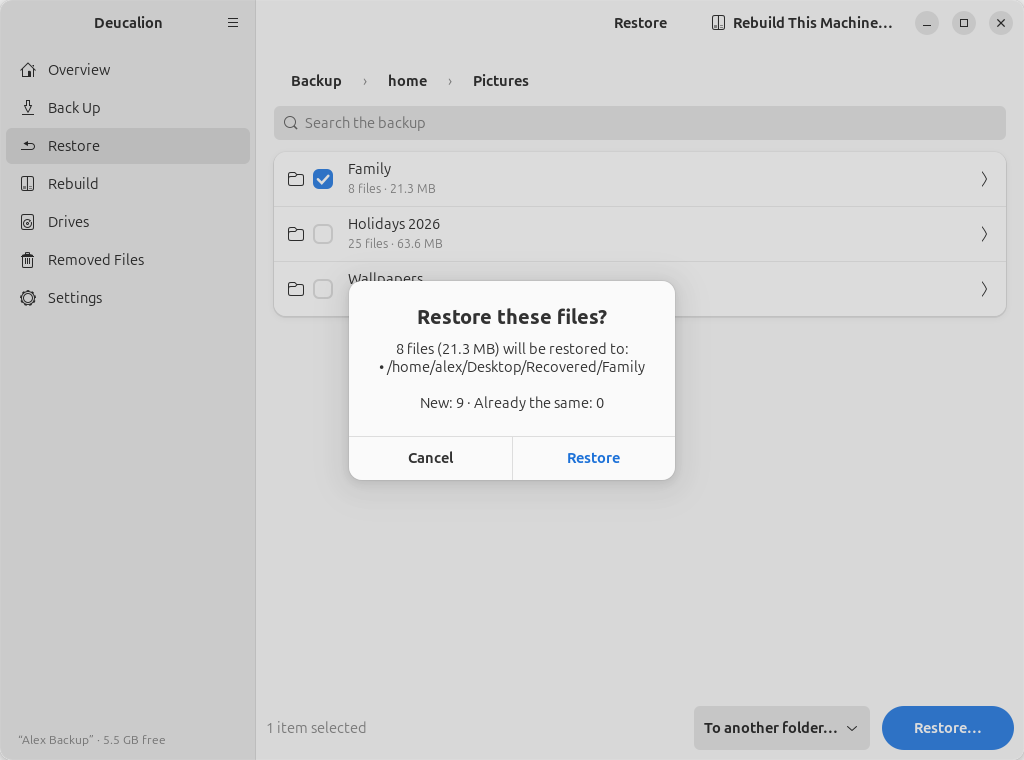
Click Restore…. The preview shows where the folder will go: inside the folder you chose, with its own name.
-
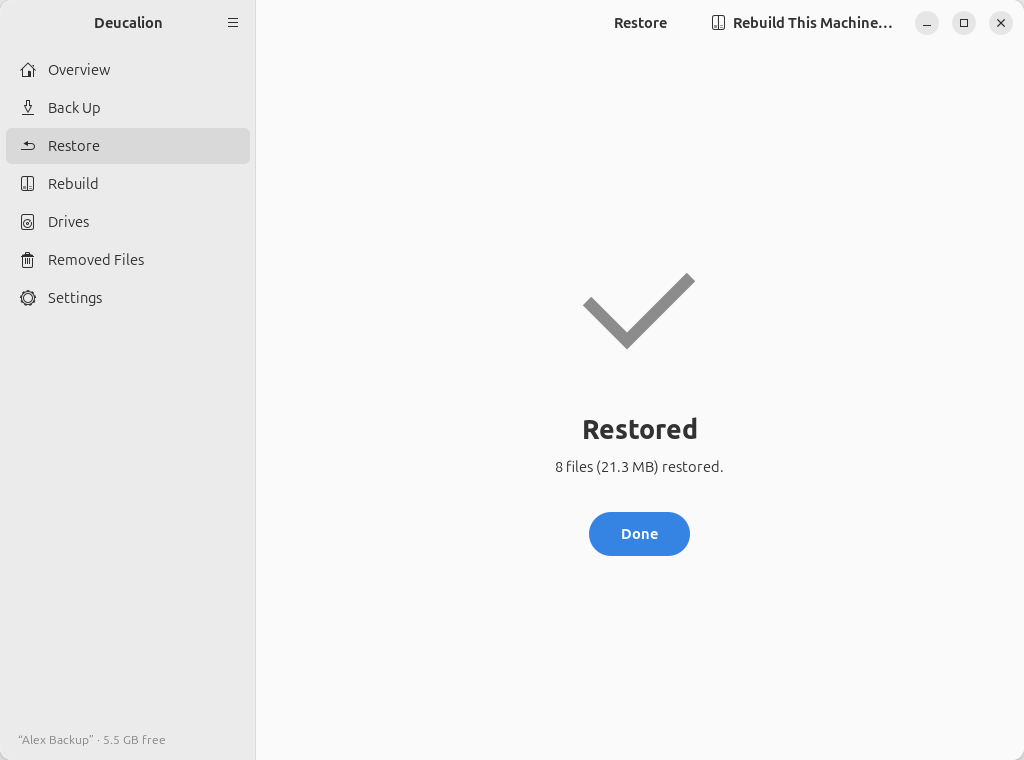
Click Restore. When it says Restored, click Done.
Add --to and the folder to restore into:
$ deucalion restore ~/Documents/Work --to ~/Desktop/Recovered
Restore plan
  home/Documents/Work  →  /home/alex/Desktop/Recovered/Work
  New:                     3
  Overwrite:               0   (current versions are moved aside first)
  Already the same:        0
  To copy:                 2   93.8 KB
Restore now? [y/N] y
Restored 2 files (93.8 KB).
~/Documents/Work is restored as ~/Desktop/Recovered/Work. Nothing in ~/Documents is
touched.
What you have now: a copy of the folder, as it was at your last backup, in the place you chose.
Note
If the folder you restore into already has an item with the same name, that item is replaced, and its current version kept in the undo folder, as with any restore.
Next steps: Undo a restore.