Set up a drive: plain exFAT, no encryption
What you'll do: erase a drive and format it as exFAT, without a password.
What you need: Deucalion installed; an external drive whose
contents you don't need.
How long it takes: 2 minutes.
Good for: a backup you want to open on any computer without a password or extra software. Keep in mind: anyone who has the drive can read everything on it, including saved Wi-Fi passwords and keys. Keep the drive somewhere safe.
This erases the whole drive
Everything on it is deleted. Copy anything you want to keep somewhere else first.
- Plug in the drive. In Deucalion, go to Drives and click Set Up… next to the drive.
-
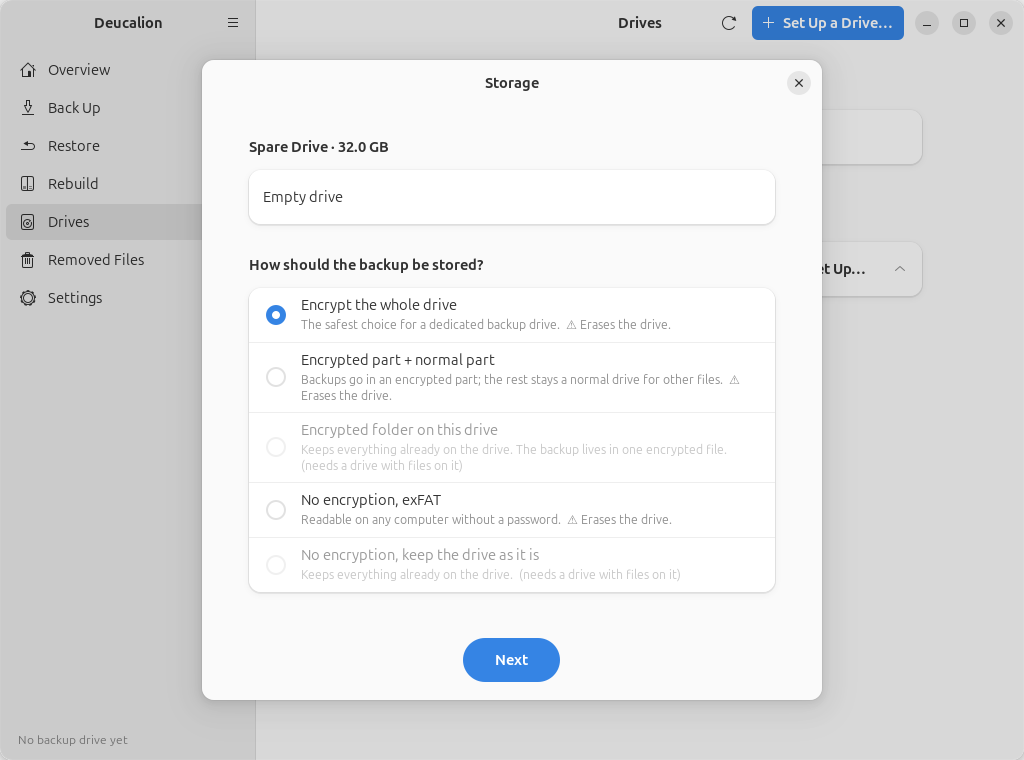
Choose No encryption, exFAT and click Next.
-
Type a Name of the backup drive (here
Spare) and click Next. There is no password.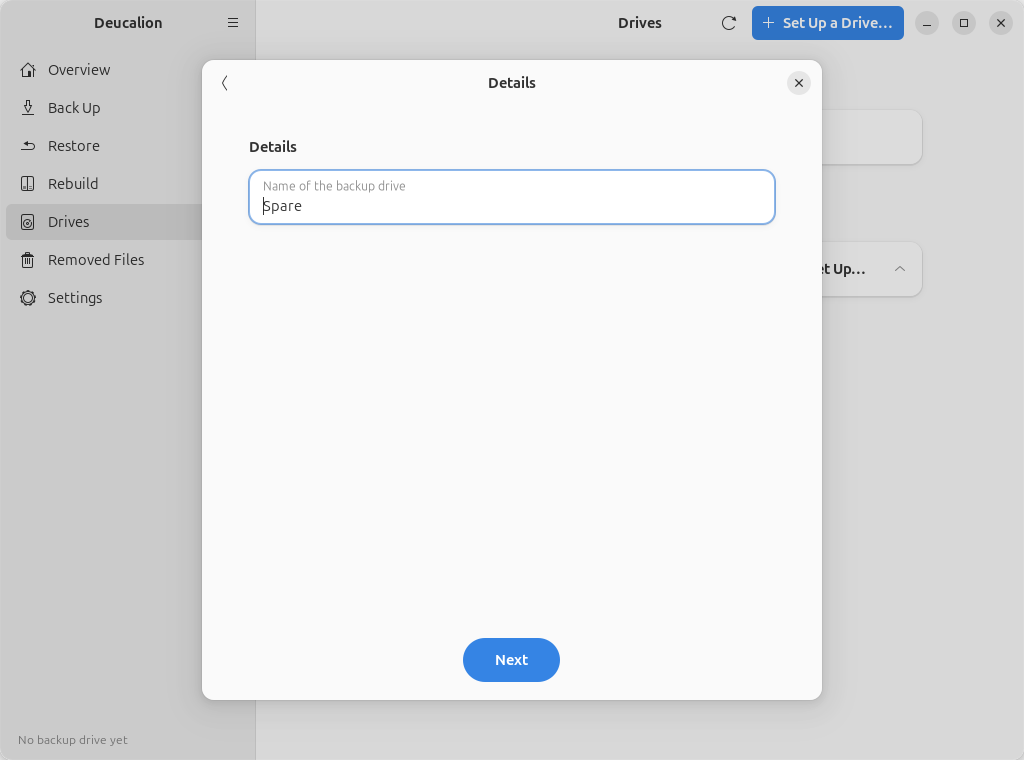
-
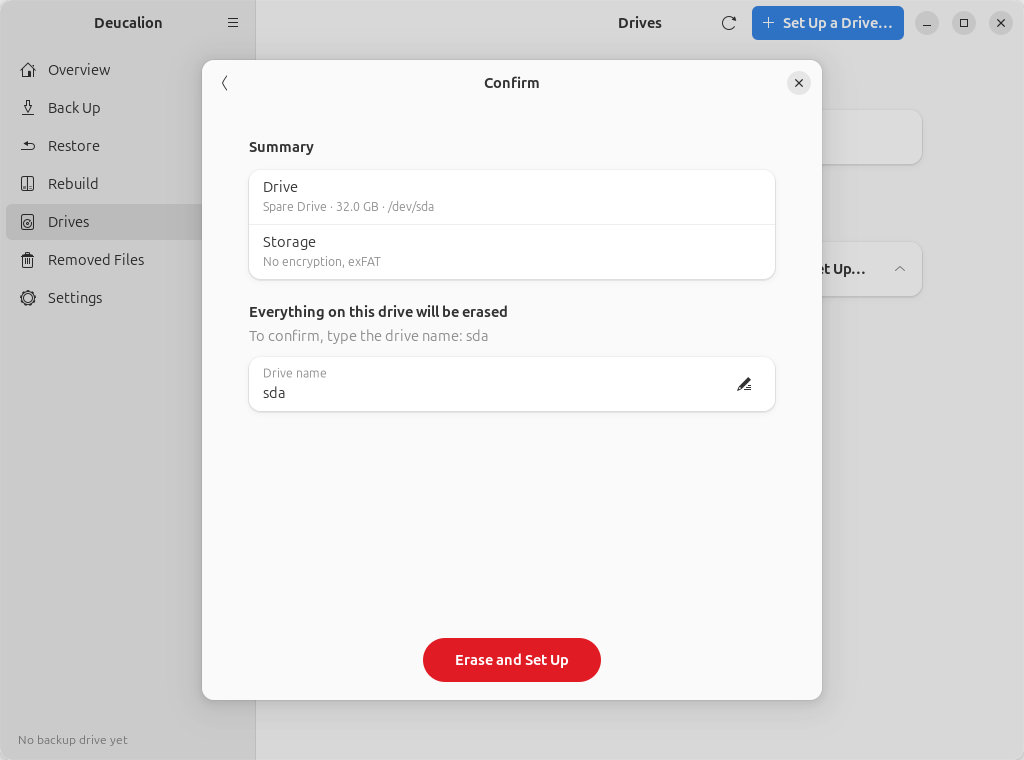
Type the drive's name shown on the Confirm page and click Erase and Set Up.
-
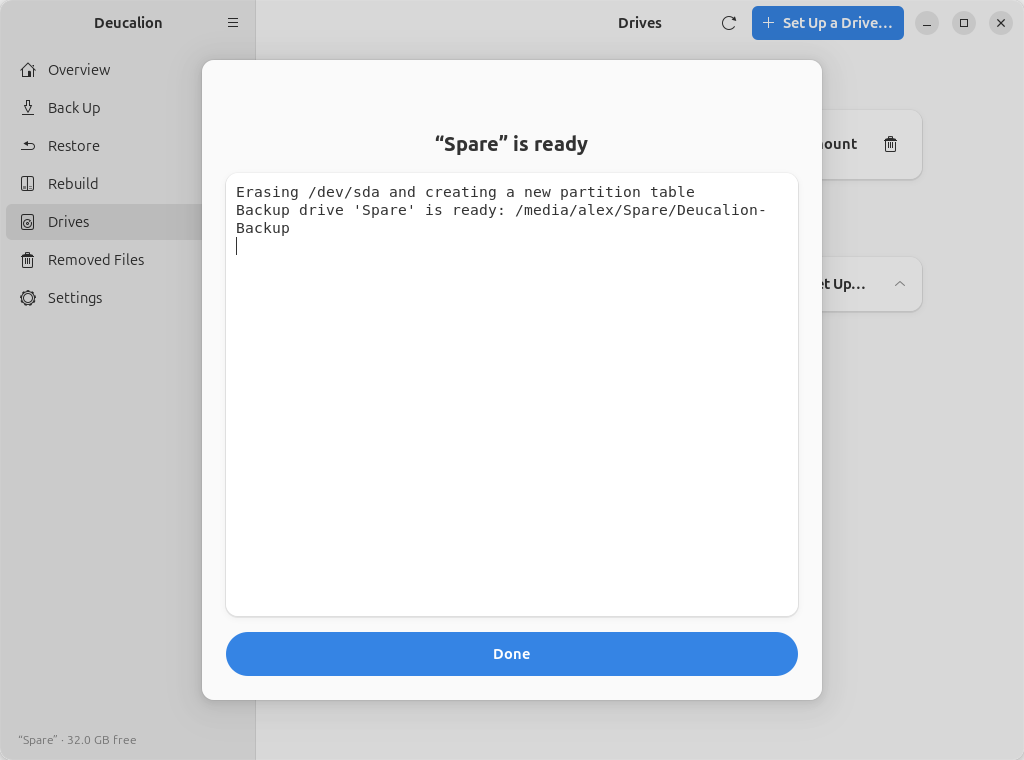
When it is ready, click Done.
Run deucalion setup-drive and answer: the drive; 3 on an empty drive (No encryption: erase
and format the whole drive as exFAT; on a drive that has files it is 4); a name; the drive's
short name to confirm.
$ deucalion setup-drive
Which drive?
  1) /dev/sda  Spare Drive  32.0 GB
  Choose [1-1] (default 1):

/dev/sda  Spare Drive  32.0 GB
  (empty)

How should the backup be stored?
  1) Encrypt the whole drive
  2) Encrypted part for the backup + a normal part for other files
  3) No encryption: erase and format the whole drive as exFAT
  Choose [1-3] (default 1): 3
  A name for this backup drive [Deucalion]: Spare

Summary
  Drive:  /dev/sda  Spare Drive  32.0 GB
  Layout: No encryption: erase and format the whole drive as exFAT
  EVERYTHING on /dev/sda will be erased.
  To confirm, type the drive name (sda): sda
  Erasing /dev/sda and creating a new partition table
  Backup drive 'Spare' is ready: /media/alex/Spare/Deucalion-Backup

Done. Back up with: deucalion backup  (drive 'Spare')
What is on the drive now
One exFAT part with the backup folder, a copy of Deucalion and the READ-ME file:
$ cat "/media/alex/Spare/READ-ME-FIRST.txt"
DEUCALION BACKUP DRIVE
======================

This drive holds a backup made with Deucalion 0.2.0
(https://github.com/Dimitrios-Kafetzis/Deucalion).

Your backup is the folder Deucalion-Backup. Your files are in Deucalion-Backup/home as
normal files and folders: you can open and copy them directly.

Opening the backup
------------------
Linux (Ubuntu):
  Just open the drive in the Files app.

macOS:
  Just open the drive in Finder (exFAT and NTFS drives are readable on macOS).

Windows:
  Just open the drive in File Explorer.

Restoring files or rebuilding a machine (Ubuntu)
------------------------------------------------
  1. Plug in the drive.
  2. Open a terminal in the Deucalion-Tool folder on this drive and run:
       bin/deucalion register <the backup folder>   (only the first time on a new machine)
       bin/deucalion rebuild                        rebuild a whole machine, step by step
       bin/deucalion restore ~/Documents            restore single folders or files

Notes
-----
- Never format this drive or rename the Deucalion-Backup folder.
- Deucalion-Backup/_removed holds older versions and deleted files; empty it with
  'deucalion removed empty' when you need space.
The drive is formatted with 8 KB clusters, so millions of small files don't waste space.
What you have now: a backup drive readable everywhere, registered as your default backup drive.
Next steps: Make a full backup. Before unplugging, Unmount it on the
Drives page or run deucalion close.