Restore
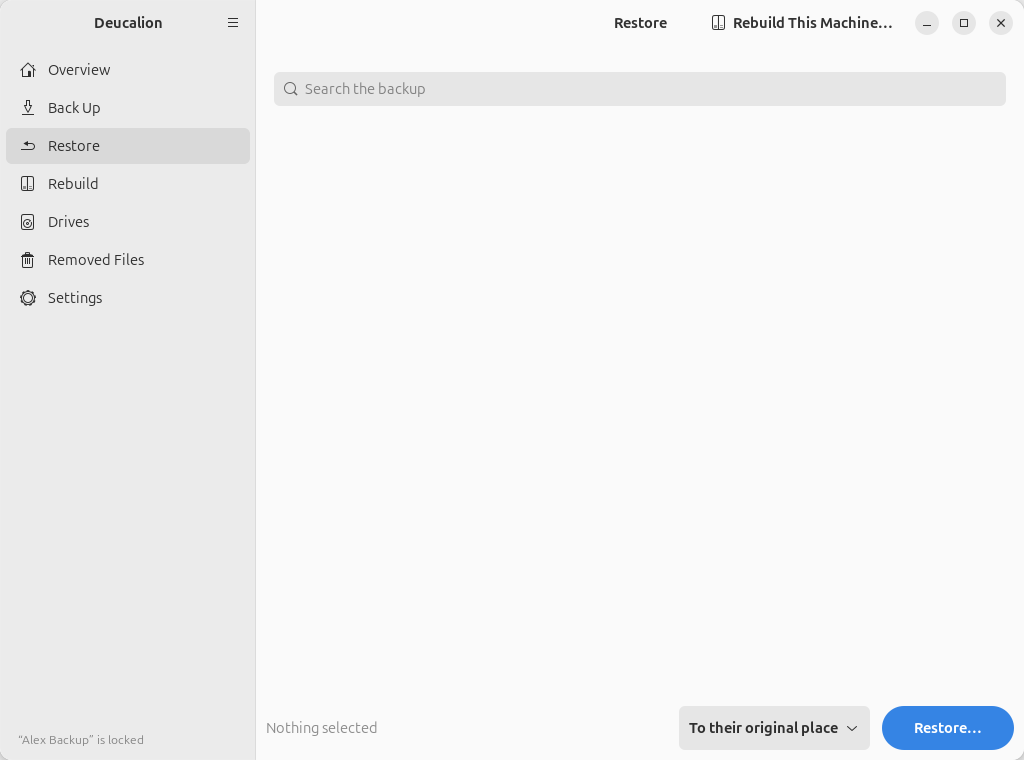
The Restore page lets you browse your backup with the original file names, pick files or folders, and copy them back. A preview always shows what will happen first, and anything a restore replaces is kept in the undo folder.
Browsing
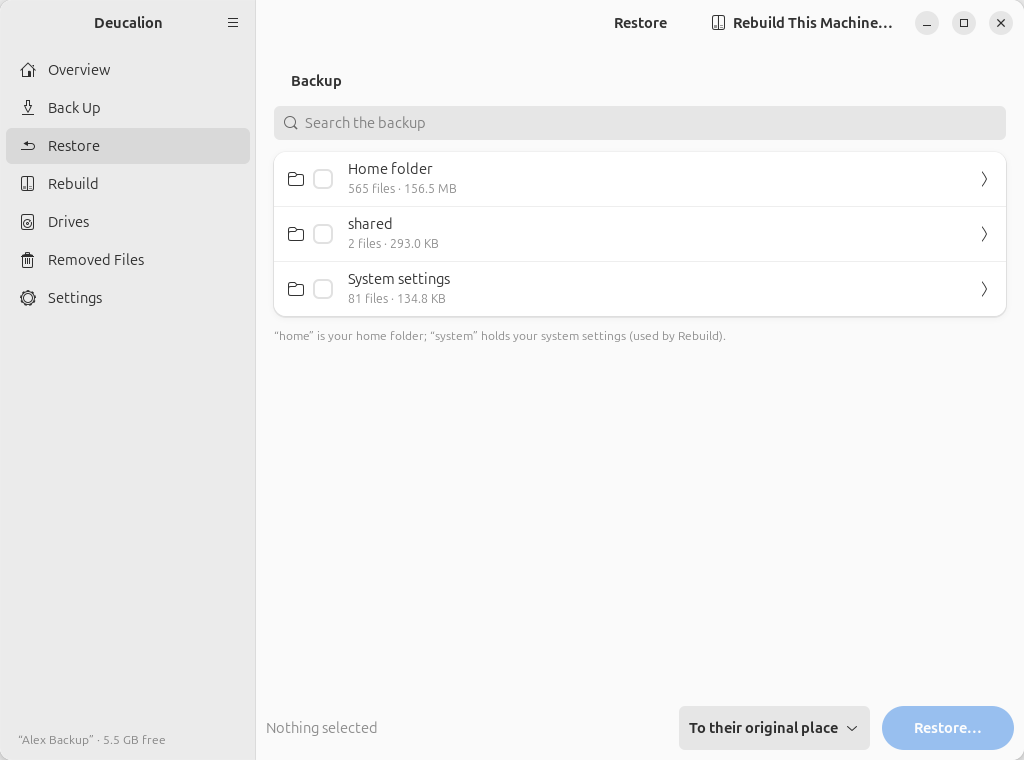
- At the top level you see Home folder (your home folder), System settings (the system recipe, used by Rebuild) and, if you added any, your extra folders.
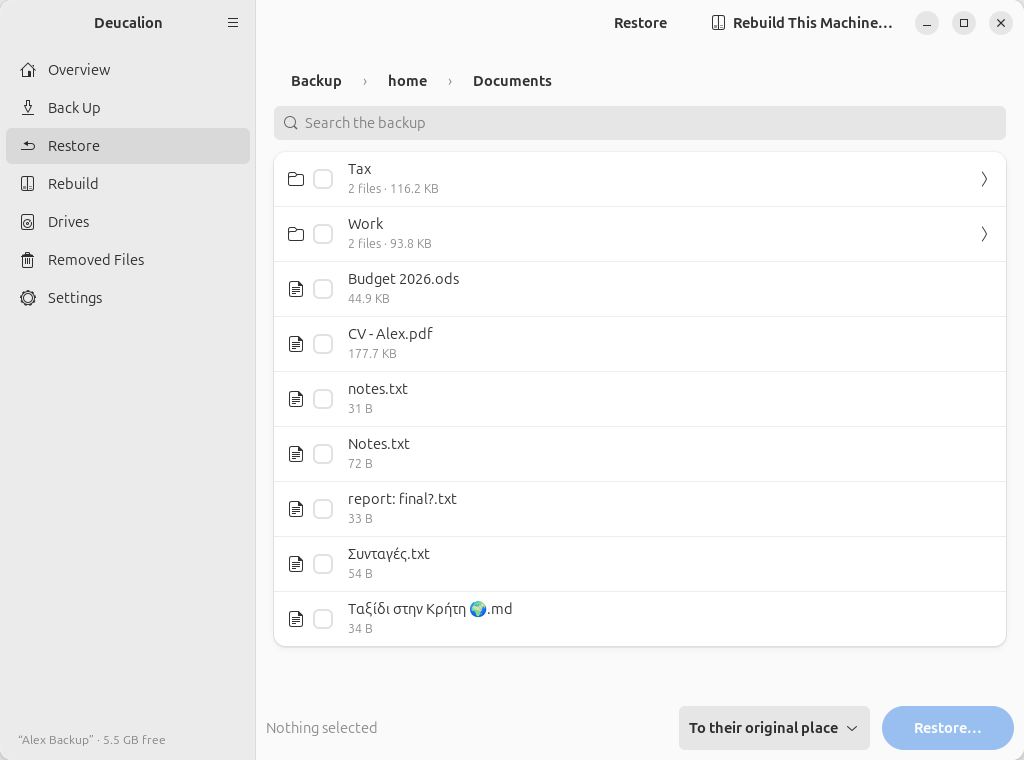
- Click a folder's row (the arrow ›) to open it. The breadcrumbs above the list (Backup › home › Documents) take you back up.
- Each row shows the size, and for folders the number of files. Links show where they point.
- Folders with more than 600 items show the first 600; use the search to find others.
Searching
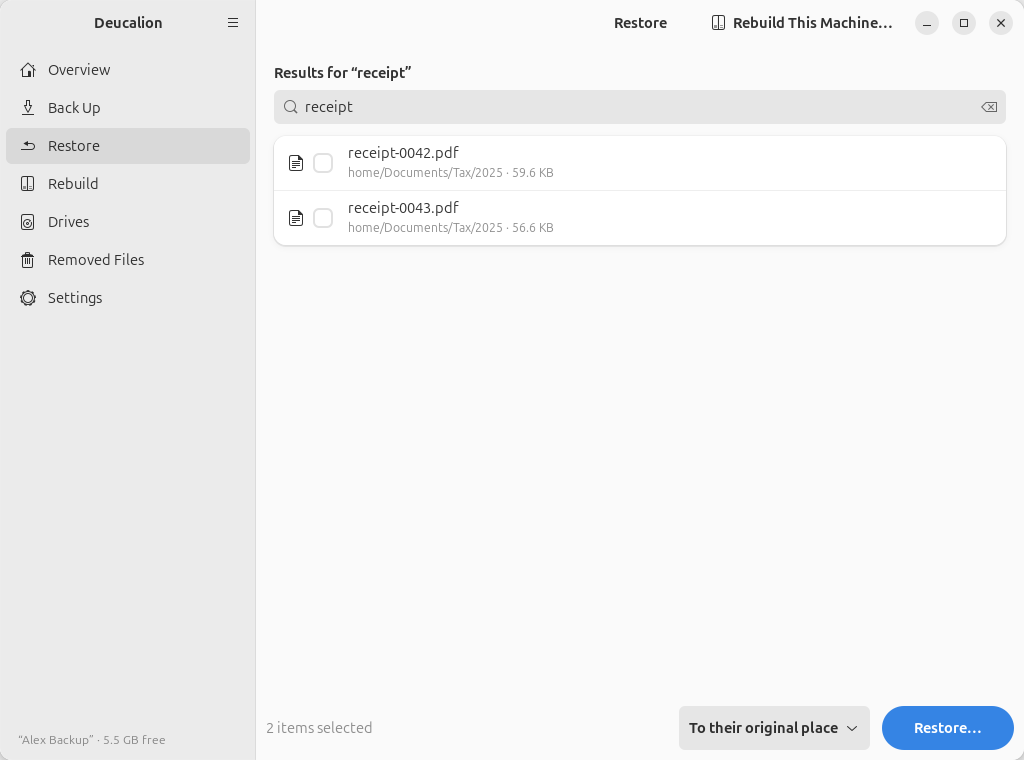
Type in Search the backup to find files and folders by name anywhere in the backup (upper and lower case don't matter for Latin letters). Each result shows the folder it is in. Clear the search box to go back to browsing.
Choosing what to restore
Tick the box in front of each file or folder you want. A ticked folder includes everything inside it. The bottom bar counts what you selected.
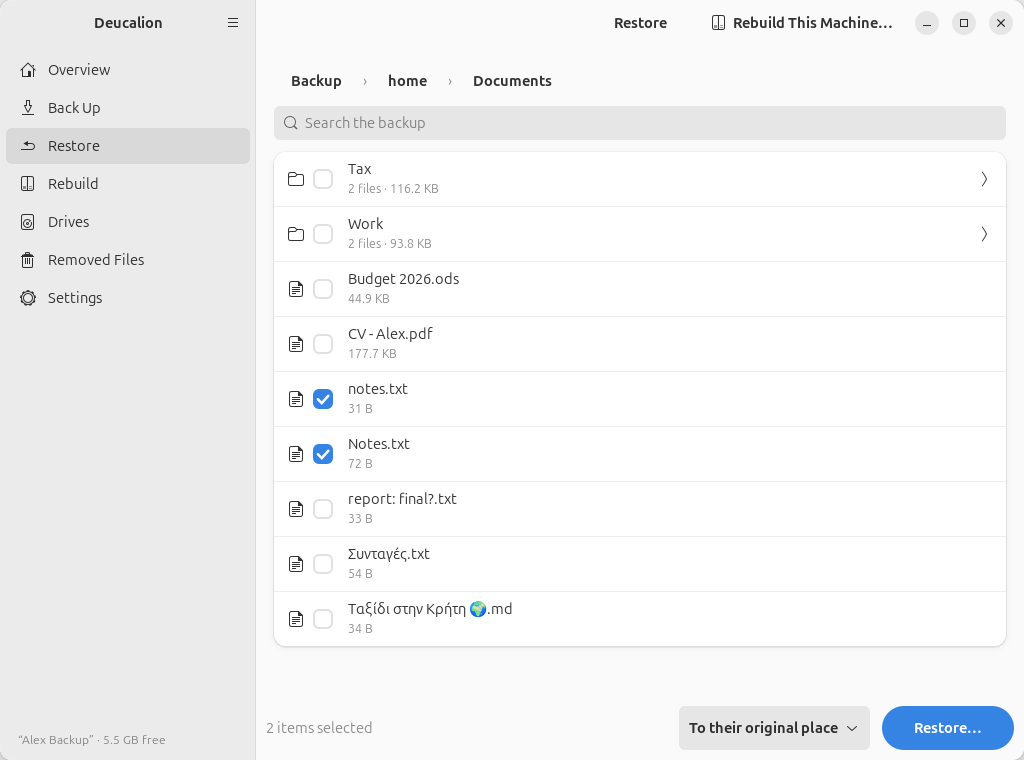
Then choose where they go, with the list at the bottom:
- To their original place: back where they were. Files there that are different are replaced (and kept in the undo folder first).
-
To another folder…: you choose a folder; each selected item is restored inside it, with its own name. Nothing in its original place is touched. Use this to look at an old version without replacing the current one.
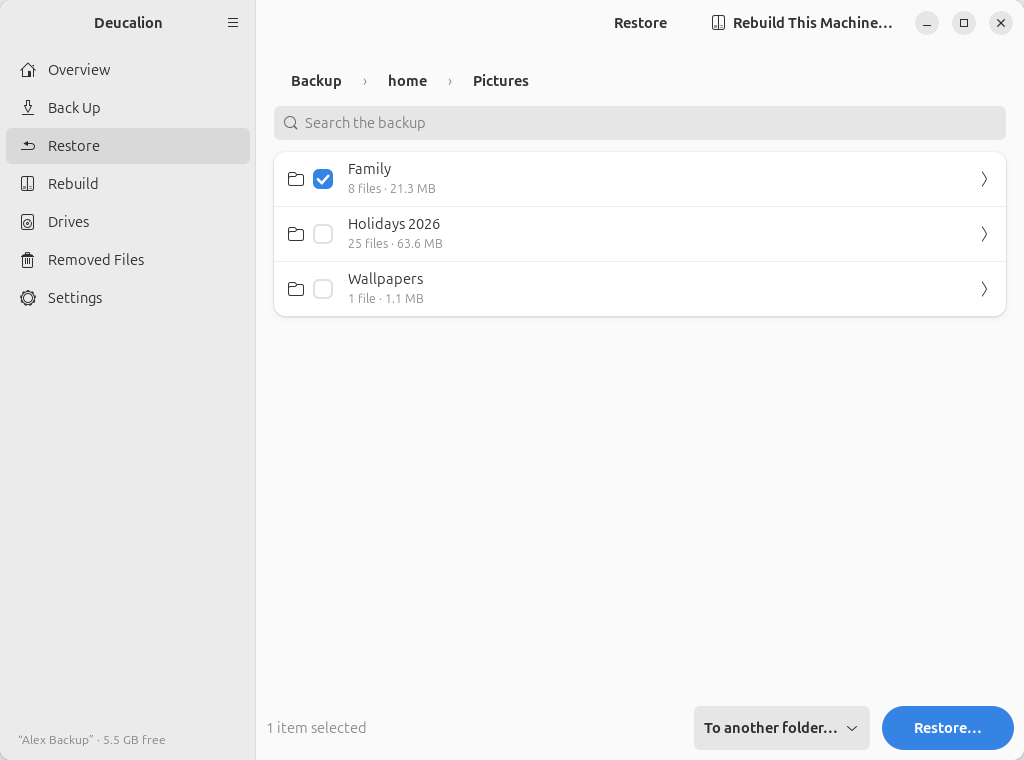
System settings
The system recipe can't be restored "in place": use Rebuild for that. To look at the recipe's files, restore them To another folder….
The preview
Restore… shows what will happen before anything changes:
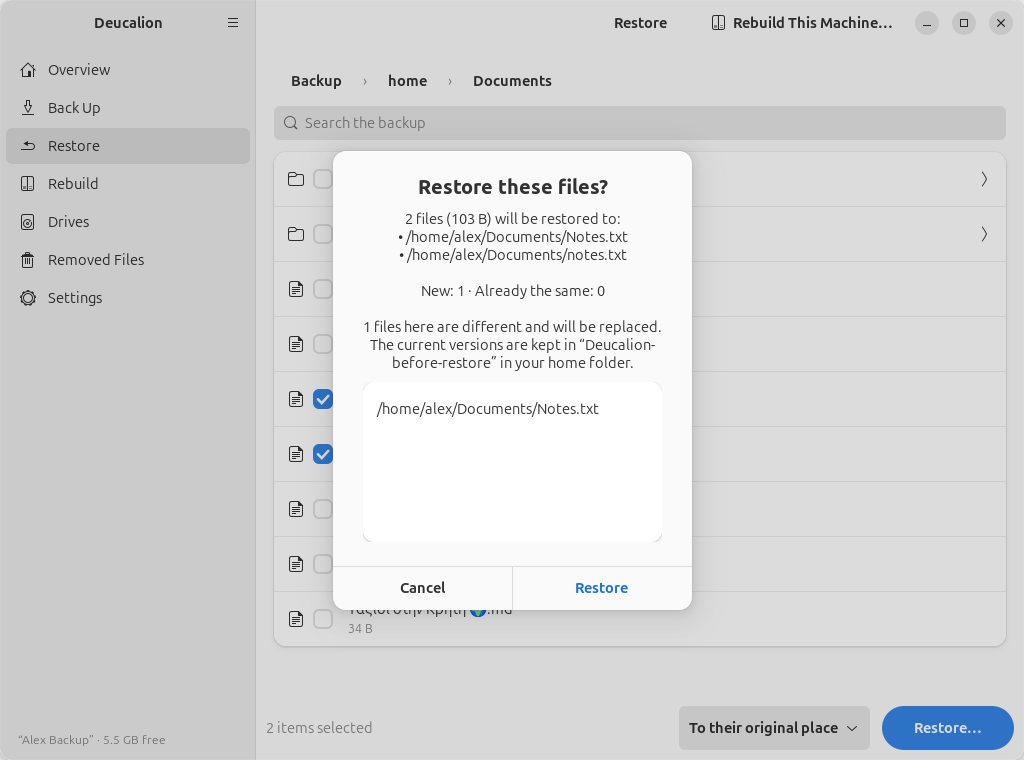
- How many files will be restored, and where.
- New: items that don't exist there now. Already the same: items that are already identical and won't be copied.
- Files that are different and will be replaced, listed one by one. Their current versions are first moved to the undo folder Deucalion-before-restore in your home folder.
- Files that are missing on the drive (for example after a drive problem) and can't be restored.
If everything is already the same, it says so and restores nothing. Click Restore to go ahead, or Cancel.
After the restore
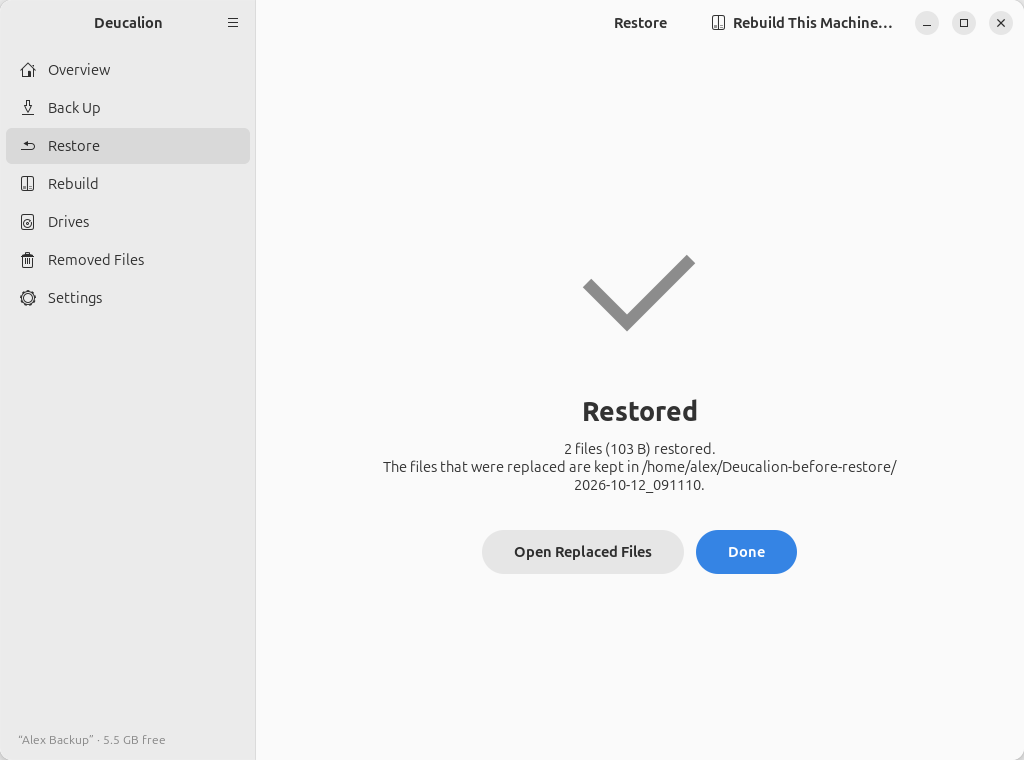
- Open Replaced Files opens the undo folder for this restore, so you can get your previous version back (see Undo a restore).
- Done clears the selection and goes back to browsing.
- Any problems are listed as warnings below.
Stop (while it runs) stops after the current file. What was restored stays; what was being replaced is put back.
The Rebuild This Machine… button
At the top right, Rebuild This Machine… opens the Rebuild page.
When the drive isn't available
If the drive isn't connected the page says Nothing to restore yet. If it is locked, it has an Unlock button.