Set up a drive: encrypted part + normal part
What you'll do: split a drive into an encrypted part for your backups and a normal part that any
computer can read.
What you need: Deucalion installed (with VeraCrypt for a VeraCrypt
encrypted part); an external drive whose contents you don't need (it will be erased); a password you
will remember; your administrator password (VeraCrypt).
How long it takes: 5 minutes of your time; creating a VeraCrypt part fills it with encrypted data,
from a minute on a small drive to hours on a large hard disk (LUKS is quick).
Good for: most people. The backup is encrypted, and the normal part carries a copy of Deucalion
(Deucalion-Tool) and READ-ME-FIRST.txt, so a rebuild on a new computer can start
straight from the drive. You can also keep other files on the normal part.
This erases the whole drive
Everything on it is deleted. Copy anything you want to keep somewhere else first.
The app's steps are shown in full in Your first backup: Drives → Set Up… next to the drive, Encrypted part + normal part, VeraCrypt (or LUKS), then the name, the Size of the encrypted part (GB) and the password, then type the drive's name and click Erase and Set Up.
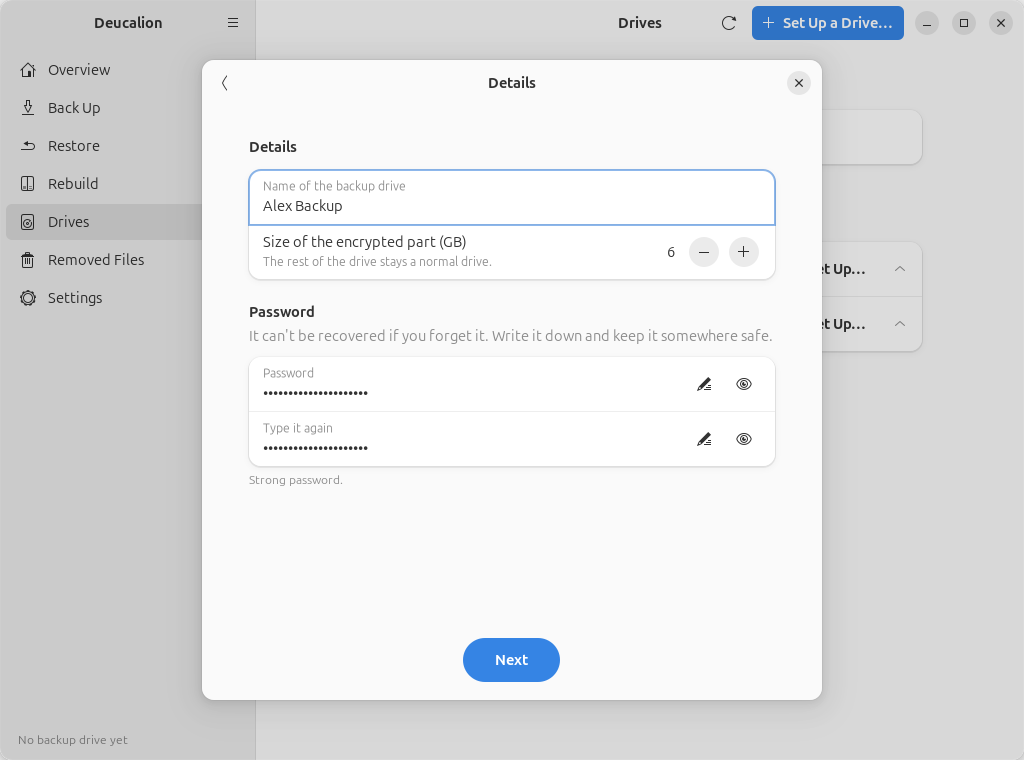
The Size of the encrypted part is how much of the drive holds the backup; the rest stays a normal exFAT part. The suggestion is 80 % of the drive. The encrypted part can't be resized later without erasing the drive, so give the backup room to grow.
Run deucalion setup-drive and answer: the drive; 2 (Encrypted part for the backup + a
normal part); the encryption; the size of the encrypted part in GB (Enter for the
suggestion); a name; the drive's short name to confirm; the password twice.
$ deucalion setup-drive
Which drive?
  1) /dev/sda  Backup Drive  8.0 GB
  Choose [1-1] (default 1):

/dev/sda  Backup Drive  8.0 GB
  (empty)

How should the backup be stored?
  1) Encrypt the whole drive
  2) Encrypted part for the backup + a normal part for other files
  3) No encryption: erase and format the whole drive as exFAT
  Choose [1-3] (default 1): 2

Which encryption?
  1) VeraCrypt: open it on Linux, macOS and Windows (with VeraCrypt)
  2) LUKS: built into Ubuntu, no extra software, Linux only
  Choose [1-2] (default 1): 1
  Size of the encrypted part for backups? [default 5 GB, max 7 GB]: 5
  A name for this backup drive [Deucalion]: Backup

Summary
  Drive:  /dev/sda  Backup Drive  8.0 GB
  Layout: Encrypted part for the backup + a normal part for other files (veracrypt)
  Encrypted size: 5.0 GB
  EVERYTHING on /dev/sda will be erased.
  To confirm, type the drive name (sda): sda

Choose the password for the backup. It cannot be recovered if you forget it: write it down and keep it somewhere safe.
  Backup password:
  Type it again:
  Erasing /dev/sda and creating a new partition table
  Creating the VeraCrypt volume (you will be asked for your administrator password)…
  Encrypting (VeraCrypt)…
  Unlocking (VeraCrypt volumes can take up to a minute)…
  Creating the exFAT filesystem inside
  Unlocking (VeraCrypt volumes can take up to a minute)…
  Backup drive 'Backup' is ready: /media/alex/Backup/Deucalion-Backup

Done. Back up with: deucalion backup  (drive 'Backup')
Without questions (only the password is asked):
deucalion setup-drive /dev/sdb --layout encrypt-part --method veracrypt --size 5 --name Backup --yes-erase sdb.
Write the password down
Nobody can recover it. Without it, the backup can't be opened.
What is on the drive now
Two parts with the same name. In the Files app (and in /media/<you>/, or /run/media/<you>/ on
Ubuntu 26.04 and newer), the second one opened gets a number added: for example Alex Backup and
Alex Backup1.
-
The normal part (exFAT, readable everywhere) holds:
$ ls "/media/alex/Alex Backup1" "/media/alex/Alex Backup1/Deucalion-Tool" '/media/alex/Alex Backup1': Deucalion-Tool READ-ME-FIRST.txt '/media/alex/Alex Backup1/Deucalion-Tool': README.md bin deucalion drive.jsonREAD-ME-FIRST.txtexplains how to open the backup on Linux, Windows and macOS:$ cat "/media/alex/Alex Backup1/READ-ME-FIRST.txt" DEUCALION BACKUP DRIVE ====================== This drive holds a backup made with Deucalion 0.2.0 (https://github.com/Dimitrios-Kafetzis/Deucalion). Your backup is on the encrypted second part (partition) of this drive. This normal part only holds this file and the Deucalion tool. Opening the backup ------------------ Linux (Ubuntu): Run: Deucalion-Tool/bin/deucalion open or use VeraCrypt: Select Device → the drive's second partition → Mount. macOS: Install VeraCrypt (and macFUSE) from https://www.veracrypt.fr/en/Downloads.html, then Select Device → the drive's second partition → Mount. Windows: Install VeraCrypt from https://www.veracrypt.fr/en/Downloads.html, then Select Device → the drive's second partition → Mount. If Windows says a drive needs formatting, choose Cancel: never format it. Restoring files or rebuilding a machine (Ubuntu) ------------------------------------------------ 1. Run Deucalion-Tool/bin/deucalion open and enter the backup password. 2. Open a terminal in the Deucalion-Tool folder on this drive and run: bin/deucalion register <the backup folder> (only the first time on a new machine) bin/deucalion rebuild rebuild a whole machine, step by step bin/deucalion restore ~/Documents restore single folders or files Notes ----- - Never format this drive or rename the Deucalion-Backup folder. - Deucalion-Backup/_removed holds older versions and deleted files; empty it with 'deucalion removed empty' when you need space. -
The encrypted part holds the
Deucalion-Backupfolder. Windows sees it as a Linux partition and doesn't offer to format it. If Windows ever says a drive needs formatting, choose Cancel.
What you have now: an encrypted backup drive with a normal part, unlocked and registered as your default backup drive.
Next steps: Make a full backup · Unlock and lock an encrypted drive · Rebuild your computer.